

Why Only Five Job Aids Appear in the Search Field in Adobe Learning Manager?
Problem Statement
All Job Aids are not visible when using the search field in Course Settings. The dropdown shows only a few items, making some Job Aids appear “missing.”
Brief Description:
When working in Adobe Learning Manager (ALM), administrators often attach Job Aids to courses to give learners quick access to supporting materials. However, many users notice that when they click the Job Aid search field in the Course Settings page, only a few Job Aids appear, even though the system contains many more.
This behavior can seem confusing at first, but it is actually expected and tied to how the platform’s typeahead search component is designed.
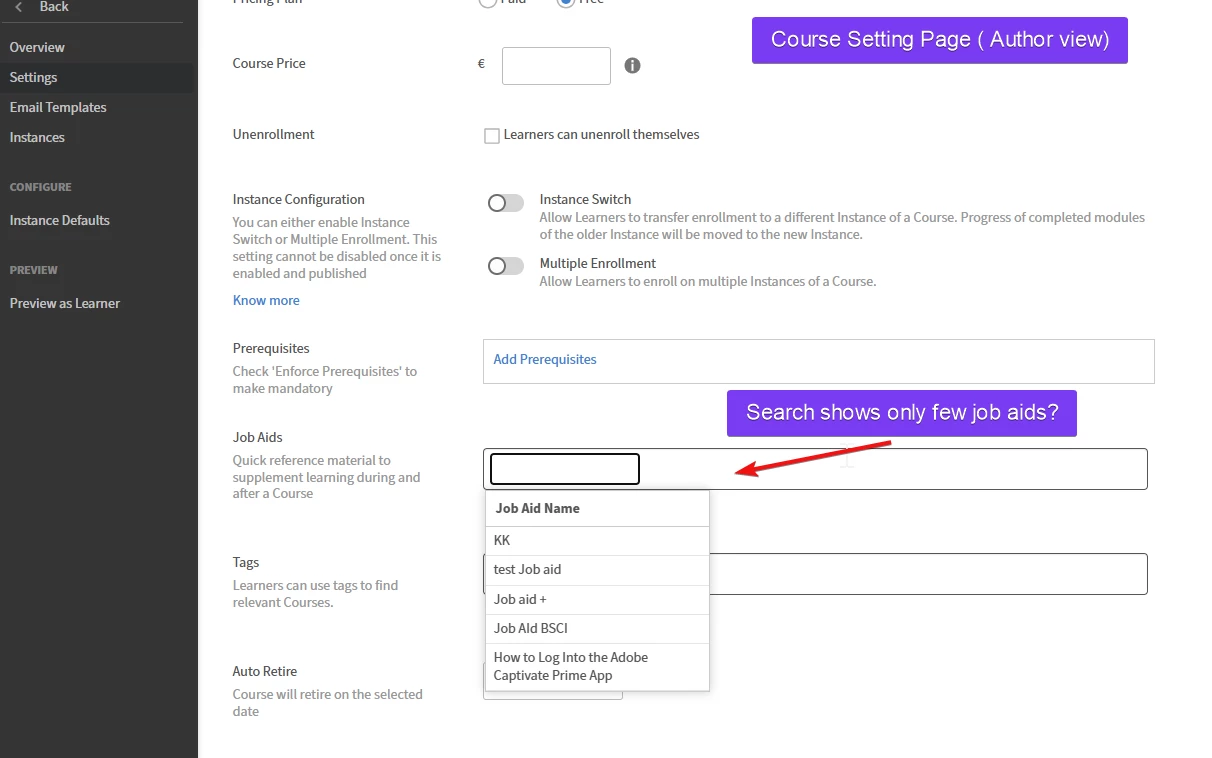
In reality, the search field for Job Aids uses a typeahead component that displays only five items by default. Additional Job Aids become visible only when you start typing their name.
How the Typeahead Search Works
The Job Aid selector uses a performance‑optimized search component. Here’s how it behaves:
- By default, the system displays only the first five Job Aids.
- To access additional Job Aids, you must type 1–3 characters in the search field.
- As you type, the results filter dynamically to show all Job Aids that match your input.
This design ensures fast loading and avoids overwhelming the user with long lists.
Why the List Is Limited to Five Items
Limiting the list to a small number is intentional and supports the platform’s performance and usability goals. It helps ensure:
- Fast loading, even for accounts with hundreds or thousands of Job Aids.
- Reduced browser and network load, since the full list is not fetched on every keystroke.
- Improved accuracy, letting users quickly narrow down the exact Job Aid they need.
This is consistent with ALM’s behavior in other large‑dataset interfaces, such as course search and tag fields.
Recommended Steps to Work Effectively With the Job Aid Search Field
- Type part of the Job Aid name
Typing even a few letters will expand the list and show all matching items. - Use unique prefixes when naming Job Aids
This improves searchability. Examples:
SAF_ for safety documents
HR_ for human resources documents
OPS_ for operations materials - Verify Job Aids are published and assigned to the correct catalog
If a Job Aid does not appear even after typing its full name:- Confirm it is published.
- Confirm it is shared in the catalog attached to the course.
- Confirm your user role has access to that catalog.
Catalog assignment is one of the most common reasons a Job Aid fails to appear in search.


 AdChoices