



Now in Beta: Use Media Encoder to Analyze Your Audio for Search in Premiere Pro
If you’re working with hours of footage and struggling to find key sounds, you know how time-consuming it can be to scrub through everything manually. Premiere Pro’s Search panel helps by making sounds searchable, but preprocessing can take time, especially with large media libraries. Let Adobe Media Encoder (Beta) take care of that preprocessing for you.
New in Media Encoder (Beta) 25.6 build 39:
You can now generate audio analysis sidecar files using the new Analysis Preset. This adds audio search alongside existing visual search capabilities in Premiere Pro, allowing editors to quickly find moments based on sounds – like cheering crowds, barking dogs, train engines, or crying – as soon as the media is imported.
See how to search with audio in Premiere Pro.
With this new functionality in Media Encoder, you can:
- Analyze individual files in the Queue using the Audio Analysis system preset
- Create an Ingest Preset that includes an audio analysis step
- Set up an Analysis Watch Folder to automate processing
These workflows will generate a .prmi sidecar file next to your media. When imported into Premiere Pro, the sidecar is used to enable immediate audio search. No additional analysis required.
Read the Premiere Pro Beta Feature page and the FAQ page to learn more about Media Intelligence Search.
Analyze Files in Queue
Audio Analysis is built into Analysis Presets. Here’s how to enable it:
- Drag your media into the Queue panel in Media Encoder
- In the first dropdown menu on the first job, change the menu to “Analysis”
- Click on the blue hot text called visual analysis and enable the transcription option
- Run the queue
Use Audio Analysis in a Preset
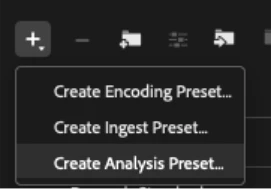
- In the Preset Browser, in the drop down underneath the “+” icon, click on “Create New Analysis Preset”
- Enable “Analyze for visual or audio search”
- Save as a new preset

Create an Analysis Watch Folder
Point this new type of watch folder at a folder full of media (and subfolders). The watch folder will automate the analysis for you, writing .prmi sidecar files next to each media file with video that it finds. While Media Encoder is open, any newly added media files will be processed. Unlike the existing watch folders, all media files are left in place in an Analysis Watch Folder. Follow these steps to create an Analysis Watch Folder:
- Open the Watch Folder panel in Media Encoder
- Click the + button, then choose “Add Analysis Folder…”
- Choose a folder in the file picker
 AdChoices