Adobe Employee
August 22, 2025
Question

Now in Beta: Use Media Encoder to Transcribe Your Source Footage

  • August 22, 2025
  • 2 replies
  • 334 views

New in Media Encoder (Beta) 25.6 build 38: Transcribe source footage directly into .prmi sidecar files so editors can jump into Text-Based Editing the moment they open Premiere Pro.


If you're working with a high volume of footage, waiting for transcription can slow you down. This update lets you offload that task to Media Encoder during import, enabling transcription to run in parallel while you continue editing in Premiere Pro.


This builds on our existing use of .prmi files for visual analysis which enables editors to jump into the search panel in Premiere Pro. Now, with transcription support added to Analysis Presets, Media Encoder can generate .prmi files that include both visual and textual metadata


Learn more about creating visual search sidecars: https://community.adobe.com/t5/adobe-media-encoder-beta-discussions/now-in-beta-use-media-encoder-to-analyze-your-videos-for-visual-search-in-premiere-pro/td-p/15243537


With transcription now available in Media Encoder (Beta), you can:


  • Transcribe footage directly in the Queue using Analysis Presets
  • Create custom presets with language and speaker labeling options
  • Automate transcription with Watchfolders
  • Generate reusable .prmi sidecar files for faster editing in Premiere Pro


Create Transcription Files in Queue


Transcription is built into Analysis Presets. Here’s how to enable it:

  1. Drag your media into the Queue panel in Media Encoder
  2. In the first dropdown menu on the first job, change the menu to “Analysis”
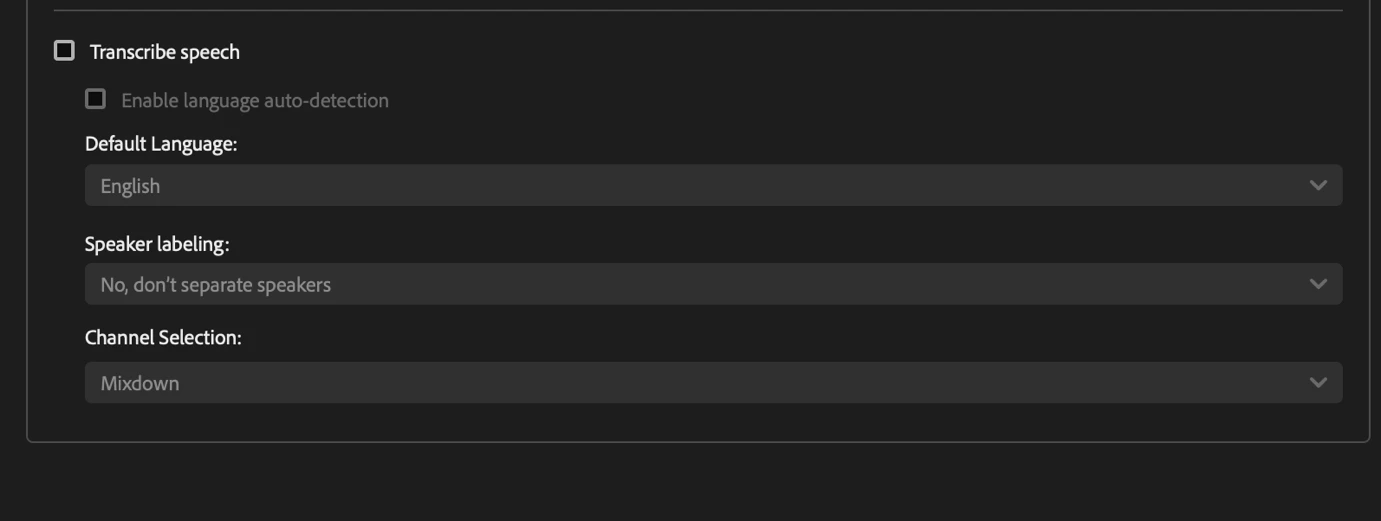
  3. Click on the blue hot text called visual analysis and enable the transcription option
  4. Run the queue


Create a Transcription Preset


  1. In the Preset Browser, in the drop down underneath the “+” icon, click on “Create New Analysis Preset”
  2. Enable “Transcribe Speech” select the Language and Speaker labeling based on whether or not you want Premiere Pro to separate speakers.
  3. Save as a new preset


Transcribe Through Watchfolders


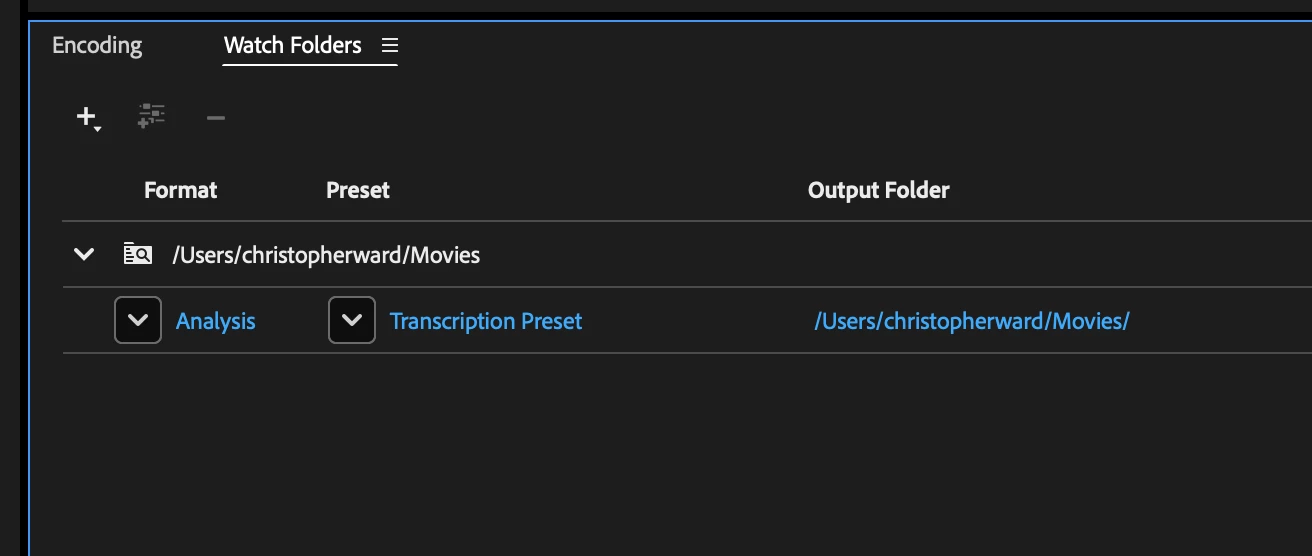
The new Analysis Watchfolder workflow supports transcription. By placing a transcription-enabled preset into a Watchfolder, Media Encoder automatically transcribes every media file it detects and generates a .prmi sidecar file for each one.


2 replies

tlsaeger01
Participant
February 3, 2026

Very nice feature! Is there also a way to export as a txt file or other?
Thanks

Legend
August 23, 2025

This is great! I have a question or two about Watch Folders.

  1.  Will a watch folder require the media files to be dropped into it for transcription, or can we drag links/shortcuts to them there? We do not want to move our files from our carefully organized folde structure.
  2.  Do watch folders support .prproj files for transcription purposes, so we can drag a project file there?
ChWard
Community Manager
Community Manager
August 25, 2025

Hey Jarle, may I answer your questions?

1. That's the cool part of our Analysis Watchfolder model. You don't have to change anything in your existing file structure. You just have to define a path as an Analysis Watchfolder and AME will recursively scan all subfolders for new or existing media files. So if you have a complex file structure with existing media in it, you just have you tell AME what path it should start scanning and it will automatically scan all subfolders as well and if supported media types are found, anaylse them and write a .prmi file next to the media file.

2. Unfortunately at this point all of our analysis presets only work on media files and not on Premiere, nor After Effects project files. If we would add such a functionality, what would you expect to have every item processed within the project or only items in a sequence / composition?

Legend
August 25, 2025

Thanks, I normally create dedicated Watch Folders to avoid clutter. Making Media Encoder analyze footage in an existing footage folder results in heaps of .prin and .prmi files in my folders. I don't want any software to mess with my footage folders!

Also, there's no way to stop the analysis once it's started. Only way I found is to delete the Watch Folder.


As for analysis of Premiere and AE projects, I'd expect Media Encoder to ask what bins inside them to analyze when you create the Watch Folder. I could make Search Bins in my Premiere projects named Search Me or Analyze, and let Medai Encoder scan only those.