Participant
August 1, 2019
Answered

Is there a way to replace images without having to reimport & resize in XD version(21.2.12.3)?

  • August 1, 2019
  • 4 replies
  • 20577 views

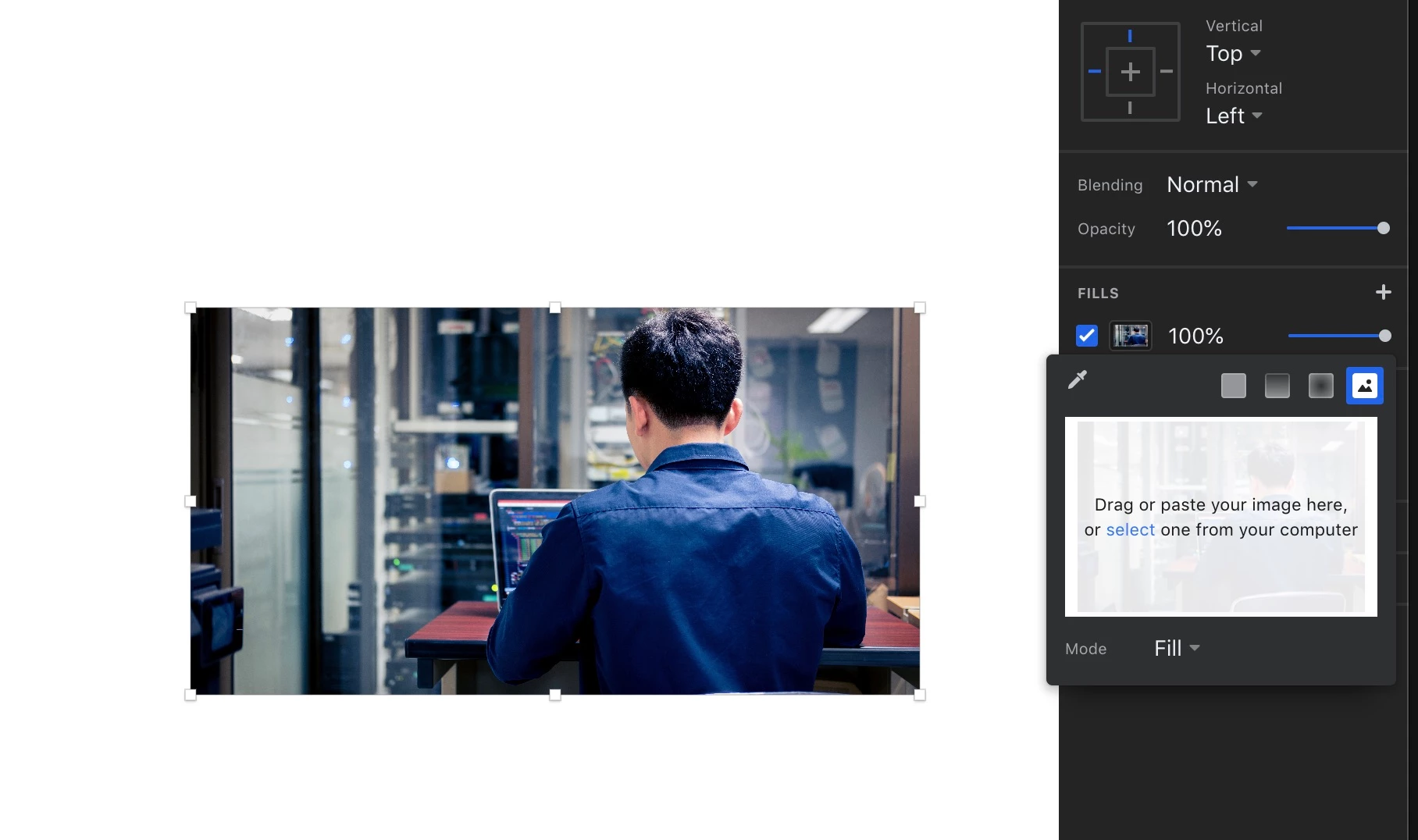
InVision Studio provides a simple way of updating or replacing images as fills (no resizing or reimporting necessary). See attached screenshot below.

This rather fundamental action appears to be missing with XD and costing me valuable production time. Am I overlooking it?

Thanks in advance for any insight.

The Title was edited by Moderator.

This topic has been closed for replies.
Correct answer MillerMedia

The secret to quickly updating an image or a logo, is by creating it as a master component, and use reference copies of it in your artboards. Here's how to do this on a Mac (PC users can swap Command for Control, and Control-Click for Right-Click):


  1. Drag and drop the logo artwork onto the project canvas or artboard.
  2. Select the logo asset and press Command-K to Make Component. (Or go to the top menu, and select Object > Make Component)
  3. The newly created component will appear in the left-hand Assets toolbar, under "Components."
  4. Select the logo component and drag copies of it into the desired artboards.
  5. If you decide to update the logo artwork, you can control-click on the component asset in the left-hand toolbar, and select "Edit Master Component." It should appear in the canvas, outlined in green and selected.
  6. From there, you can drag and drop a new version of the logo into the selected component area, and it will automatically replace all of the instances of the logo. If you have the logo copied into the Pasteboard, you can control-click on the master component, and select "Paste Appearance" from the contextual menu. 


On a related note, "Paste Appearance" will be your best friend when you wish to replace individual photos or artwork that have been duplicated with the "Repeat Grid" feature. Command-V will replace all of the repeat-grid images, which may not be the desired result, if you just want to update a single image within the grid.


I hope that this helps!


Take care,

Mark

4 replies

Daniël van Ginkel
Known Participant
February 7, 2020

Thanks for the tip, I think I will start using InVision instead of XD, since I don't want to replace a logo a hundred times when it updates once.

MillerMediaCorrect answer
Participant
February 20, 2020

The secret to quickly updating an image or a logo, is by creating it as a master component, and use reference copies of it in your artboards. Here's how to do this on a Mac (PC users can swap Command for Control, and Control-Click for Right-Click):


  1. Drag and drop the logo artwork onto the project canvas or artboard.
  2. Select the logo asset and press Command-K to Make Component. (Or go to the top menu, and select Object > Make Component)
  3. The newly created component will appear in the left-hand Assets toolbar, under "Components."
  4. Select the logo component and drag copies of it into the desired artboards.
  5. If you decide to update the logo artwork, you can control-click on the component asset in the left-hand toolbar, and select "Edit Master Component." It should appear in the canvas, outlined in green and selected.
  6. From there, you can drag and drop a new version of the logo into the selected component area, and it will automatically replace all of the instances of the logo. If you have the logo copied into the Pasteboard, you can control-click on the master component, and select "Paste Appearance" from the contextual menu. 


On a related note, "Paste Appearance" will be your best friend when you wish to replace individual photos or artwork that have been duplicated with the "Repeat Grid" feature. Command-V will replace all of the repeat-grid images, which may not be the desired result, if you just want to update a single image within the grid.


I hope that this helps!


Take care,

Mark

Participant
September 6, 2021

Hi there, Mark. 


Any idea how to 'fit frame to image' after doing this? 

Participant
November 11, 2019

OMG thank you so much, it's a simple solution but i've been searching the asnwer for so long

elainecc
Community Manager
Community Manager
August 1, 2019

Have you tried dragging another image over the shape? It should replace it as an image fill.

Participant
August 1, 2019

That works! Thanks so much, Harshika!

HARSHIKA_VERMA
Community Manager
Community Manager
August 1, 2019

Hi there,

Thank you for reaching out and sharing your feedback. I understand it could be annoying. I found a similar request has been raised here: Ability to replace/update image files – Adobe XD Feedback : Feature Requests & Bugs​ if this is what you're looking for, I would request you to please upvote the feature request and add your voice in the comment section.

Please let me know if you face any issues with this. I'd be happy to help

Thanks,

Harshika

Participant
August 1, 2019

Will do. Thank you for the reply, Harshika.