Participating Frequently
August 30, 2018
Question

AE Introduces Aliasing

  • August 30, 2018
  • 2 replies
  • 2583 views

Hi,

I have a video sequence (rendered out of Premiere Pro) that I am adding some animations to in After Effects. AE seems to be introducing some aliasing effect on the text titles that are in the original video sequence. I cannot understand how to reduce/eliminate this. I understand I could introduce some blur to mask the effect, but there must be some underlying issue that is causing it - any ideas what that might be?

Here is a screen grab of the title at the start of the original video sequence. This screen grab is from quicktime playing the video.

Here is a screen grab from the AE preview window, the aliasing is visible here.
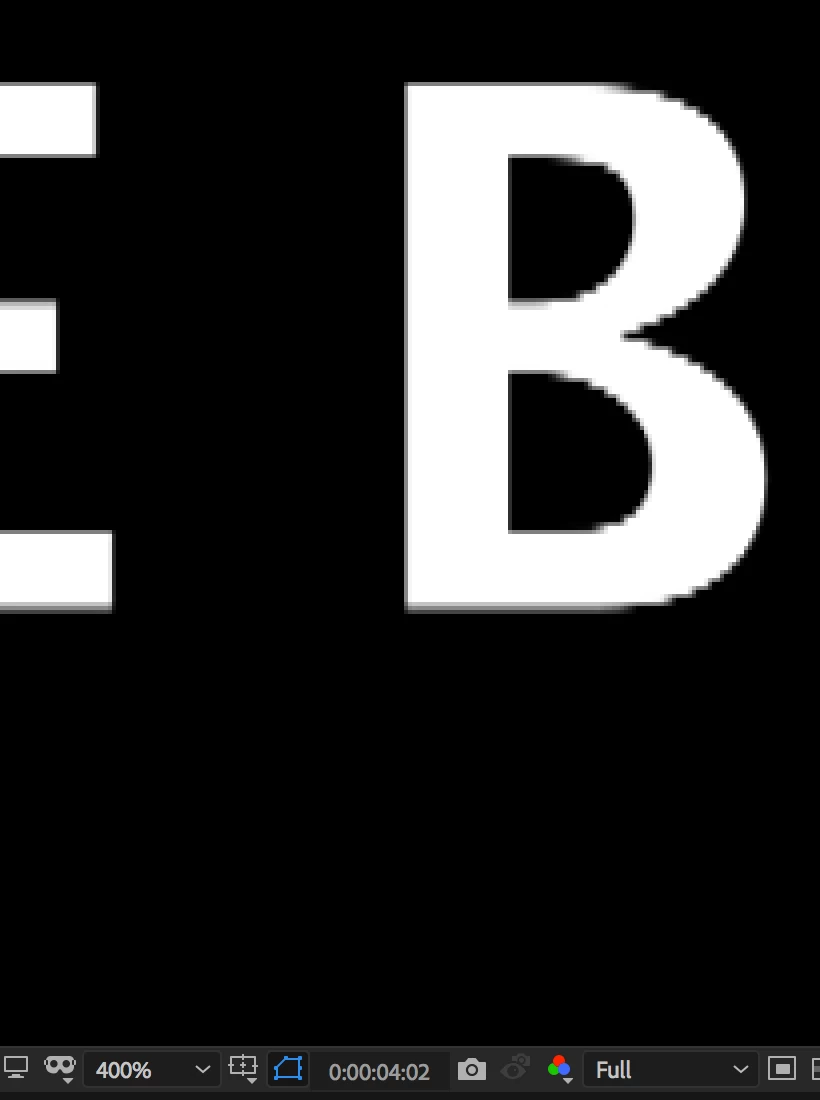
And here is a screenshot from a version rendered out of AE, again with the aliasing visible.

Many thanks

Joe

This topic has been closed for replies.

2 replies

Inspiring
September 2, 2018

Make the titles in AE. Render to Prores. Problem solved.

(My guess is you’ve introduced the aliasing in your Premiere render settings.)

Mylenium
Legend
August 30, 2018

Impossible to say. You have not provided any actual info. From the looks of it it simply seems liek you selected a render setting with interlacing and/ or messed it up in the first place. Either way, unless you provide exact info on render settings, comp settings, sequence settings and so on nobody can be sure. Even your scaled up screenshots are kinda useless, as they don't tell us how everything actualyl looks at 100% size.

Mylenium

Participating Frequently
August 30, 2018

Thanks for the reply. I'm sure I did mess it up in the first place, that is what I'm trying to solve!

So, let me reiterate something that (I hope) was clear in the original screenshots: The video file I am working with in After Effects looks fine when played outside of AE. In other words the aliasing seems to be introduced by editing inside AE.

To answer your questions as best I can:

Here are the comp settings. There doesn't seem to be anything of particular note inside Advanced or 3D renderer tabs.

I must admit I do not properly understand the nuances of rendering out of AE, but, have never previously encountered a problem like this one. On this project I sent the comp to Adobe Media Encoder, selected the format to be H.264 (as the original rendered sequence was) and set the custom settings to be as the original sequence was rendered:

.. as I said I can easily 'cover up' the problem, either by simply re-editing the titles in Premiere so they don't have the aliasing, or by adding some blur in AE. However, I am really just trying to get to the bottom of what's going on.

If it's useful to know; I also tried creating a blank comp, in a brand new AE file, imported the footage and... hey presto the same artefacts appear immediately.

Hope that this may be useful in trying to understand what's going on.

Thanks

Joe

Dave_LaRonde
Inspiring
August 30, 2018

Take a close look at the image you posted:

Do you see that 400% box?  That means your view of the comp is FOUR TIMES LARGER than it ought to be.  ANY image will show aliasiang when zoomed in that much.  Set it to 100% and life gets better.