Participating Frequently
November 26, 2019
Answered

After Effects 3D Layer Issue

  • November 26, 2019
  • 2 replies
  • 1699 views

I have created some artwork in AI and have imported it into AE to animate.


What I am trying to do is animated the net of a box in 3D.


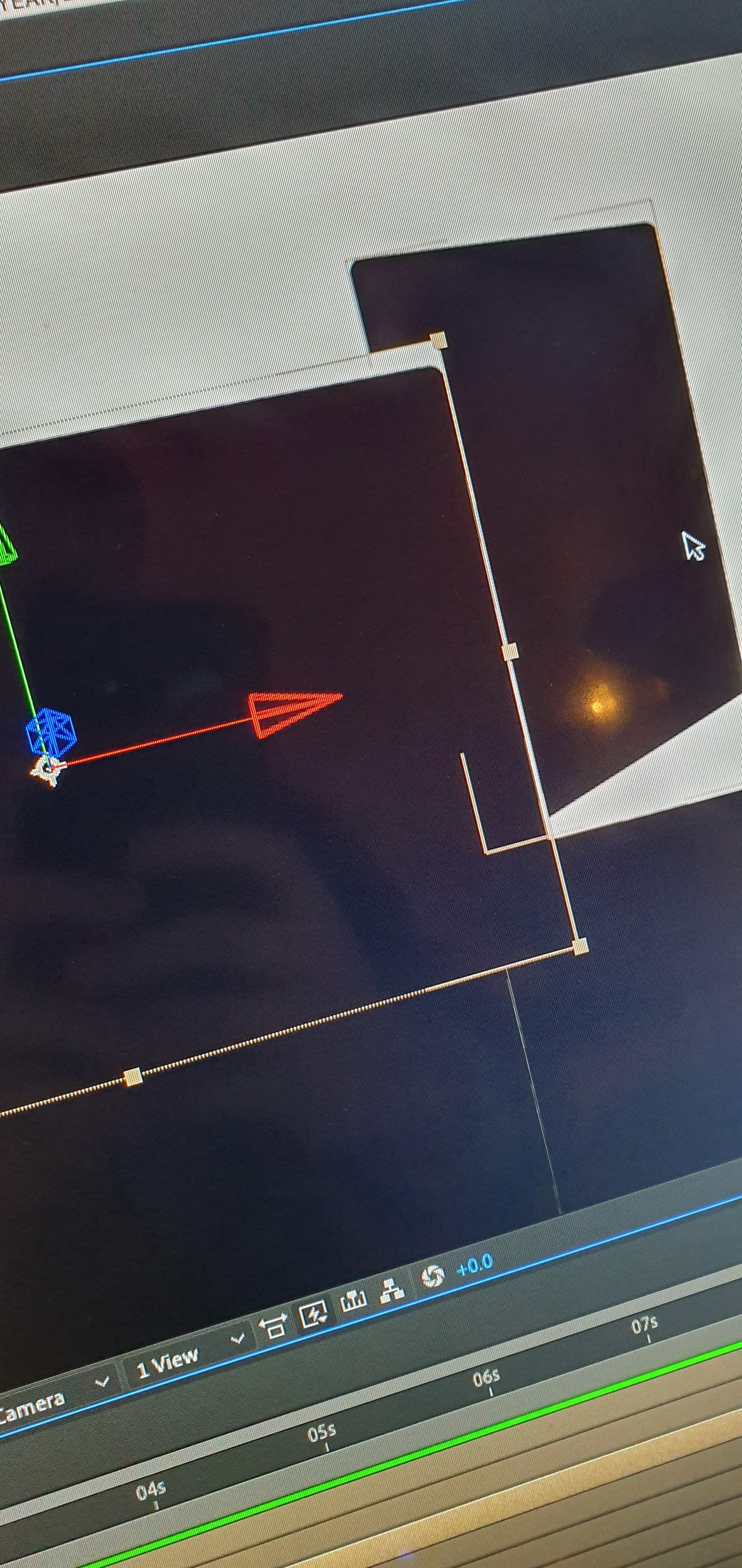
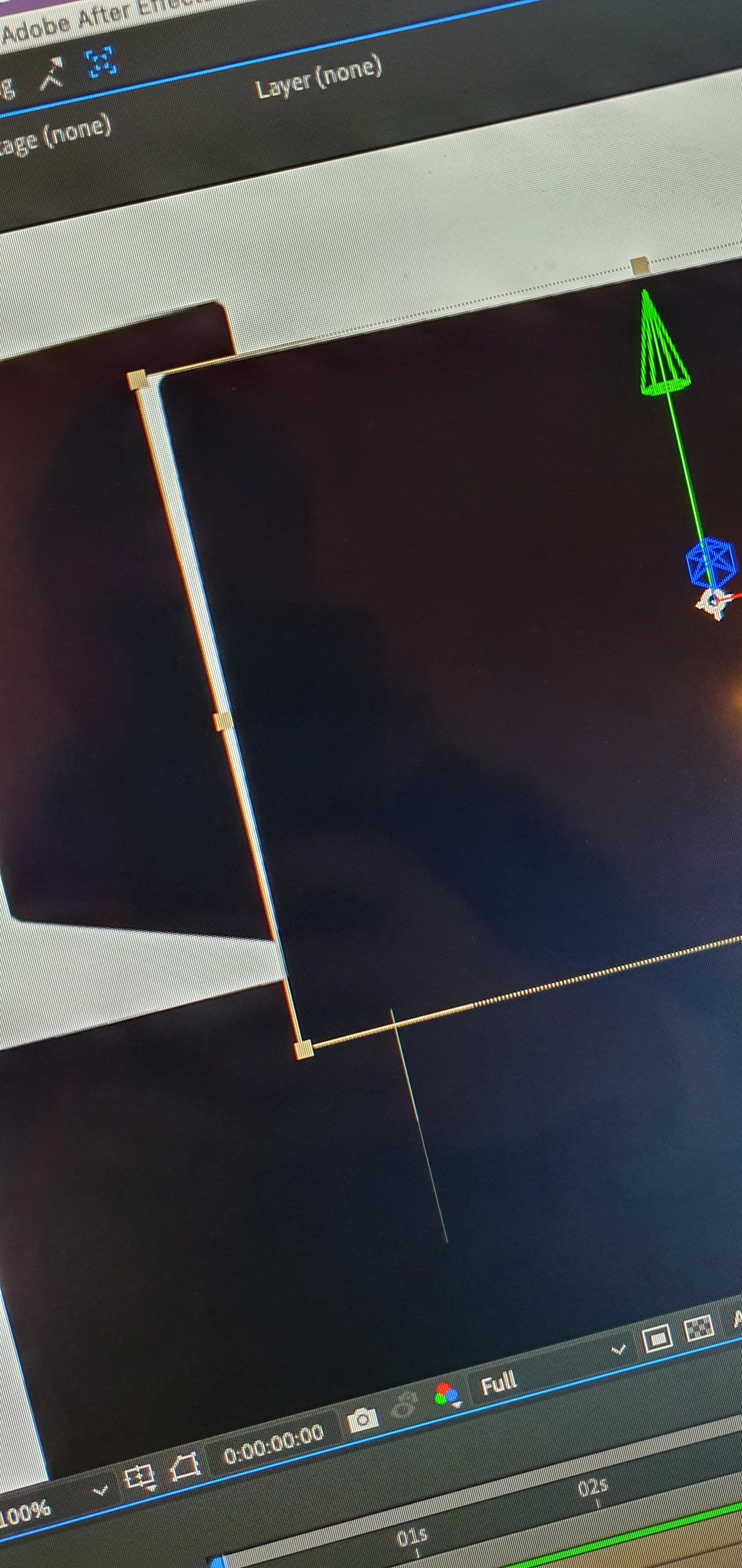
However when I arrange my elements and turn on 3D layers to start animating its creating this strange glitchy box around each element which shows the background layer behind.


This is really frustrating, I am a competent AE user and have never eccounted this issue before when using 3D layers.


I have also tried precomping the elements first before turning on 3D layers to see if that makes a difference but it didn't.


If anyone has any ideas that would be great.
 

.


This topic has been closed for replies.
Correct answer Rick Gerard

Try switching to the Classic 3D rendering engine. Is there any difference at all?


Try soloing the problem layer with the transparency grid enabled.


Try opening the layer in the layer panel.

2 replies

Community Expert
November 26, 2019

Your cropped screenshot do not tell us anything about the layer that is giving you problems. Select the layer, press uu, take a screenshot and show us what is going on.


If it is not a GPU acceleration, which is switchable in the Project Settings pannel, then something else is going on in the layer. It could also be the rendering engine you are choosing.

Participating Frequently
November 26, 2019

Here is a before and after screenshot


I have tried normal settings and c4d settings


Rick GerardCommunity ExpertCorrect answer
Community Expert
November 26, 2019

Try switching to the Classic 3D rendering engine. Is there any difference at all?


Try soloing the problem layer with the transparency grid enabled.


Try opening the layer in the layer panel.

OussK
Community Expert
Community Expert
November 26, 2019

Did you try to purge you Memory?

Participating Frequently
November 26, 2019

That didn't work unfortunatley