Participant
February 27, 2023
Answered

After effects Ghosting Problem

  • February 27, 2023
  • 3 replies
  • 921 views

Hey There,

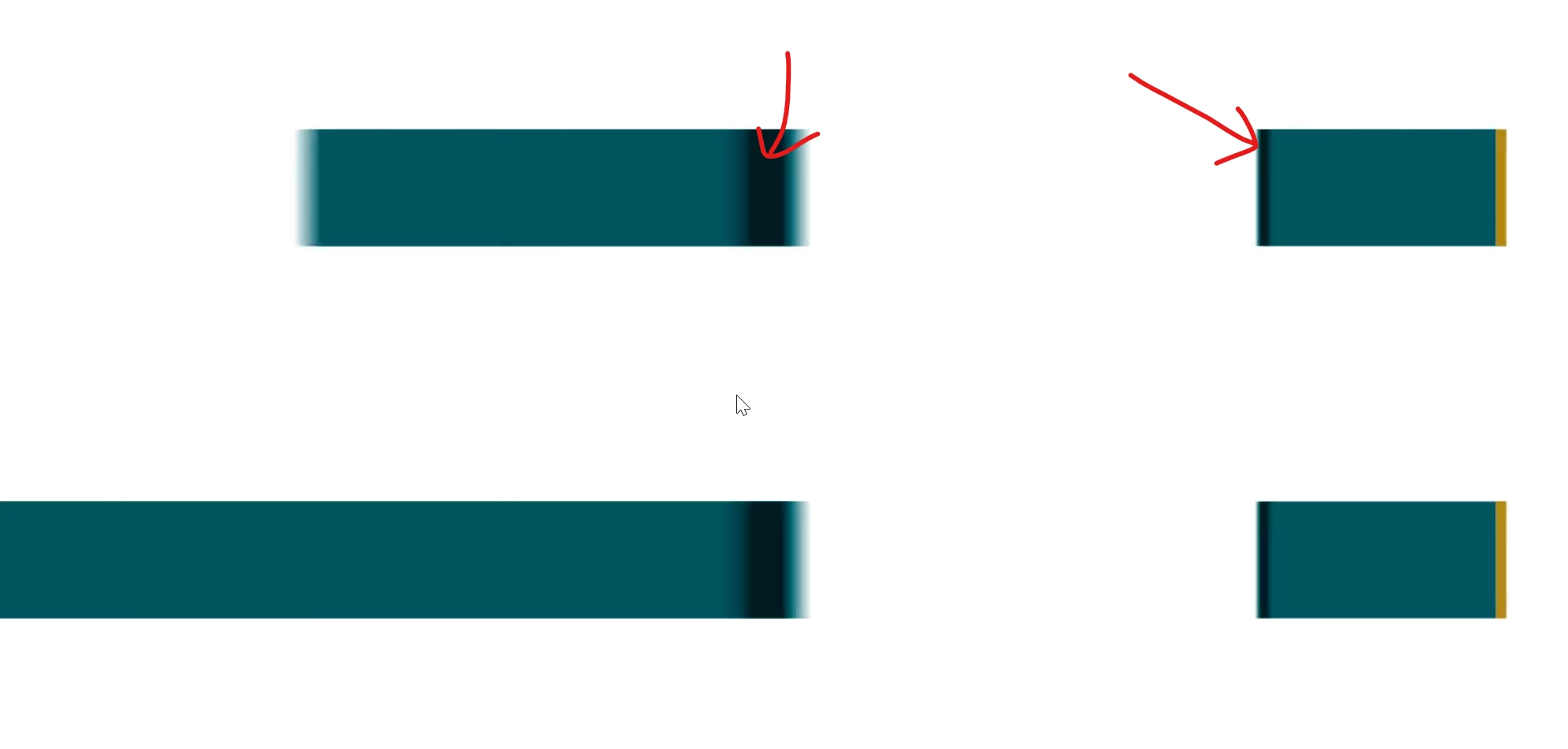
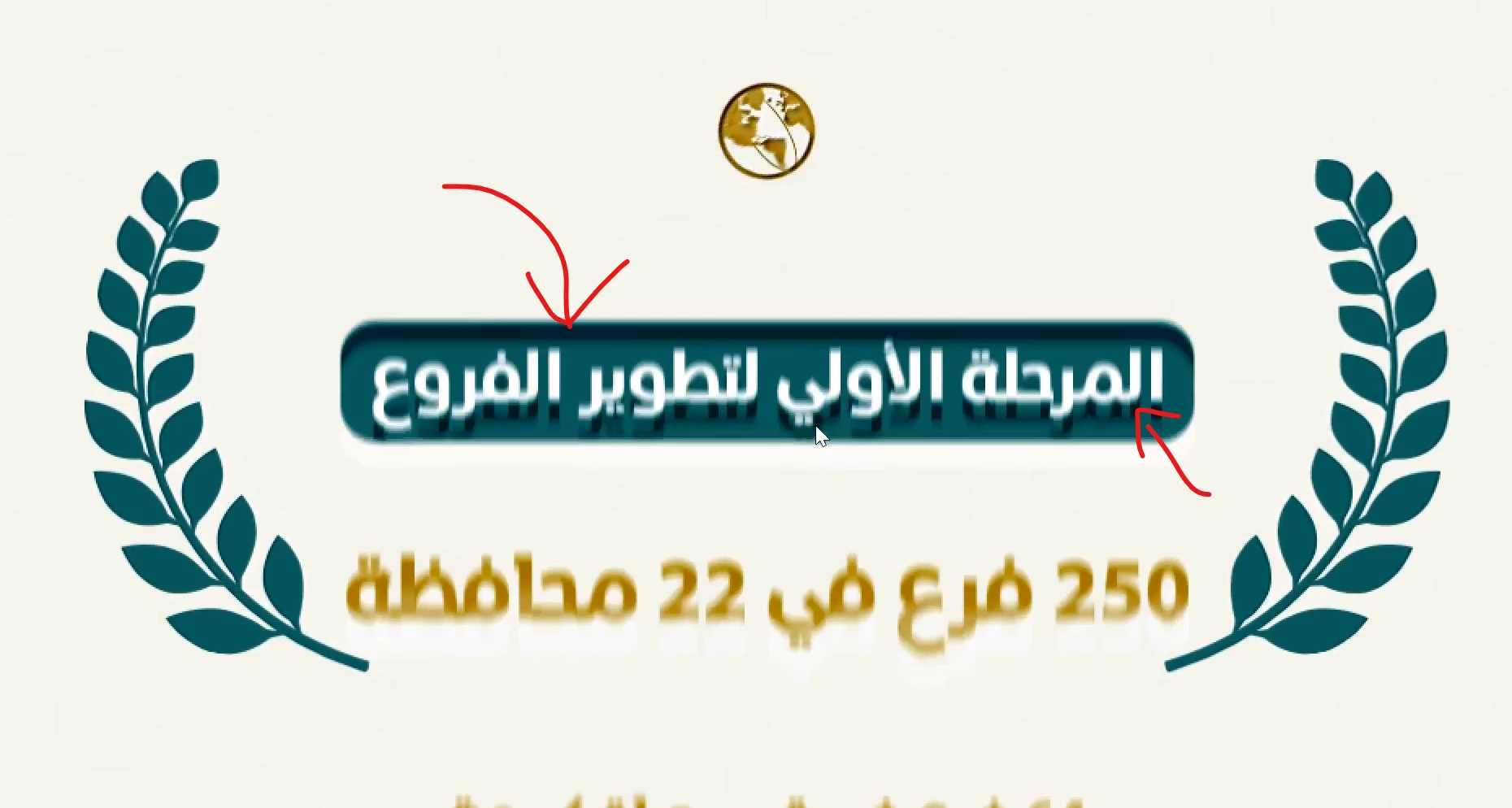
I'm getting some sort of inverted ghosting or tracking of any elements i animate in after effects, even simple shapes that confuses me while working, also it doesn't seem to appear when i render the compostion, it only appears on preview

here is some screen records that shows the glitch

i have the latest after effects version installed and here is my specs:
Lenovo Legion5 Pro

Intel i7-11800H

RTX 3060

Ram 16 GB DDR4

1tb ssd

100% RGP

165hz screen
This topic has been closed for replies.
Correct answer Mohamed2651576785tl

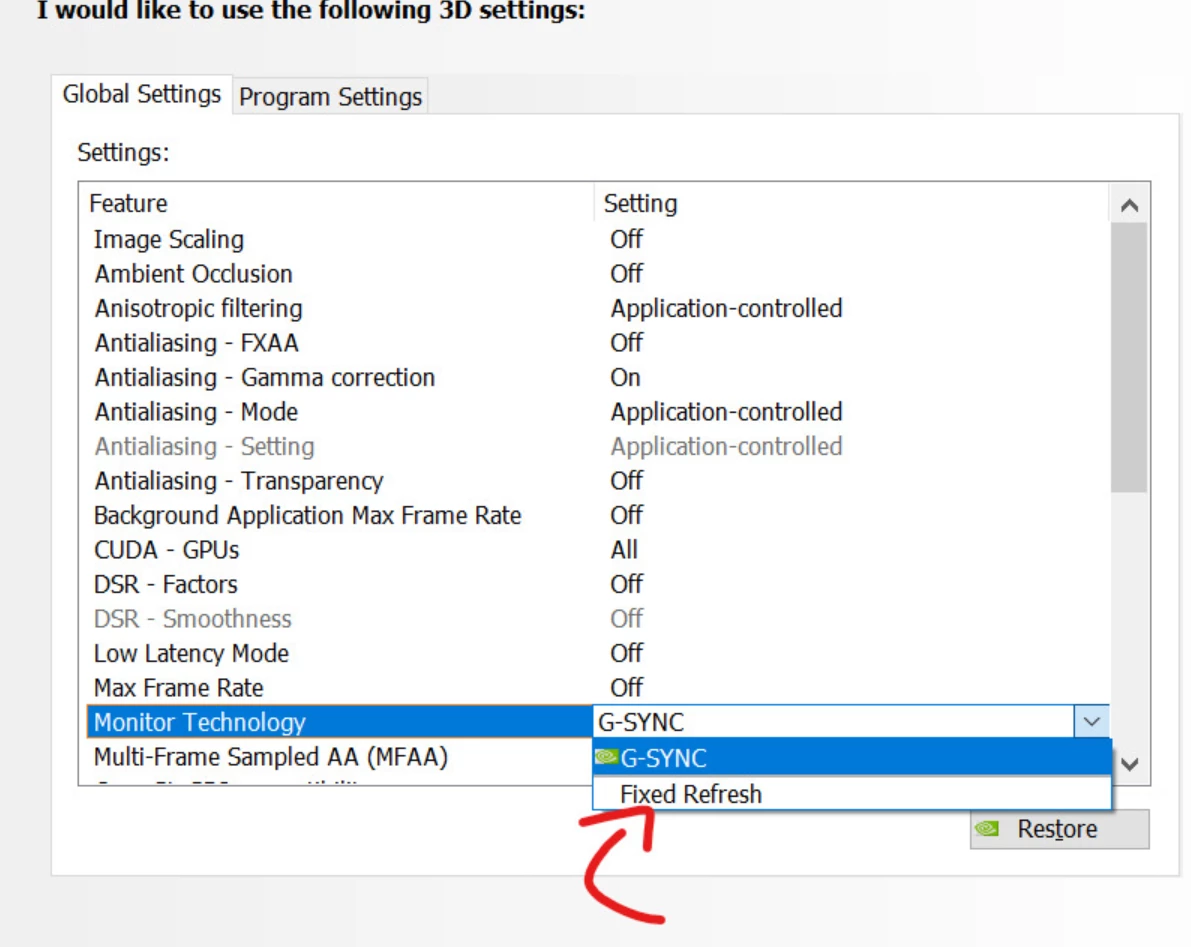
I managed to fix this across al adobe apps by selecting fixed refresh at Nvidia Control Panel.

If you want to keep using the G-sync feautre on normal use you can edit this preference individually on each app profile without having to edit it globally 🙂


3 replies

Mohamed2651576785tlAuthorCorrect answer
Participant
February 28, 2023

I managed to fix this across al adobe apps by selecting fixed refresh at Nvidia Control Panel.

If you want to keep using the G-sync feautre on normal use you can edit this preference individually on each app profile without having to edit it globally 🙂


Mylenium
Legend
February 27, 2023

That simply looks like some sort of shadow, either from a light, an effect or a layer style. Impossible to say more than that, but check this stuff.


Mylenium 

Participant
February 27, 2023

Thanks for your input !

sadly there is no effect or light or any sort of edits over the shapes, Just some basic position key frames. also this glitch happens if imported a video in after effects without adding a simple keyframe to the imported video. 😞

Community Expert
February 27, 2023

The only accurate representation of your edges comes when you have the magnification ratio set to 100% and the comp resolution set to Auto (Full). In all other magnification rati,o settings the edges are interpolated with very rhudametric sub-sampling.


The standard workflow uses 25 or 50% magnification ratios and Auto Comp resolution to check for a shot's timing and blocking (how things move) in your shot. Most comps are only one shot or scene. You should not be editing movies in After Effects. This is like a Pencil Test that animators use to figure out if the shot is working. You use a 100 or 200% magnification ratio, or even 400%, to ensure that you have horizontal and vertical edges of hero elements, like your logo, perfectly aligned with the pixel grid. You don't usually run previews at this resolution because they tend to be short, and you check the key elements in their hero or most critical position and timing. That's like the Ink and Paint part of an animator's workflow. 


I hope this helps streamline your workflow.

Participant
February 27, 2023

Thanks for trying to help !

yet, Even when i put my resolution to quarter and my magnification ratio to 50% i still get the same ghosting + i'm not editing any videos on AE, I was just doing some simple animations over basic shapes in order to create a lower third