
Participant
August 23, 2021
Question

Ai file quality issue in after effects

  • August 23, 2021
  • 1 reply
  • 815 views

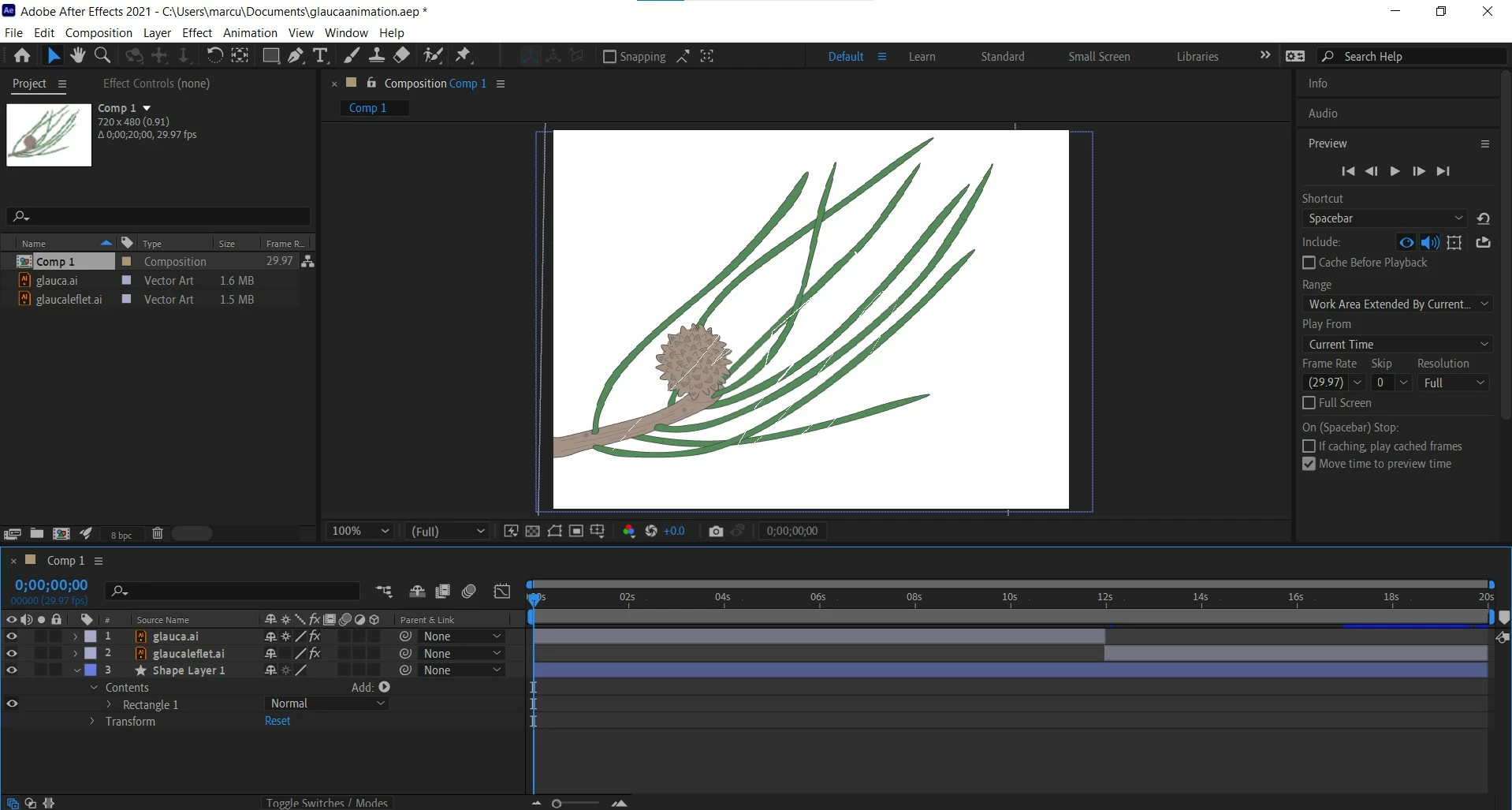
So Im animating using some files that I drew up in Adobe illustrator and Ive noticed after exporting the quality is quite bad. When I try to use the continious rasterize tool it either says there isnt enough frames or the vectors fall apart. I've configured the files to more accurate EPS, I am on final draft quality, scale 100%, full resolution. I feel like I've tried everything. Would it be the puppet tool causing the issue? The Ai files themselves are at max quality. Any help appreciated ASAP
This topic has been closed for replies.

1 reply

Mylenium
Legend
August 23, 2021

Impossible to tell without comparative info from AI, meaning a screenshot of the layers palette and appearance as well as document settings, but the "scratches" suggest that you may have used soem advanced feature that isn't fully compatible with AE, be that variable thicknes, art brushes or something like that. The warning when you turn on CR would further confirm that. You may need to go back to AI and fix it there rather than in AE. Anyway, more details are required to unriddle this.


Mylenium

Participant
August 26, 2021

I'm having a similar issue. When I create a design in Illustrator, everything is clean and sharp. When I take those files and import them into After Effects, the quality decreases and becomes blurry.  I have tried "Continuously Rasterizing," changing around viewing settings, and downloaded different video players to try to find the root of the problem but nothing has worked so far. What else would you suggest I check to try and sort out this problem? 


Thanks

Community Expert
August 26, 2021

Preview your work in Illustrator using Pixel Preview from the View menu and set the magnification to 100%. That's exactly what you will get when you make a video from the AI files because Video is Pixels. The quality will degrade if you scale the media player, don't pay attention to thin line placement on the pixel grid, or use lines that are one point or less thick because they will antialias when turned to pixels (those problems show up in AI if you turn on pixel preview), or if the colors values are so far apart that they can't compress well (MP4 H.264 files compress color in blocks of 4 pixels and you can't change that, you have to design around it), and you can get terrible motion artifacts if you don't pay attention to frame rate and movement speed because of Judder or Stroboscopic effects. You have to design around the limitations of video in the same way you have to design around the limitations of CMYK printing. If you don't design correctly the result will not be as good as it could be.