Generally 1 pixel wide lines do not work with video. If they move you must make sure that they move exactly an even number of pixels per frame. If you don't do that then your lines will flicker like crazy as they move across the screen. If you turn on snap to grid and use a shape layer that's one pixel wide (one point line in illustrator) then the line is precisely lined up on the half pixel, also not good. If a single pixel line is not precisely horizontal or vertical or the line is curved it will quickly fall apart in video and look terrible. Those are the realities of working with video.
If you insist on using thin lines in AE the best option is to create the artwork in Illustrator using snap to pixel and make sure that all of your elements are an even number of pixels high and wide. Otherwise you'll have to do some manual positioning in AE. A better option is to use at least 2 pixel (point) lines in your design, 3 or 4 is better, especially if they are moving.
To check alignment and position of thin lines you set the Composition Panel to 800% or 1600% magnification factor and move things around as required. It's a pain in the neck.
I always design lined art that is more complex than a couple of straight lines in Illustrator, quickly verify the position, check the pixel preview in AI, then import as a comp and go to work. If the design has thin lines I always use expressions to move the artwork so the speed of the movement is always a whole number. You can't use the rounding function, you have to convert the frame duration into a frame number and then use a multiplication factor for the movement so the lines move 1, or 2, or 5 pixels per frame. If you don't want to mess with expressions you need to open up the Graph editor and check the value graph then adjust the start and end keyframes and adjust them until you get a whole number in the speed graph.
Welcome to video....


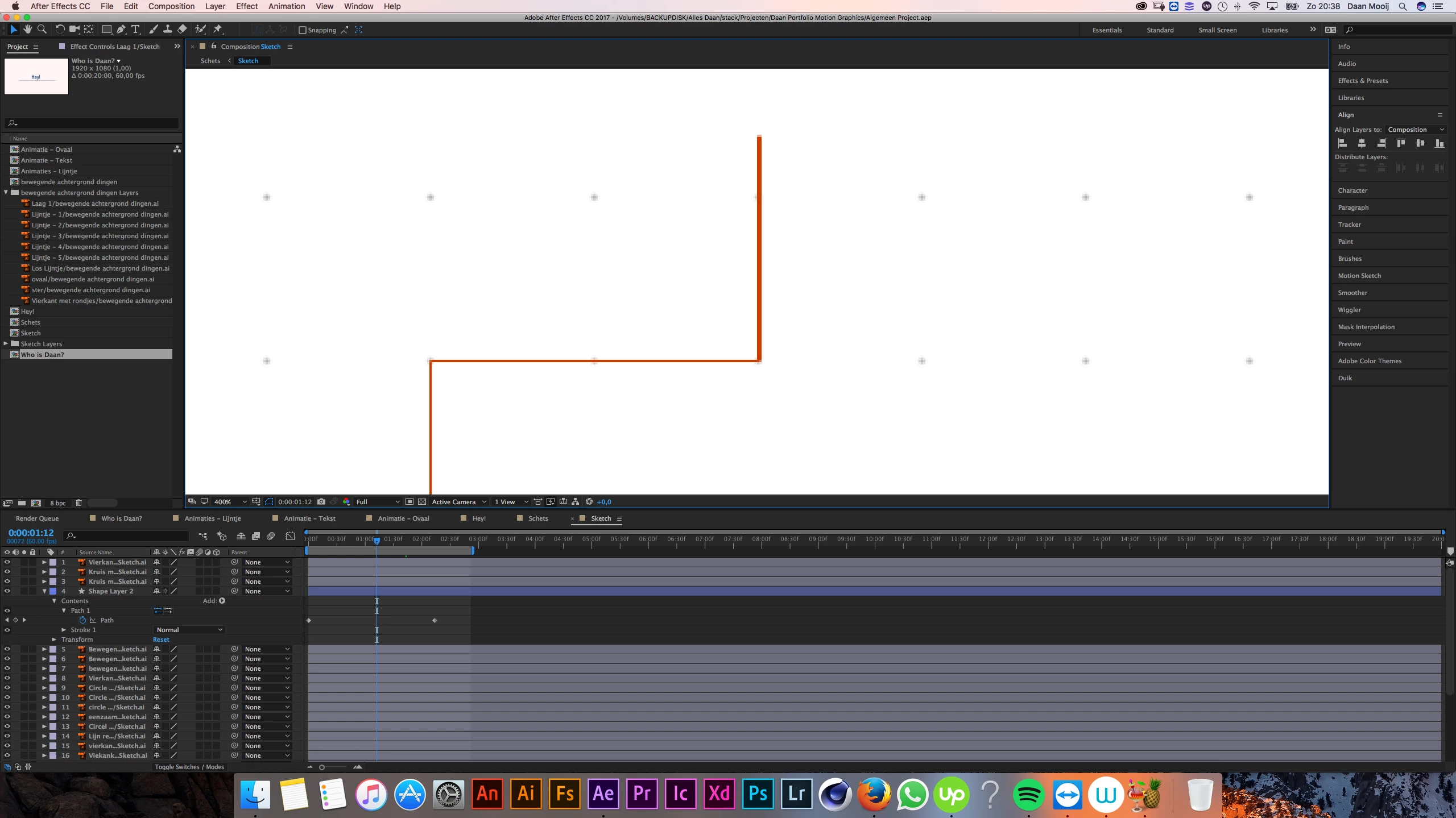 When I rendered it, I still saw it! Is it something to do with 'Align New Objects to Pixel Grid' like illustrator, or do I need to improve some settings?
 AdChoices