campbellma
Inspiring
Sep 21, 2013 1:19 AM UTC
Answered

Align Stroke in After Effects

Shape Layes has almost everything that Illustrator has, except for the abilty to align the stroke to Inside, Outside or Center. Is there a way to do this?

I want this but in After Effects!

image.jpg

Gabe Valente
Gabe ValenteCorrect answer
Inspiring
Jul 29, 2014 7:12 PM UTC

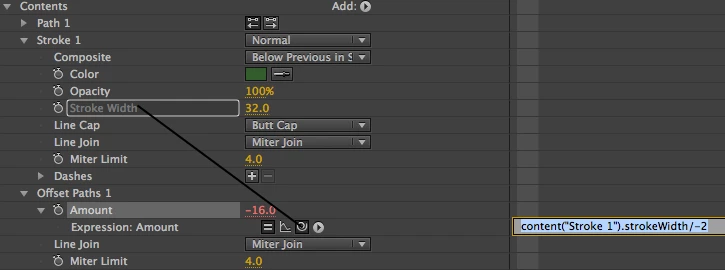
in the shape layer, click on the "Add" button, and chose "Offset Paths"

You can manually alter the offset value, or if you'd like to automate an inner stroke or outer stroke, just pick-whip the offset amount to the stroke width, then, divide by 2, or -2.

An inner stroke would look something like this:

18 replies

Participating Frequently
Jun 2, 2023 9:29 AM UTC

the best way to have an inner stroke is:

1- pre-compose your shape layer(with move all attributes option)

2- Add fill effects

3- with the new composition selected, choose auto trace from the layers menu

4- choose alpha and press OK

5- Apply stroke effect to layer with the setting mentioned below:

- brush hardness 100%

- All masks - checked

- stroke seq... - unchecked

- paint style - reveal....

All that's all and now you can increase brush size in the inner stroke.


Translate
Participant
Oct 30, 2020 3:09 PM UTC

Okay I have figured out how to add expression  and I have done exactly what you said but not working.

Translate
Participant
Dec 22, 2019 12:20 PM UTC

Thank you It's realy working


Translate
sagorsur
Participant
May 5, 2018 2:04 PM UTC

Thanks a lot! It's working...

Translate
Participant
Mar 10, 2017 3:34 PM UTC

You can drag fill above stroke.. see below.

Translate
Participant
Jun 28, 2019 9:06 PM UTC

This works great for an outer stroke, when and if your fill is 100% opaque.

Translate
Gabe Valente
Gabe ValenteCorrect answer
Inspiring
Jul 29, 2014 7:12 PM UTC

in the shape layer, click on the "Add" button, and chose "Offset Paths"

You can manually alter the offset value, or if you'd like to automate an inner stroke or outer stroke, just pick-whip the offset amount to the stroke width, then, divide by 2, or -2.

An inner stroke would look something like this:

Translate
Participant
Sep 4, 2014 4:40 PM UTC

Thank you. This helped me.

Translate
Gabe Valente
Inspiring
Sep 4, 2014 6:03 PM UTC

yay! glad I could help!

Translate
Participant
Apr 26, 2014 3:20 PM UTC

the only way I found to go around this was to paste the Illustrator path while selecting the "path" option in the Shape Layer. then make the stroke width double of what you need, and then, select Shape Layer (not Path option), to create a mask, changing the blending mode to SUBTRACT, and there you go.

Translate
Participant
Oct 27, 2013 10:28 PM UTC

Im also having the exact same problem

Translate
Community Expert
Sep 21, 2013 5:03 AM UTC