
keithm1972
Inspiring
February 25, 2023
Question

Any green screen exports? Keylight questions.
  • February 25, 2023
  • 2 replies
  • 753 views

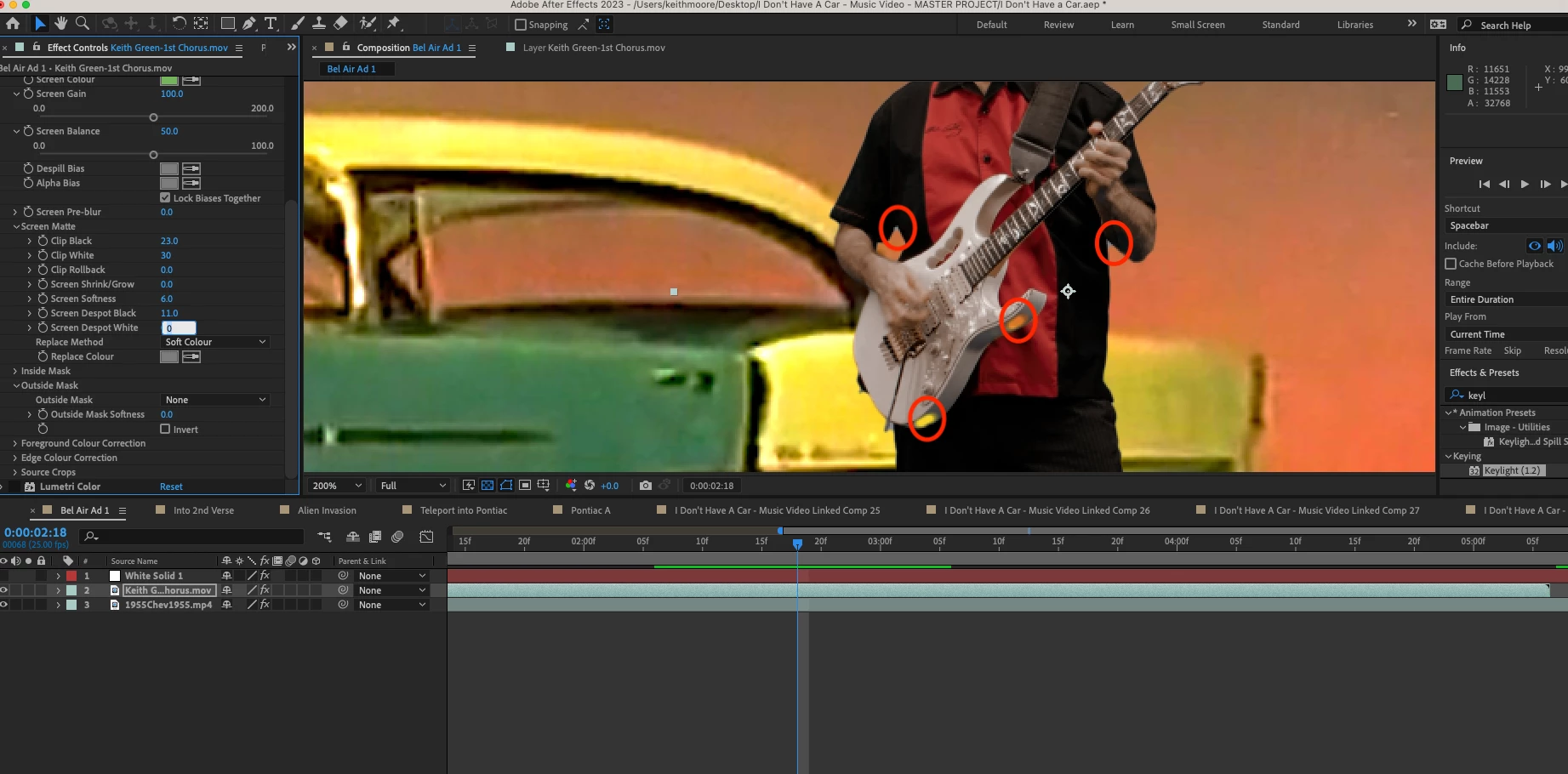
Been working on Keylight to get this musician into an old commercial. The two circles on the guitar are transparent holes that I was able to fill using Screen Despot Black, but when they disappear a bit of gray mask returns under the armpits (also circled) and a few other spots through the clip. Sort of a choose the lesser of two evils problem at the moment...or can I get rid of both?


I spent some time with Keylight tutorials and got it this much better, but not quite.

This topic has been closed for replies.

2 replies

Community Expert
February 25, 2023

Maybe this will help. I produced a tutorial for a user with all kinds of keying problems. I explain how to roto, color correct, stack layers to fix holes, and color correct.

keithm1972
Inspiring
February 25, 2023

You guys are awesome!

Mylenium
Legend
February 25, 2023

You may simply need to use a duplicate layer and mask it manually to patch over these holes. There's only so much even the most advanced keyer can do.


Mylenium

keithm1972
Inspiring
February 26, 2023

Your duplicate layer as a mask advice worked great covering up those holes. But I forgot that my original layer had a Time Displacement effect that I'd turned off when working on Keylight. When I turned it back on for the masked copy  the entire image returns with the green background, ignoring the mask.


Turning off Time Displacement on the copy still kind of makes the overall effect work (musician getting warped into the scene), but then that tiny bit of mask is out of synch with the main layers effect--not to mention a little green.


Maybe the next question is can you use Keylight with a Time Displacement effect without getting my original problem with the holes?

Community Expert
February 26, 2023

Pre-compose the time-displaced layer, then to your masking and keying.