
Inspiring
February 2, 2023
Question

Apple keyboard with Snap Shot

  • February 2, 2023
  • 4 replies
  • 785 views

M1 Mac Studio

macOS Monterey 12.6.3

Apple wide keyboard with Touch ID (Model A2520)

After Effects 23.1.0


New Apple keyboard with Touch ID is a pain. In After Effects I found the F-keys setting is ignored.


AE preferences - General - Use System Shortcut Keys “On”.
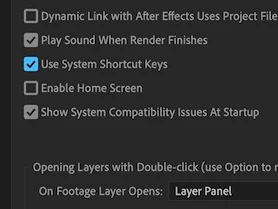
Take Screen Shot with the keyboard shortcut “Shift + F5”. No action or shutter sound.

Also Show Snapshot pressing F5, no action.


Viewer menu buttons work. Other system and modified keyboard shortcuts seem to work.

This topic has been closed for replies.

4 replies

JohnColombo17100380
Community Manager
Community Manager
March 29, 2023

Apologies for the frustration @Rocketbottle. This has been a battle for me as well over the years with various Mac keyboards.


On my newer Mac with the keyboard matching yours, I use a utility called Fluor to dynamically switch the function keys per-app: https://github.com/Pyroh/Fluor. Another option is  https://karabiner-elements.pqrs.org/ but it feels way overpowered for something this simple and much more complex to set up. These apps aren't a perfect solution—I have to remember to hold the Fn key if I want to adjust volume or brightness when After Effects is in focus—but it keeps me fast in AE, which is my primary goal.


Cheers,

- John, After Effects Engineering Team 

Community Expert
March 30, 2023

I use the Function key below the Shift key to activate the Function buttons in AE. Don't know if that helps you or not.

Inspiring
April 6, 2023

Yes, that is what I have been using.

Using only my free hand on the keys was fast and easy. I work with a pen and this Fn-key combination is not possible with one hand. Need to lift the pen hand too and that effectively kills the flow and makes simultaneous tweaking impossible. Using menu buttons is even worse.

Inspiring
March 28, 2023

Quick and dirty solution until the problem is solved: I mapped the two snapshot shortcuts to non-system F14 and F15 keys.

Easy-peasy.

Inspiring
April 3, 2023

Oops!

Celebrating too early... Mapping the Snapshot to other Function keys is not a solution - It did work briefly 🤨. I can take a snapshot (like Shift+F14), but viewing the snapshot (F14) only flashes it briefly. Cannot view it. Using the menu button or extra Fn-key kills a fluent workflow.

Please, Adobe!


Inspiring
February 16, 2023

Hi


Thanks for replying.

I keep the Mac setting "Use F1, F2, etc. keys as standard function keys" always off - because I need the Mac-specific functions more. Never noticed the tooltips in the settings menu 🙂 I was under the impression the After Effects setting "Use System Shortcut Keys" would affect function keys too.

Regardless, the snapshot shortcut (Shift + F5 or F6) did work with the non-Touch-ID keyboard, without any extra buttons. With a new Touch ID keyboard function is not the same anymore. I have to add an extra press with the "Fn" button, which makes the keyboard shortcut painful to use - trying to use both hands while holding the pen. No, not practical at all.

I would be very grateful if someone can fix this new limitation.


Cheers

JohnColombo17100380
Community Manager
Community Manager
February 16, 2023

Hi @Rocketbottle,

Thanks for posting about this issue. The "Use System Shortcut Keys" option only applies to shortcuts like ⌘+H and ⌘+M, not to the function keys. If you hover your mouse over that option in the Preferences dialog, you should see a tooltip that lists the affected shortcuts.


If you hold down the Fn key on your keyboard while using Shift+F5, does the Snapshot option work?


Thanks for reporting this issue and for any further information you can provide, 

- John, After Effects Engineering Team