Ultimaweapon
Participant
January 4, 2015
Answered

Applying constraint proportions to screen pump expressions

  • January 4, 2015
  • 1 reply
  • 1222 views

So i recently applied this scale expression to my heart png to make it pump to the beat. Automatic Screen Pump Tutorial | After Effects - YouTube

The problem is, I want the scale to animate in constraint proportions and when i click the option to constrain the scale, it does not change. The scale continues to zoom in and out, uggh this is so annoying, i just need to fix this problem and i can really start making my video. This is by far the most complicated situation i've faced yet lol. and doubt i'll have anymore huge problem once this is fixed.

This topic has been closed for replies.
Correct answer Rick Gerard

Your screenshot only is showing the first line of the expressions unless that's all there are. The expression on your Audio Amplitude layer is changing the value of the slider so that it limits only goes between 100 and 110. The other expression on the heart layer simply ties the adjusted value of the scale to the slider value. The result of animating the x and y scale of a layer when there's no frame of reference or background is that the layer has the same appearance as zooming in and out. In the tutorial he has some trees on a layer above the shot that do not scale so the background appears to be pumping. In your project there is no reference background.

I believe I put up an example in your question about motion tile using a grid background. You need something in the background that has some detail to make the heart look like it's beating and you are not just animating the scale. If you want to animate scale differently for X and Y you have to separate the values in an array. Using your example I would do something like this for the bottom expression.

s = thisComp.layer("audio Amplitude").effect("Slider Control")("Slider");

[s * 2 , s* 1]

This would scale the heart from 200% to 220% in X and 100% and 110% in Y, but it would still look like you were zooming in and out without some kind of detail in the background.


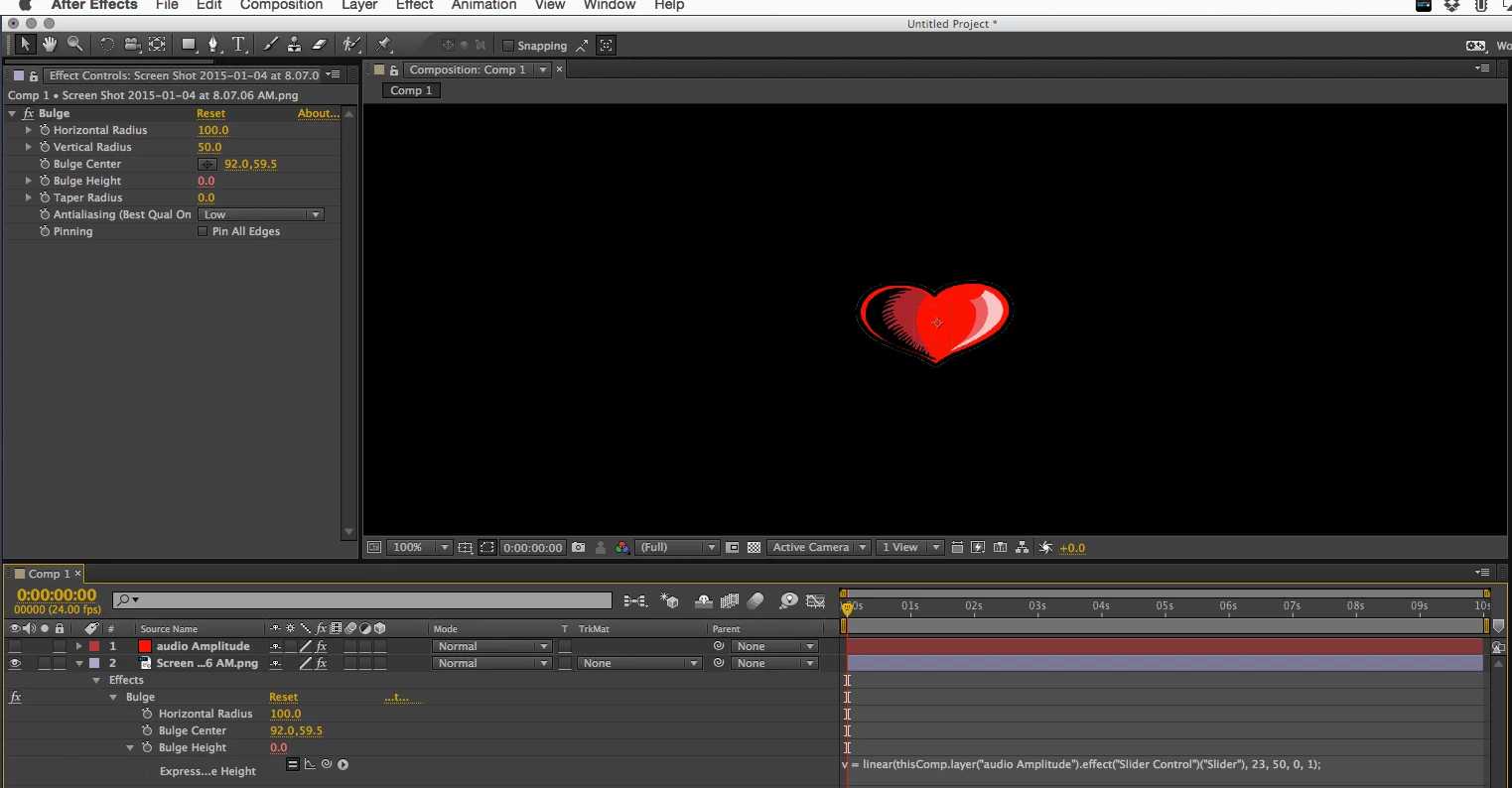
To simulate a beating heart I'd try the bulge effect instead. Change the top expression to

linear(value, 23, 50, 0, 1)

Actually, I'd remove the expression from the slider so you can actually see what's going on with the slider and make some judgement calls and I'd apply this expression to the Bulge Height

v = linear(thisComp.layer("audio Amplitude").effect("Slider Control")("Slider"), 23, 50, 0, 1);

Adjust the Bulge Center and width and height to get a heart that looks like it's beating without the need for a background with some detail in it. Then just apply motion tile to your heart layer and you're done. Your grid of hearts should look like they are beating instead of zooming in and out.

1 reply

Community Expert
January 4, 2015

It would help if we saw the expression. I haven't got time to run through the tutorial but I will bet that X and Y values inside the expression are different. Change them so they reflect the same values.

If you post a copy of the expression just about anyone here that has basic knowledge of expressions can fix it for you.

Ultimaweapon
Participant
January 4, 2015

Rick thank you so much for taking the time out to respond, here is the expressions i've used

Rick GerardCommunity ExpertCorrect answer
Community Expert
January 4, 2015

Your screenshot only is showing the first line of the expressions unless that's all there are. The expression on your Audio Amplitude layer is changing the value of the slider so that it limits only goes between 100 and 110. The other expression on the heart layer simply ties the adjusted value of the scale to the slider value. The result of animating the x and y scale of a layer when there's no frame of reference or background is that the layer has the same appearance as zooming in and out. In the tutorial he has some trees on a layer above the shot that do not scale so the background appears to be pumping. In your project there is no reference background.

I believe I put up an example in your question about motion tile using a grid background. You need something in the background that has some detail to make the heart look like it's beating and you are not just animating the scale. If you want to animate scale differently for X and Y you have to separate the values in an array. Using your example I would do something like this for the bottom expression.

s = thisComp.layer("audio Amplitude").effect("Slider Control")("Slider");

[s * 2 , s* 1]

This would scale the heart from 200% to 220% in X and 100% and 110% in Y, but it would still look like you were zooming in and out without some kind of detail in the background.


To simulate a beating heart I'd try the bulge effect instead. Change the top expression to

linear(value, 23, 50, 0, 1)

Actually, I'd remove the expression from the slider so you can actually see what's going on with the slider and make some judgement calls and I'd apply this expression to the Bulge Height

v = linear(thisComp.layer("audio Amplitude").effect("Slider Control")("Slider"), 23, 50, 0, 1);

Adjust the Bulge Center and width and height to get a heart that looks like it's beating without the need for a background with some detail in it. Then just apply motion tile to your heart layer and you're done. Your grid of hearts should look like they are beating instead of zooming in and out.