PFuerst
Inspiring
August 12, 2022
Answered

Automation Blocks Purge Memory & Disk Cache Script

  • August 12, 2022
  • 1 reply
  • 1449 views

Hey,

I've played around a bit more with Automation Blocks and created and simple scripts that displays all the Purge options and lets you execute them. I guess it is not the most elegant way to display all the options as well as create the flow but it does the job 🙂 I have attached it here. If you want to make it better or add something to it feel free to do so...

Best
This topic has been closed for replies.
Correct answer Mathias Moehl

Wow, that's amazing - thank you for sharing!

I added it to the Community Library now changed a few things in the tool.

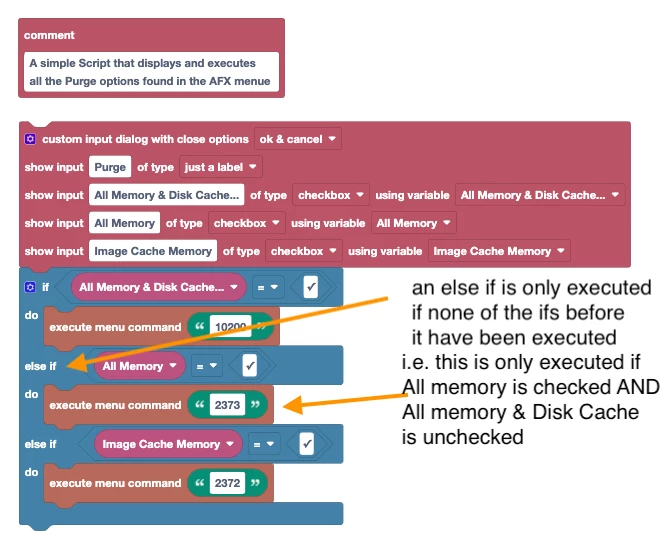
This is your original code (with some remarks about what I changed):


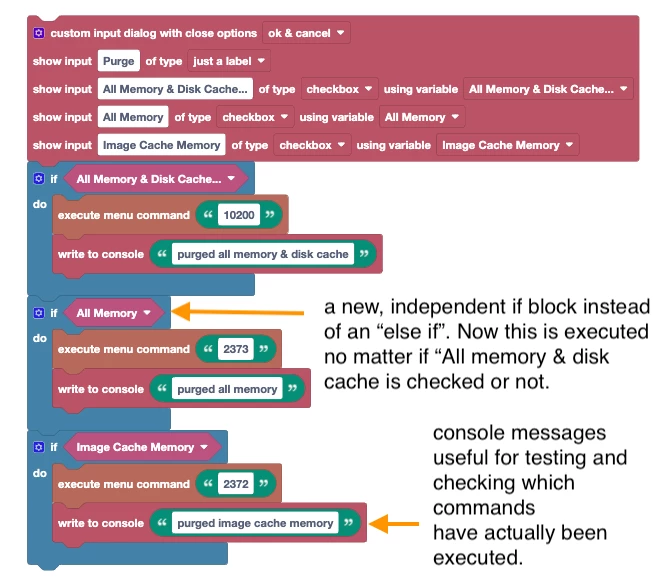
And this is my modified version:


This is what I changed in detail:
1) I replaced your else if conditions with independent if blocks. That way, if you enable several checkboxes, also all the corresponding menu commands are executed.
2) I added some "write to console" messages such that you can also see in the console, which purge operations actually have been performed.
3) I replaced the conditions  like "All Memory equals true" by just "All memory". This is probably a matter of taste. They mean exactly the same - my variant is a bit more compact, but yours is maybe even better to understand. So not sure if this change really improved the code, but I thought it does not hurt to show that you can save a few blocks here.


1 reply

Mathias Moehl
Community Expert
Mathias MoehlCommunity ExpertCorrect answer
Community Expert
August 13, 2022

Wow, that's amazing - thank you for sharing!

I added it to the Community Library now changed a few things in the tool.

This is your original code (with some remarks about what I changed):


And this is my modified version:


This is what I changed in detail:
1) I replaced your else if conditions with independent if blocks. That way, if you enable several checkboxes, also all the corresponding menu commands are executed.
2) I added some "write to console" messages such that you can also see in the console, which purge operations actually have been performed.
3) I replaced the conditions  like "All Memory equals true" by just "All memory". This is probably a matter of taste. They mean exactly the same - my variant is a bit more compact, but yours is maybe even better to understand. So not sure if this change really improved the code, but I thought it does not hurt to show that you can save a few blocks here.


Mathias Möhl - Developer of tools like BeatEdit and Automation Blocks for Premiere Pro and After Effects
Mathias Moehl
Community Expert
Community Expert
August 13, 2022

This is definitely a very nice example for showing how easily you can create user interfaces with AB.

You find the tool in the community library at
Project/Purge/Purge Dialog with All Purge Options.xml
Thanks a lot again for sharing it with the community 🙂

Mathias Möhl - Developer of tools like BeatEdit and Automation Blocks for Premiere Pro and After Effects