Jan 22, 2022 3:21 PM UTC
Answered

(Beginner) Help Finding "Migrate Settings" Button Please?

Hey everyone! Thanks for reading.


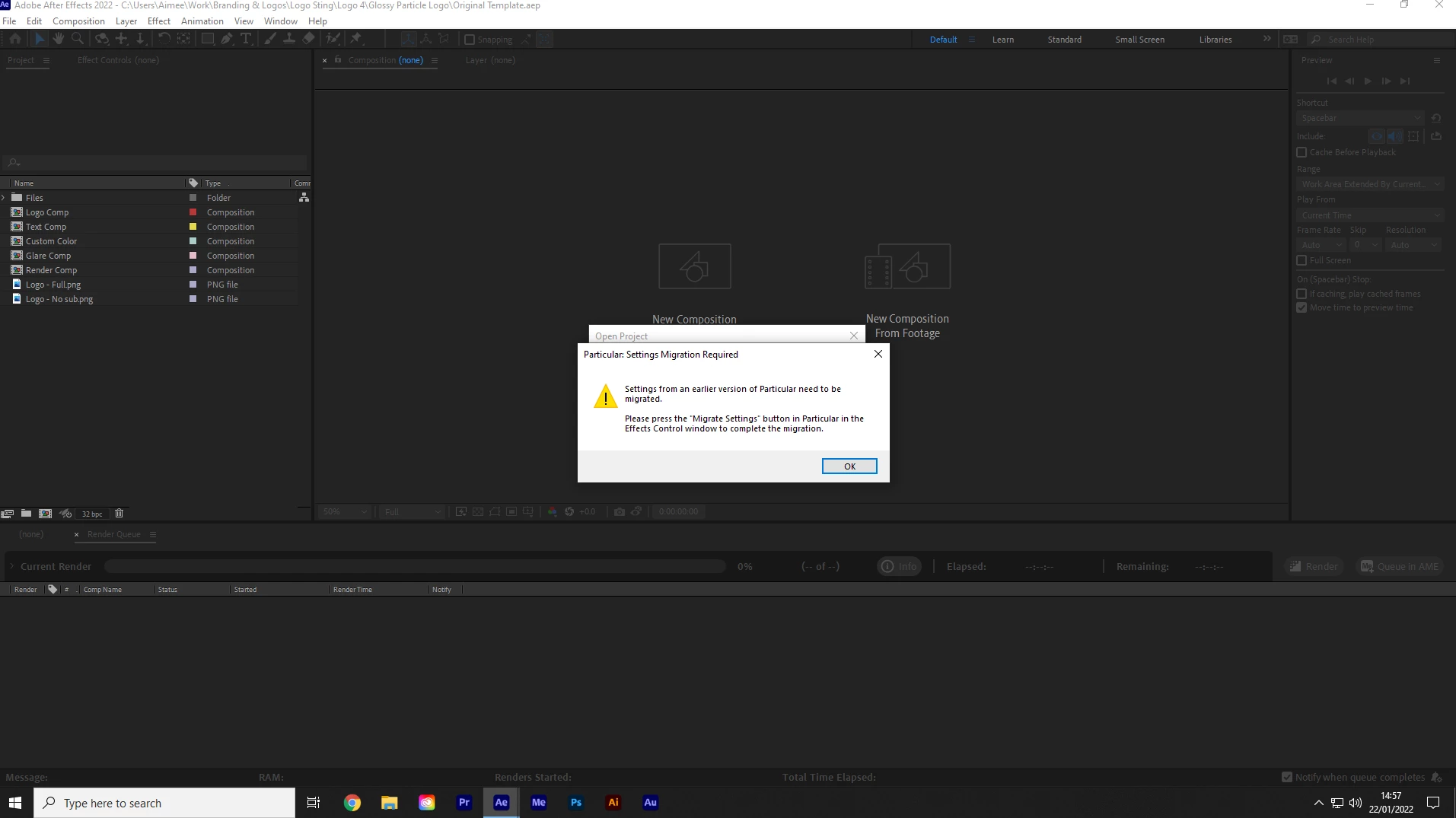
I've loaded a template I downloaded and when I open it, I get the following message asking me to migrate the settings as the template was created on an older version of AE, which is fine, but I can't find the button! 😞


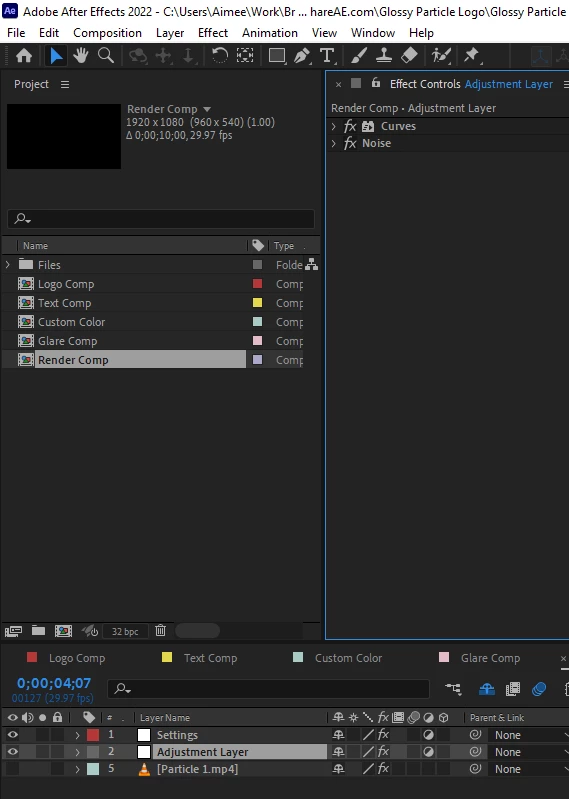
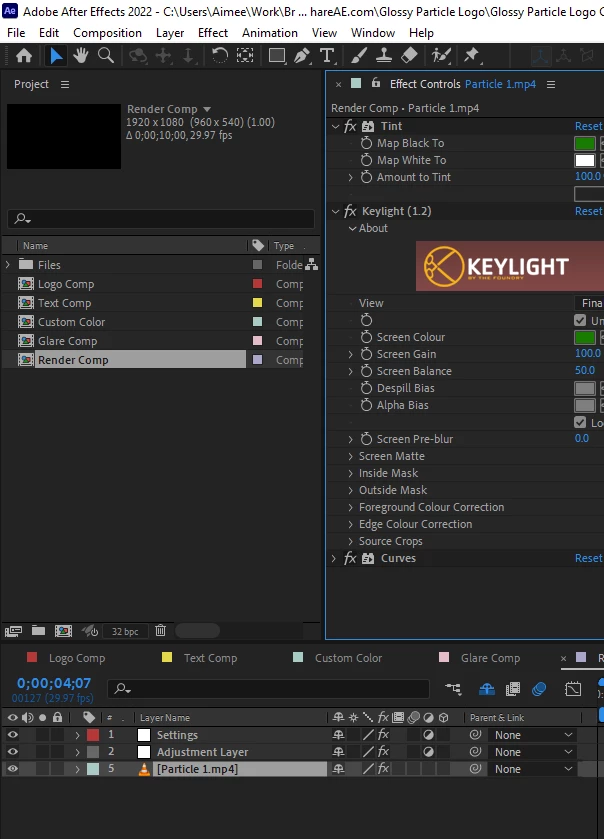
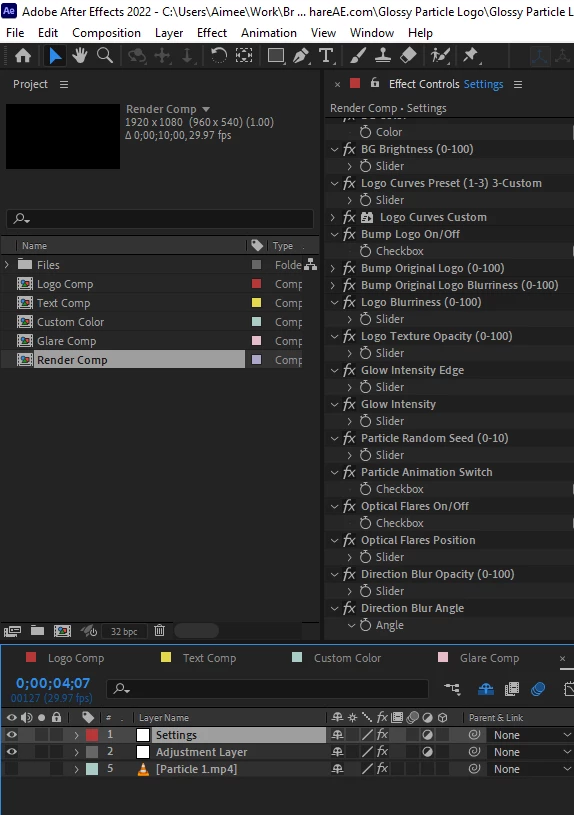
I found another thread similar to my issue, but the link marked as "correct answer" on the thread no longer works sadly, so I'm unable to follow it, but after reading the comments I have clicked everything in the timeline and opened every > under "effect controls" yet can see no "migrate settings" button on anyting; and can't see "particular" anywhere at all! (I can see "particle animation switch" and "particle random speed"). but again, no "migrate settings" button.) 


For the record I do have Trapcode Particular installed. I got it last night to fix an issue with the video length, (it's a 10 second temlpate that was cutting to black at 5 seconds when the particles kicked in). I am fondly hoping that finding this button will enable me to export the video because rendering currently halts at (yep, you guessed it!) 5 seconds. The preview also doesn't load from 5 seconds, which is the reason I thought I'd give exporting a go, to see how it looked leaving it as it was, worth a try eh?


Any help appreciated, as title says, I'm a beginner just practicing and finding my feet so I appreciate any kind or helpful responses 🙂 


This topic is closed to new replies. Start a new post to keep the conversation going.
ShiveringCactus
ShiveringCactusCorrect answer
Community Expert
Jan 23, 2022 11:40 AM UTC

So it sounds like the person who made the template has "hidden" the effects by using Expression Controls to make it easy for an end-user to adapt.  But the trouble with that approach is that you get limited to what they plan for.


Probably the simplest approach is to open up every comp from the Project panel, and then use the Timeline search and look for Particular (it's possible the vendor renamed the effect, so you could search for one of the controls, like "aux" instead)


Or you can try Paul Tursley's script (I don't have it, so cannot vouch for it, and there is a cost: https://aescripts.com/pt_effectsearch/   


Searching in the Project panel doesn't work for effects, unfortunately.


7 replies

Participant
Nov 29, 2024 6:27 AM UTC

Aimee i'm so sorry you coudn't fint migrate settings

Translate
Warren Heaton
Community Expert
Community Expert
Jan 22, 2022 7:25 PM UTC

Locate any Layer that has Trapcode Particular applied.


You'll find the Migrate Settings button for Trapcode Particular in the Effect Controls (Effect > Effect Controls) tab.


Translate
Jan 22, 2022 8:26 PM UTC

Thanks for replying! 


I've taken a look, and I still can't see any layers with Particular applied. I can still only see "particle animation switch" and "particle random speed" - presumably it's meant to be above those?


Thanks 🙂

Translate
ShiveringCactus
Community Expert
ShiveringCactusCommunity ExpertCorrect answer
Community Expert
Jan 23, 2022 11:40 AM UTC

So it sounds like the person who made the template has "hidden" the effects by using Expression Controls to make it easy for an end-user to adapt.  But the trouble with that approach is that you get limited to what they plan for.


Probably the simplest approach is to open up every comp from the Project panel, and then use the Timeline search and look for Particular (it's possible the vendor renamed the effect, so you could search for one of the controls, like "aux" instead)


Or you can try Paul Tursley's script (I don't have it, so cannot vouch for it, and there is a cost: https://aescripts.com/pt_effectsearch/   


Searching in the Project panel doesn't work for effects, unfortunately.


Translate
Jan 22, 2022 3:27 PM UTC

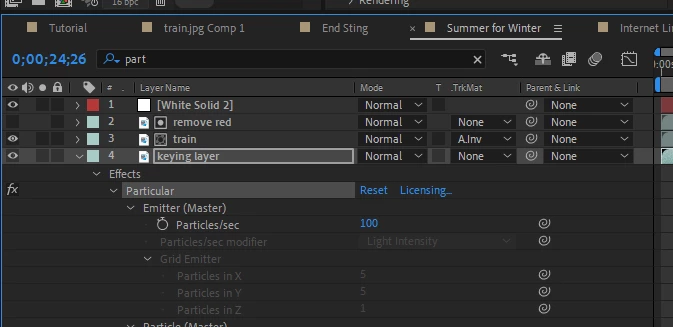
 I forgot to add, this is what comes up in the project window searching "par". Thanks 🙂


Translate