Participating Frequently
April 27, 2018
Answered

Black box appears around keyed out effect when paused / rendering

  • April 27, 2018
  • 3 replies
  • 2965 views

Doing an assessment for uni (it looks cheesy I know) and I've ran into an issue, when the ram preview is playing everything looks fine, yet when I pause it or render it out, a black box appears. Any ideas on how to remove it and why it's there in the first place?

The effects is a MP4 file and I've keyed out the black, if I run the preview at half it's not there either.

This topic has been closed for replies.
Correct answer Rick Gerard

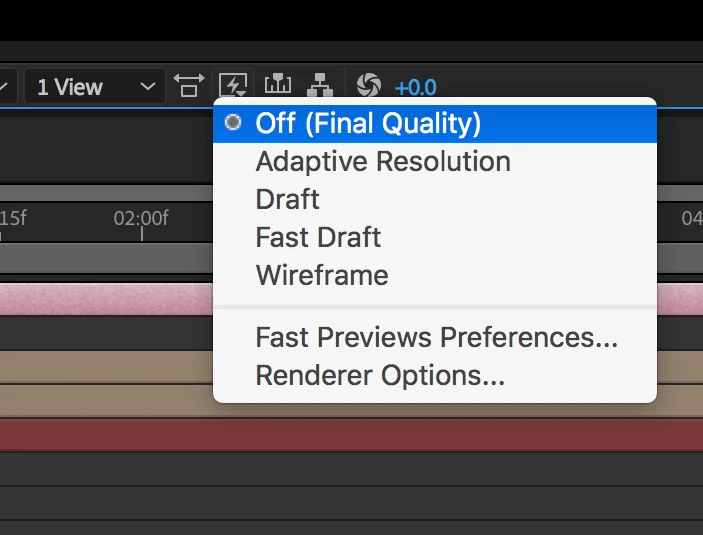
Set Fast Previews in the Composition Panel to Final Quality:

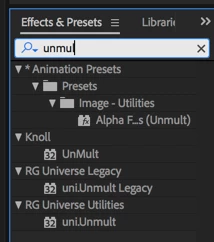
I don't know how you are keying out the black because you failed to press the U key twice to reveal all modified properties of the layer giving you problems but it doesn't look very good. I suggest you get the Unmult plugin from Red Giant (search for it, it's free) or at least use the the preset to remove the black. You could also try using the Add or Screen blend mode. It will look much better if the black is really black. If it is not completely black apply levels or curves before you try Unmult or blend modes.

'

3 replies

Participating Frequently
April 27, 2018

That plug in did the trick! Guess I was using the wrong effect for keying it out.

Thanks for the help!

Rick GerardCommunity ExpertCorrect answer
Community Expert
April 27, 2018

Set Fast Previews in the Composition Panel to Final Quality:

I don't know how you are keying out the black because you failed to press the U key twice to reveal all modified properties of the layer giving you problems but it doesn't look very good. I suggest you get the Unmult plugin from Red Giant (search for it, it's free) or at least use the the preset to remove the black. You could also try using the Add or Screen blend mode. It will look much better if the black is really black. If it is not completely black apply levels or curves before you try Unmult or blend modes.

'

Roland Kahlenberg
Legend
April 27, 2018

Try Effects>Channel>Remove Color Matting. If this doesn't work, you can try Effects>Matte>SimpleChoker. If this too doesn't help,

select the footage/layer in the Project Panel and send it to the Interpret Footage dialog and change the Alpha interpretation from its current setting to either Straight or Pre-multiplied; whichever isn't the current selection - DO NOT USE IGNORE.

In the future, render Alpha Channels with Straight Alpha - this precludes having funky edges.

Very Advanced After Effects Training | Adaptive & Responsive Toolkits | Intelligent Design Assets (IDAs) | MoGraph Design System DEV
Participating Frequently
April 27, 2018

I tried the first two and sadly they didn't work

When I tried to Interpret Footage Dialog it seems it won't allow it, it make the tone that the action can't be completed.

Also, I have no clue about Alpha channels or even how to access them.