
GunsN
Participant
November 14, 2018
Question

Black screen after rendering the video

  • November 14, 2018
  • 6 replies
  • 46552 views

Hello, I have installed after effect 2019, made some video and began rendering in quicktime (there is no H264) after rendering the video there is only black sreen and music sound, no image or video.

what is wrong does anyone know?

thanks
    6 replies

    Alireza MO
    Known Participant
    July 16, 2021

    I encountered the same issue. this might help.

    Maybe you put your footage on guide layer mode by mistake. it create a tiny blue grid next to the layer which is set to guid layer. you can always turn it off by right-clicking on the layer and unchecking the "guide layer" option. It helped me out.

    cheers

    Participant
    July 17, 2021

    God Bless you! I was suffering from this problem, and it was what you described EXACTLY. The thing is, I know I never turned "guide layer" ON. I don't know how it got that way.

    Participant
    August 22, 2025

    Absolutely ma man! It just shows up out of nowhere 🙂

    pamelap72687770
    Known Participant
    May 3, 2020

    After experiencing this myself, I am guessing that I had Adobe Premiere open before or after I opened Adobe After Effects and attempted to render.  Since my black screen problem disappeared the following day when rendering, I think either Premiere needs to be closed or perhaps it is still using resources even after closing.  An easy solution to the black screen, at least for me, is rebooting the computer and not opening Premiere before rendering in After Effects.

    GunsN
    GunsNAuthor
    Participant
    November 14, 2018

    thank you guys for responding.

    I have installed Adobe Media Encoder and I use this software for rendering, the problem solved for me.

    thanks again

    OussK
    Community Expert
    Community Expert
    November 14, 2018

    Yes after effects didn't have the option to export h.264 directly and to do that you must send your render to adobe media encoder, and since you use CC2019 there are bug with the dynamic link between AE and AME, and send the render to AME did't work, so the best option is to export your file as .mov or any high quality option than create a h.264 version from AME

    GunsN
    GunsNAuthor
    Participant
    November 14, 2018

    thank you for advice, I will try to do that.

    thanks again

    OussK
    Community Expert
    Community Expert
    November 14, 2018

    Try to check if you select the video output from output module setting inside the render queue. 

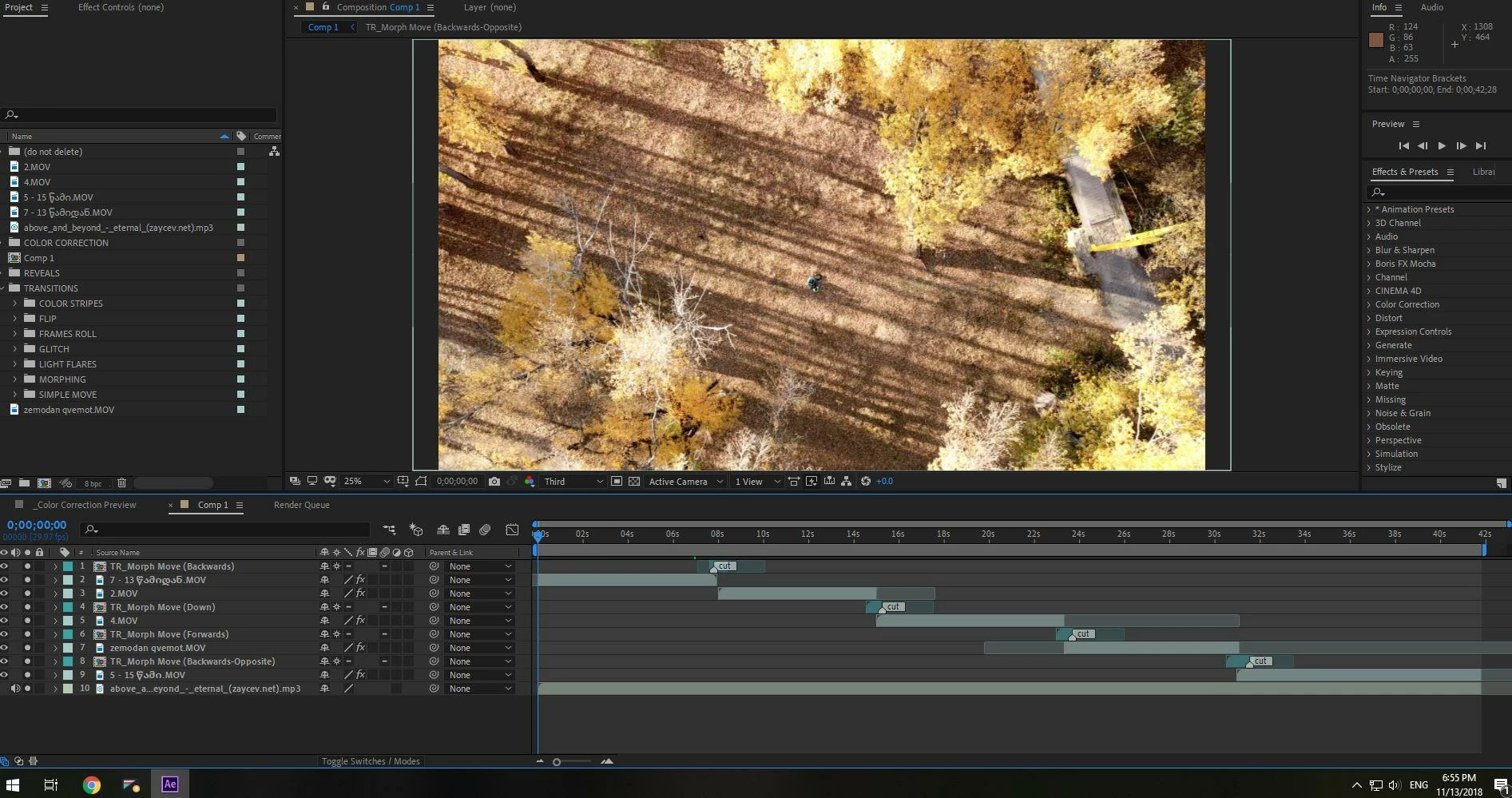
    also i notice you just select all layers in your composition to run as solo, so instead of select all layers you can simply remove solo from all layers

    GunsN
    GunsNAuthor
    Participant
    November 14, 2018

    look at the settings, there is no h.264. I don't know what is wrong

    R Neil Haugen
    Legend
    November 14, 2018

    There is no H.264 option under the QuickTime FORMAT, that is of course under the H.264 FORMAT ... so if you want H.264, you need to go back to the top of the Export dialog and select the Format box, and then from the options, H.264. I'll get to that below.

    For a QuickTime file as above, using the Cineform codec (which I'd recommend) ... rather than using the Codec box down below, you can go into the Basic Video options section and pull the quality down from the default 4 to 3 or 2 for a higher compression and lower file quality.

    For H.264, you select that from the Format box at the top, then a preset from the Preset box. What quality do you need versus how small do you need? That's always a balancing act. Match Source/Adaptive Medium Bitrate might work for you.

    Then in the options below, in the Video section, scroll down to the Bitrate section, and that's where you tweak for what you want/need for bitrate per second.

    Neil

    Everyone's mileage always varies ...
    Community Expert
    November 14, 2018

    I am guessing that you created your own custom rendering settings and that you have not read up on rendering. There are no known bugs using the standard workflow for rendering through the Render Cue or the Adobe Media Encoder. Since we have no idea what you are doing it's pretty hard to give you any advice other than, use the default templates and read up on rendering.

    GunsN
    GunsNAuthor
    Participant
    November 14, 2018

    Yes I changed rendering settings, because it is too big file when I render default settings.

    I tried now to render default settings and it is ok.

    but I want to resize or change the settings. but when I change it there is only black screen