

mave1969
Known Participant
June 2, 2017
Answered

Bounding box of imported Illustrator layers broken

  • June 2, 2017
  • 3 replies
  • 5838 views

Here is a layer from an Illustrator file:

Here is the same layer imported into After Effects:
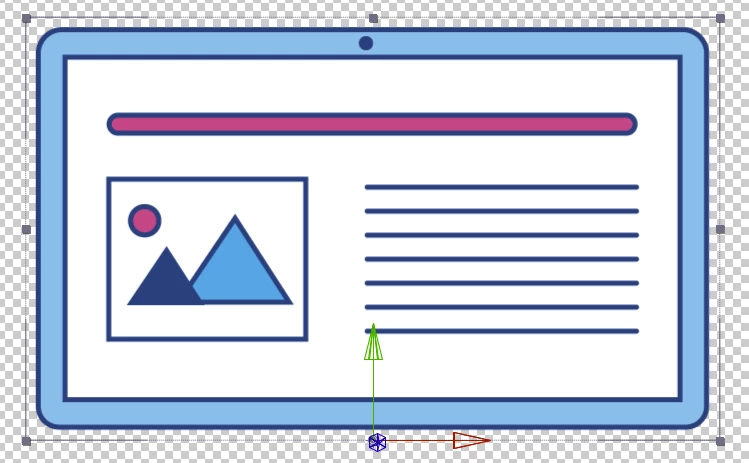
Notice that the layer's bounding box in AE is not the same as that in Illustrator.

Result? I can no longer accurately snap the anchor point to the edge of the layer using something like the 'Move Anchor Point' script (which apart from anything else should have been added as an AE feature *years* ago). Instead, I now have a gap between the anchor point and the actual edge of the artwork, which means if I now want to make that layer fold downwards (it's the lid of a laptop illustration) it's not rotating from the correct point. I now have to manually fiddle each time I want the anchor point on the edge or corner of a layer. A 2-second operation now complicated into a 10-second operation. These things add up.

Message was edited by: Ian Davies Genius! The forum allows you to paste images into a message but then immediately loses them so you just get 'broken graphic' icons instead.

This topic has been closed for replies.
Correct answer Roei Tzoref

Also logged as a bug report.

I see I can reproduce this in my system as well. it appears to be related to layers that are applied with stroke. this appears to happen when the stroke is set to 'align to center". when setting it to outside or inside it works fine. thanks for submitting the bug report, I will do the same.

3 replies

mave1969
mave1969Author
Known Participant
June 2, 2017

Rick, with respect did you look at my original post? If I had imported the artwork without "retain layer size" selected then you wouldn't even see the bounding box in that second screenshot. I'm experienced enough with After Effects and Illustrator to know the difference.

Anyway, here's a video I made showing that the bug exists with even the simplest Illustrator artwork, taking it from creation in Illustrator through to import into After Effects:

Layer bounding box broken when importing artwork from Illustrator - YouTube

This behaviour has only existed since the most recent AE update. I know that because it basically breaks the import of layered artwork, which I do all the time, and would have noticed if it wasn't working before now!

mave1969
mave1969Author
Known Participant
June 2, 2017

Also logged as a bug report.

Roei Tzoref
Roei TzorefCorrect answer
Legend
June 2, 2017

Also logged as a bug report.

I see I can reproduce this in my system as well. it appears to be related to layers that are applied with stroke. this appears to happen when the stroke is set to 'align to center". when setting it to outside or inside it works fine. thanks for submitting the bug report, I will do the same.

mave1969
mave1969Author
Known Participant
June 2, 2017

I'm not using "create shapes from vector layer" so I'm not sure how much of that applies to me, if any.

My composition looks like this in AE:

There are no shape layers or anything else, just imported artwork layers.

Community Expert
June 2, 2017

What are the options you selected with importing the Illustrator artwork? Screenshots of just the artwork in AI without showing the layer properties (layers expanded), the appearance, and the details of how the illustration is created and screenshots of just a comp panel are pretty useless for diagnosing a problem.

In your screenshot from AI notice that the bounding box is centered on the stroke. This is normal when the stroke is centered on the path. In AE the bounding box will include the stroke. This is also normal. If you only have one layer in an AI file and you import as a comp retaining layer size then the layer will NOT be the size of the path but it will be the size of the artboard.

If you imported the AI file as a comp retaining layer size try selecting the layer in Illustrator and checking the size in points or pixels, then try selecting the illustrator file in the Project panel and checking the size displayed just to the right of the thumbnail when the asset is selected. If they are not the same plus half the width of any outside stroke centered on the path, then there's something going on in the AI layer that isn't visible in your screenshot but should be obvious if you check everything in the AI file. Start by pressing Ctrl/Cmnd + y and check the outlines.

If you did not have "retain layer size" selected then the layers imported from AI will be the size of the art board. This is normal.

If you can't figure it out post screenshots showing the entire UI with the modified properties of all layers giving you problems selected or post the original AI file and we will try and help you out.

Roei Tzoref
Legend
June 2, 2017

do you have any opacity other than 100% in there or any kind of blending modes? if not, skip this

opacity or blend mode changes to any object in your illustrator file will cause the "create shapes from vector layer" feature to any of the layers to behave in the following manner: your shape layer will have an additional group in the shape hierarchy that will contain paths that constitute your Ai artboard and another merge paths operation. and it's very annoying

it could look like something like this if you work in an HD Preset.

BTW HD preset gives you 2 artboards.. it's actually a good thing:Re: AI (illustrator) layers not showing up in AE (after effects) CC 2014 )

here is the shape hierarchy comparison of Layer 1 that is normal and Layer 2 that has 50% opacity:

as you can see the artboard is here as a group with 3 paths and there is an additional merge path operation to the content of the shape.

What to do?

  1. if it's after the fact: you can just manually delete the group and the merge path from your shapes, or remove the blend mode / opacity from the layers in Ai (or set them to 100%/set them to normal) which is what Ae is going to do anyway, save the file again, and create shapes from vector layer again.
  2. before the fact - proper workflow:  it is already known that opacity and blend mode (and not only them) don't translate to a corresponding shape anyway, so this makes this an easy workflow decision: if you do plan to convert to shapes, prior to importing to Ae - set your blend modes to normal and opacity to 100% if it's not.
  3. there's also this script: Explode Shape Layers 3 - aescripts + aeplugins - aescripts.com that is very handy for dealing with the whole conversion of Ai to shapes and it has the "Remove Artboard" feature. this from the script description: If any of your Illustrator layers have non-100% opacity or go outside of the frame, you've probably noticed that converting brings in an empty artboard artifact that gets in the way. No more! Remove it with Remove Artboard.

if this is not the case - can you upload the file? I wan't to examine it. I once had a similar issue after I expanded a pie chart but this does not seem to be the case