
Can't Fit to Composition with Storyblocks Template
Hi all,
I am using a Storyblocks template in Adobe After Effects for a slideshow. This is my first time ever working with a template in AE and I'm running into a problem with fitting images to the composition. I am going to leave the how-to instructions that came with the template below.
This is what the image looks like in the drop images folder.
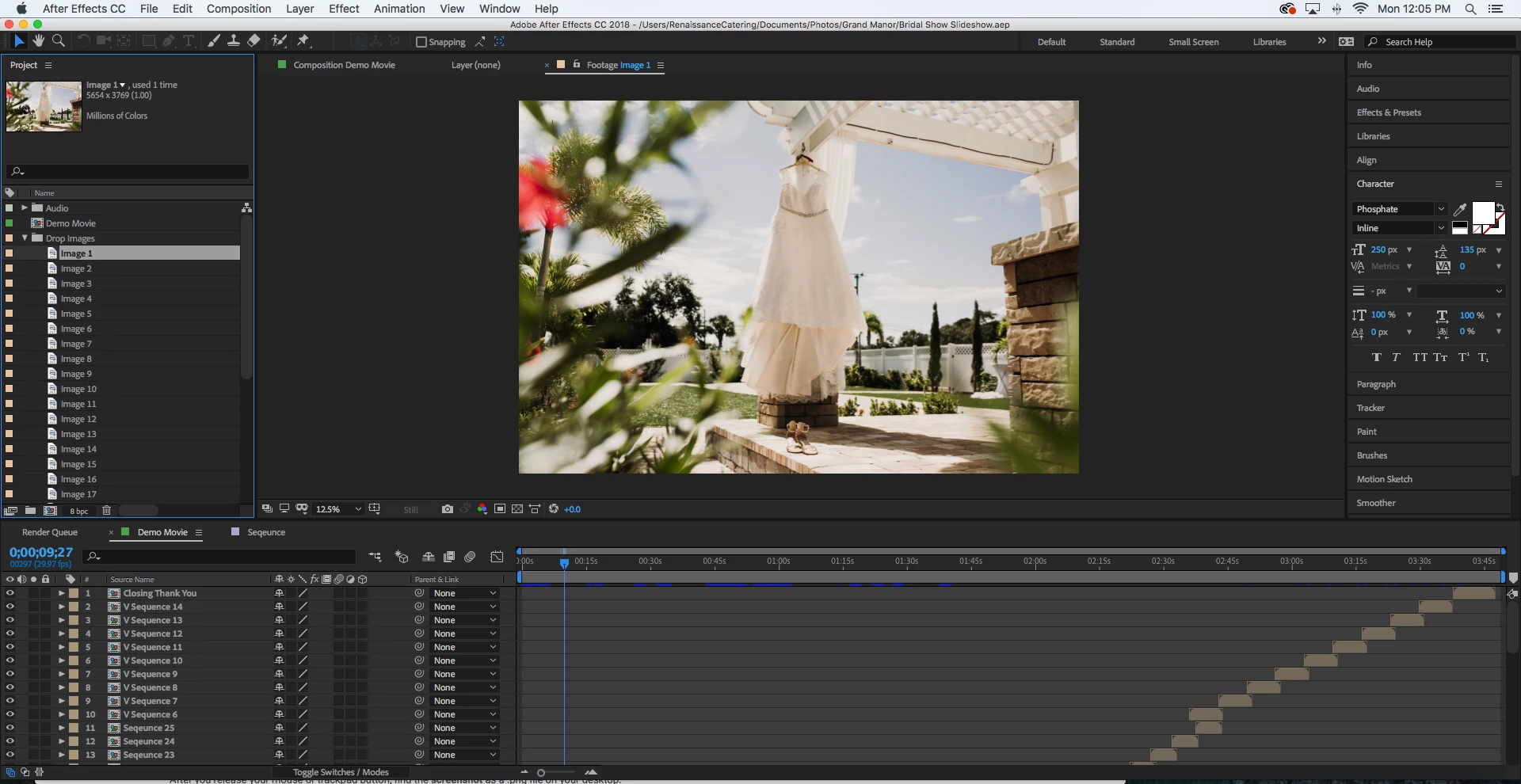
This is what it shows up as in the video. I have tried using Cmd + Option + F to make it fit to composition but it doesn't work.
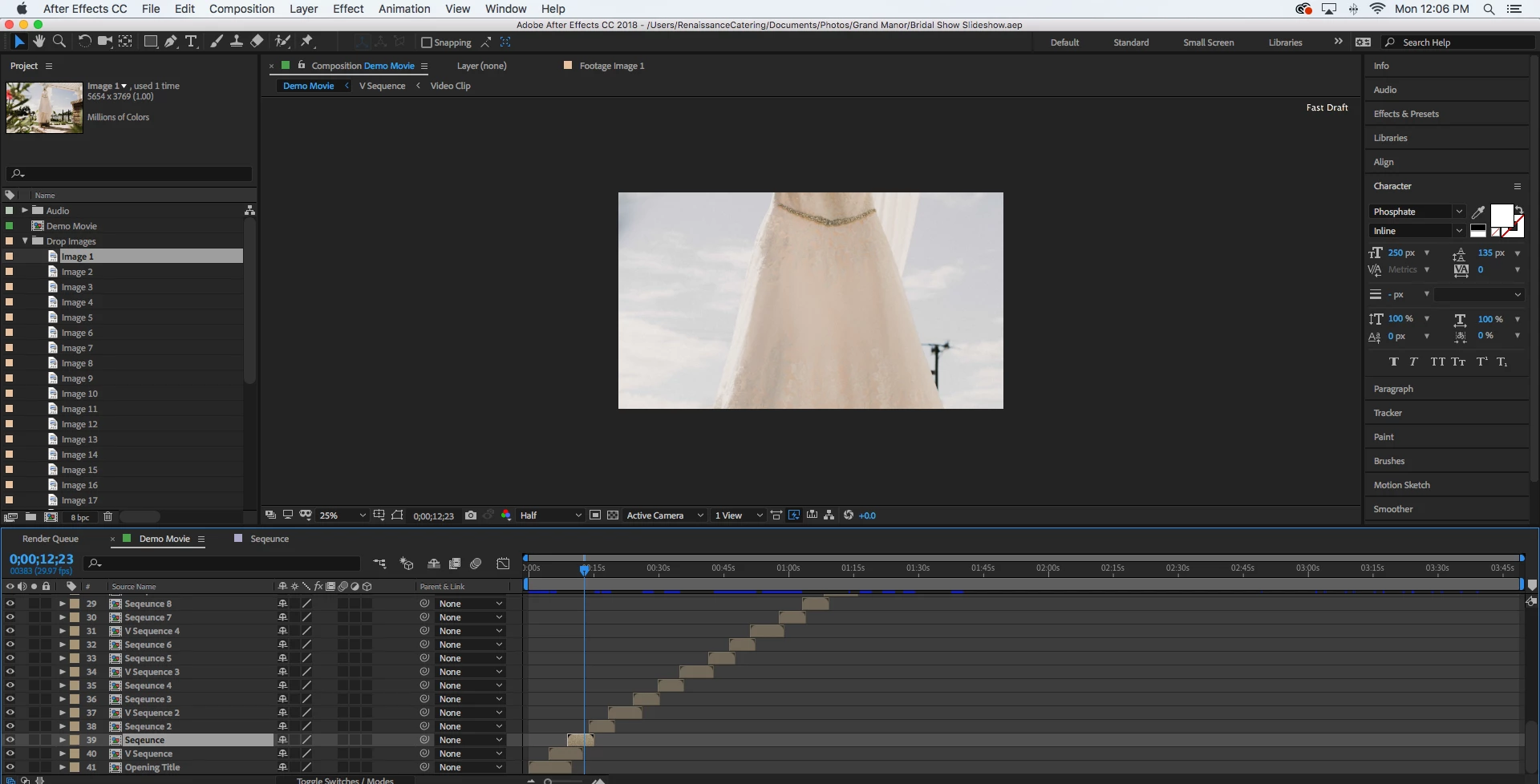
These were the instructions from Storyblocks:
"When you open the After FX file you will be in the Demo Comp. By default, the demo movie consists of 25 Image sequences and 14 Video Sequences to make a complete 3 minute wedding montage video. This demo is modular, so you can easily add/remove images or video
- First, open your Project Panel > Drop Images Folder
Inside you will have 25 image files, they are order 1-25, so by clicking on each one and right-clicking, you can replace footage with your own. Do this for all 25 (if you can) - Next, open each Sequence 1-25 from the DEMO comp. Inside you will have each slide placed twice. Select each slide and hit the “M” key. This will pull up the mask for each layer since it has the keyframes on it. Go to the first keyframe for each slide layer and move the mask to be centered where you want the slide to be revealed from.
- Next, open the Drop Video Folder.
- Inside you will see a single layer, replace this with your video footage. You can also add as many secondary clips you may have into this folder as well.
- Next, open Video Clips Folder, and from here open every Video Clip 1-14. You can literally drag and drop your video footage into this comp and continue to do this process until all of your 14 video clips have your new footage spaced out the way you want.
- Next, lets update the titles. Open Title Sequences Folder and open each comp. Edit the text for Open, Close and Video Clip Title."
 AdChoices