


Participant
November 13, 2023
Question

Center Anchor Point Of Null Object To A Shape's Center On Another Layer

  • November 13, 2023
  • 2 replies
  • 2854 views

Hello!

I want scale a text box from its center for animation. However, the anchor points of the text and box layers are both left-aligned because the box is coded to self-adjust its size to the text. So the the textbox currently scales from the left.

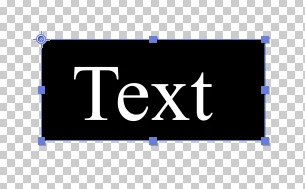
Since there seems to be no way of creating a second anchor point for the box that is centered, I'm thinking of parenting both the text and box layers to a null object that has an anchor that is centered to the box. But if the box self-adjusts, that means its center will also change. I want the null object's anchor point to self-adjust to the center of the box layer. I tried using putting the following expression onto the null object's anchor point


a = thisComp.layer("LayerName").sourceRectAtTime();

height = a.height;

width - a.width;

top = a.top;

left = a.left;

x = left + width/2;

y = top + height/2;

[x,y];


but it won't let me reference the "Size" shape property of the box layer as the "Layer Name". 

So is it possible to have the null object's anchor point always centered to the box like this?

Or is there a better solution than using a null object layer?

Precomping also wouldn't accomplish this because, again, the box's size will always change according the length of text.

Any solutions or suggestions would be appreciated!

This topic has been closed for replies.

2 replies

Mathias Moehl
Community Expert
Community Expert
November 14, 2023

For these kinds of problems, everything becomes much easier if you use my extension Pins & Boxes.

With Pins & Boxes, just. create pins for the corners of the text and a box around those pins. Then the box will follow the text, no matter how you scale, parent or align the text. No need to worry about the details of the expressions - Pins & Boxes solves that for you.


If you just want the anchor point horizontally in the center, set the paragraph alignment of the text to center. If you also want it centered vertically, you can use Pins & Boxes Anchor controls for this:

Mathias Möhl - Developer of tools like BeatEdit and Automation Blocks for Premiere Pro and After Effects
Community Expert
November 13, 2023

If you are using an expression to control the size and position of the background shape layer and want to use the text layer's scale to affect the background, you need to add a scale multiplier to the expression that drives the size of the text box.  Try these expressions for the Shape Layer's size and position properties.

//Shape Layer/Contents/Rectangle/Size
ref = thisComp.layer(index -1);
txt = ref.sourceRectAtTime();
scl = ref.scale/100;
hPad = 30;//horizontal padding
vPad = 20;//vertical padding
w = txt.width + hPad;
h = txt.height + vPad;
[w * scl[0], h * scl[1]];

//Shape Layer/Transform/Position
ref = thisComp.layer(index - 1);
txt = ref.sourceRectAtTime();
scl = ref.scale/100;
pos = ref.position;
x = txt.width/2 + txt.left;
y = txt.height/2 + txt.top;
pos + [x * scl[0], y * scl[1]]

Those expressions will compensate for baseline shift, paragraph justification, and scale of the text layer.


KenWanAuthor
Participant
November 13, 2023

Thanks Rick!

Your expressions works great for making the background box self-adjust it size to the text while keeping the text left-aligned and the background box's anchor point centered. However, when scaling the text layer, it scales itself and the background box from the left because the text is left-aligned. I can scale the background box from its center, however, the text does not scale with it (and if I try to parent the text so it scales with the background box, it moves everything offscreen.)

Is there a way to scale both the text and background box from the background box's center while keeping the text left aligned, like this?

Community Expert
November 14, 2023

You are scaling the Text layer from the anchor point. Try Center Justified text and adjust the baseline shift to put the anchor point in the center of the text.


If the words on the text layer are finalized, you can also turn on Snapping and then use the Anchor Point tool (y) to snap the Anchor Point to the center of the word.  The disadvantage of this workflow is that the Anchor point will not remain in the center of the text layer if you change any of the words on the layer.


You can create an expression for Anchor Point that will always put the Anchor Point in the center of a text layer. This is what that looks like:


// Text/Transform/Anchor Point
box = sourceRectAtTime();
x = box.width/2 + box.left;
y = box.height/2 + box.top;
[x, y]


This expression will override paragraph justification and baseline shift, keeping the Anchor Point in the center of the text layer. This will foul up the position of the background, but you can fix it by adding this expression to the Background Anchor Point property.

// Background/Transform/Anchor Point
ref = thisComp.layer(index - 1);
s = ref.scale / 100;
box = ref.sourceRectAtTime();
x = box.width/2 + box.left;
y = box.height/2 + box.top;
[x * s[0], y * s[1]]

By adding those two expressions to the comp, you disable the paragraph justification and baseline shift and center the anchor point of both layers to the center of the text layer.