This topic has been closed for replies.
Correct answer Rick Gerard

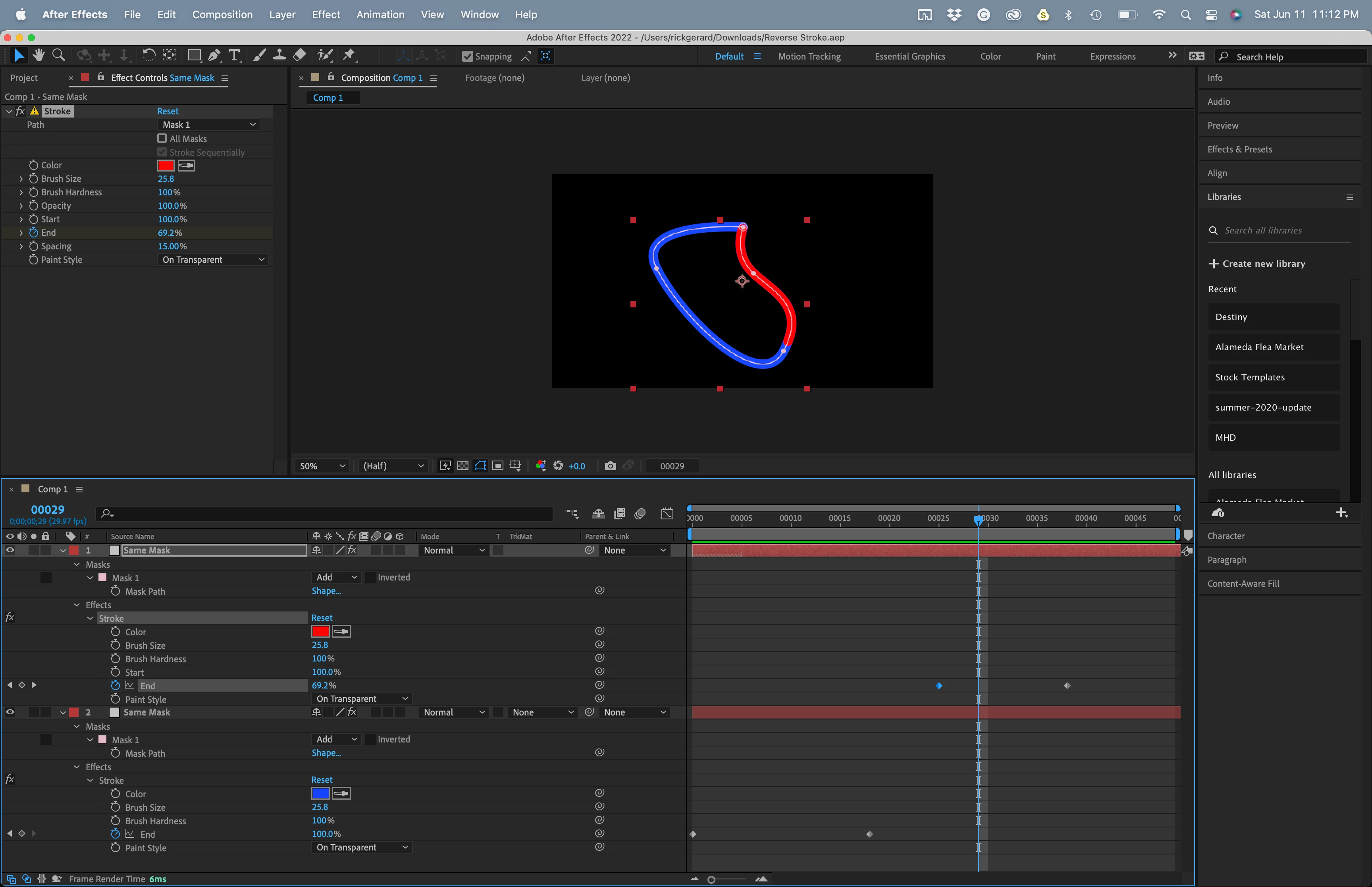
If you want the Stroke to draw on set Start and End to 100% and animate End from 100% to 0%. If you want the direction to be reversed, start with Start and End to 0% and animate End from % to 100%. You only need to animate the End value. Check out the project file I uploaded.
 

1 reply

Rick GerardCommunity ExpertCorrect answer
Community Expert
June 12, 2022

If you want the Stroke to draw on set Start and End to 100% and animate End from 100% to 0%. If you want the direction to be reversed, start with Start and End to 0% and animate End from % to 100%. You only need to animate the End value. Check out the project file I uploaded.


AntDX316
AntDX316Author
Inspiring
June 12, 2022

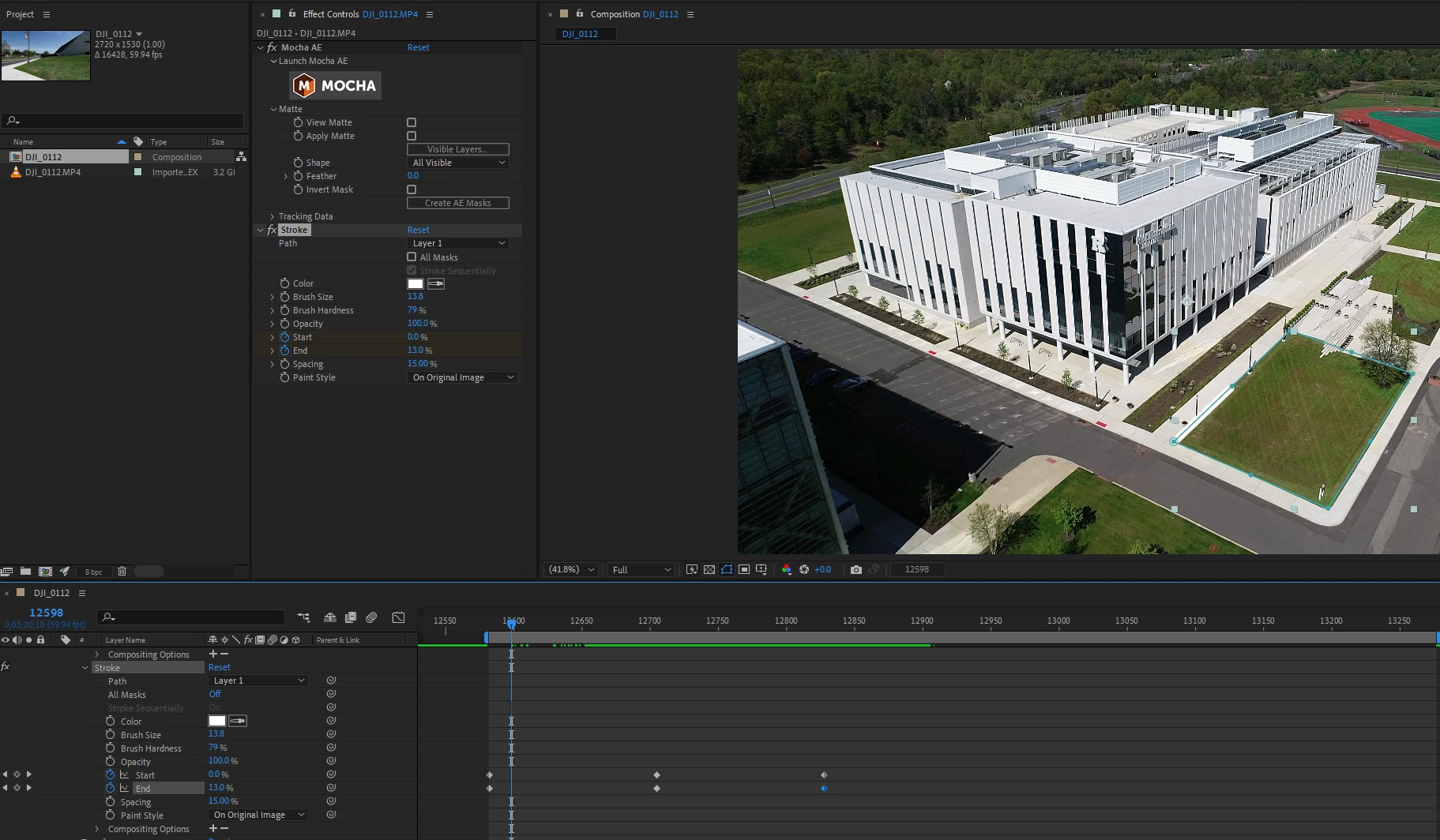
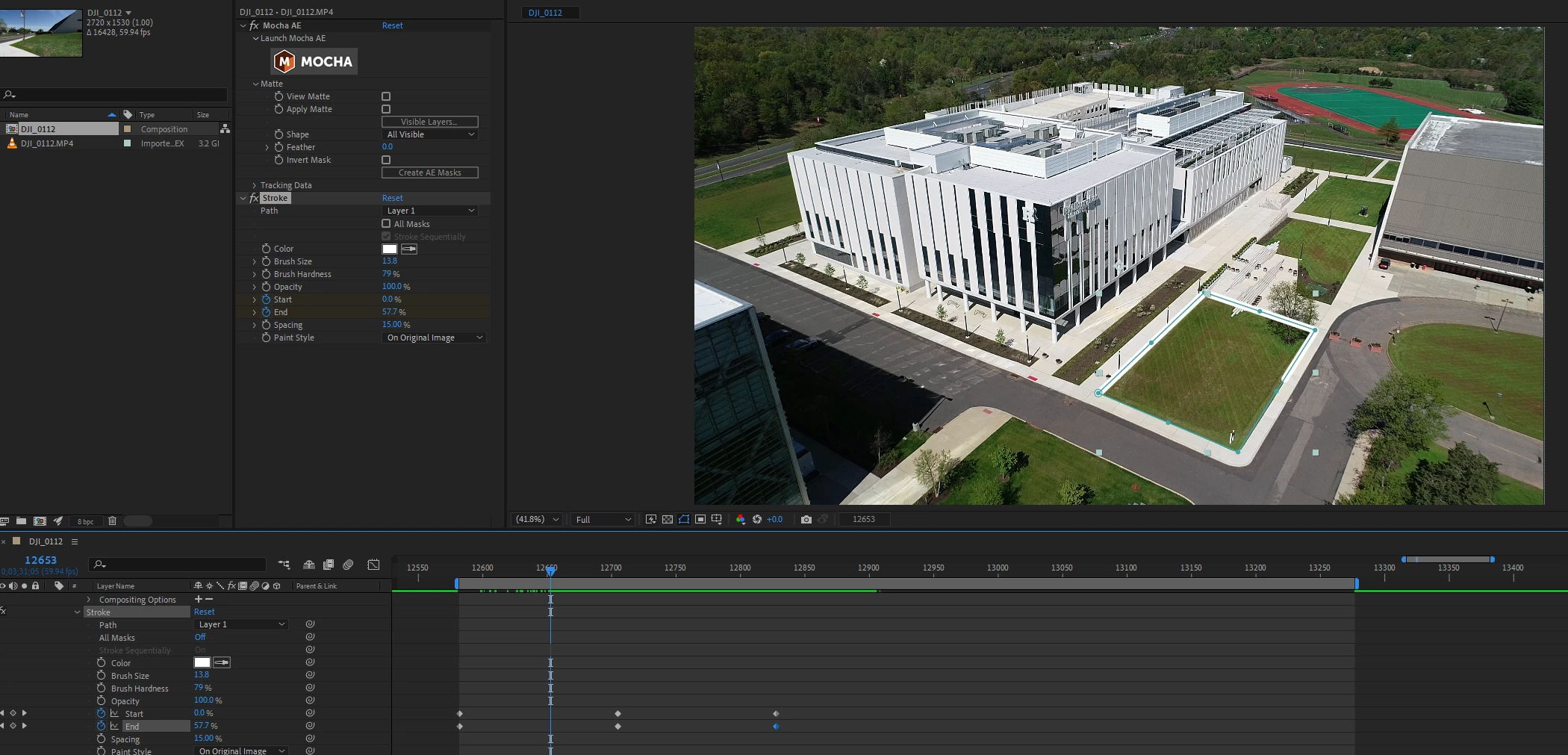
I've tried both:
Stroke still goes the same clockwise direction every single time.
I've seen yours and I've done the same as I've done before but it doesn't go counter-clockwise. : (


edit: nvm I see, they both have to be off first.


Community Expert
June 12, 2022

Glad you got it worked out. 


I would have used a Shape layer with Trim Paths instead of a solid with the Stroke Effect applied. It is easy to convert any mask path to a shape layer path. Copy the Mask Path Mocha created by selecting the Mask/Path in the timeline. Then select the pen tool, click once anywhere in the comp panel, and then Paste to create a new animated Shape layer path.


Depending on what you want to do with the rest of the composition, Camera Tracking, Corner Pin, or Stabilized Power Pin tracking using Mocha AE may give you more options.