
Participating Frequently
January 12, 2023
Answered

Changing Aspect Ratio in AE

  • January 12, 2023
  • 3 replies
  • 18689 views

Hello, I have a PSD file with the dimensions 5175 x 2589. When I try to change the composition settings to 16:9, most of my image disappears (as shown in the top photo). What am I doing wrong? And how do I change the aspect ratio to 16:9 without losing parts of my image?
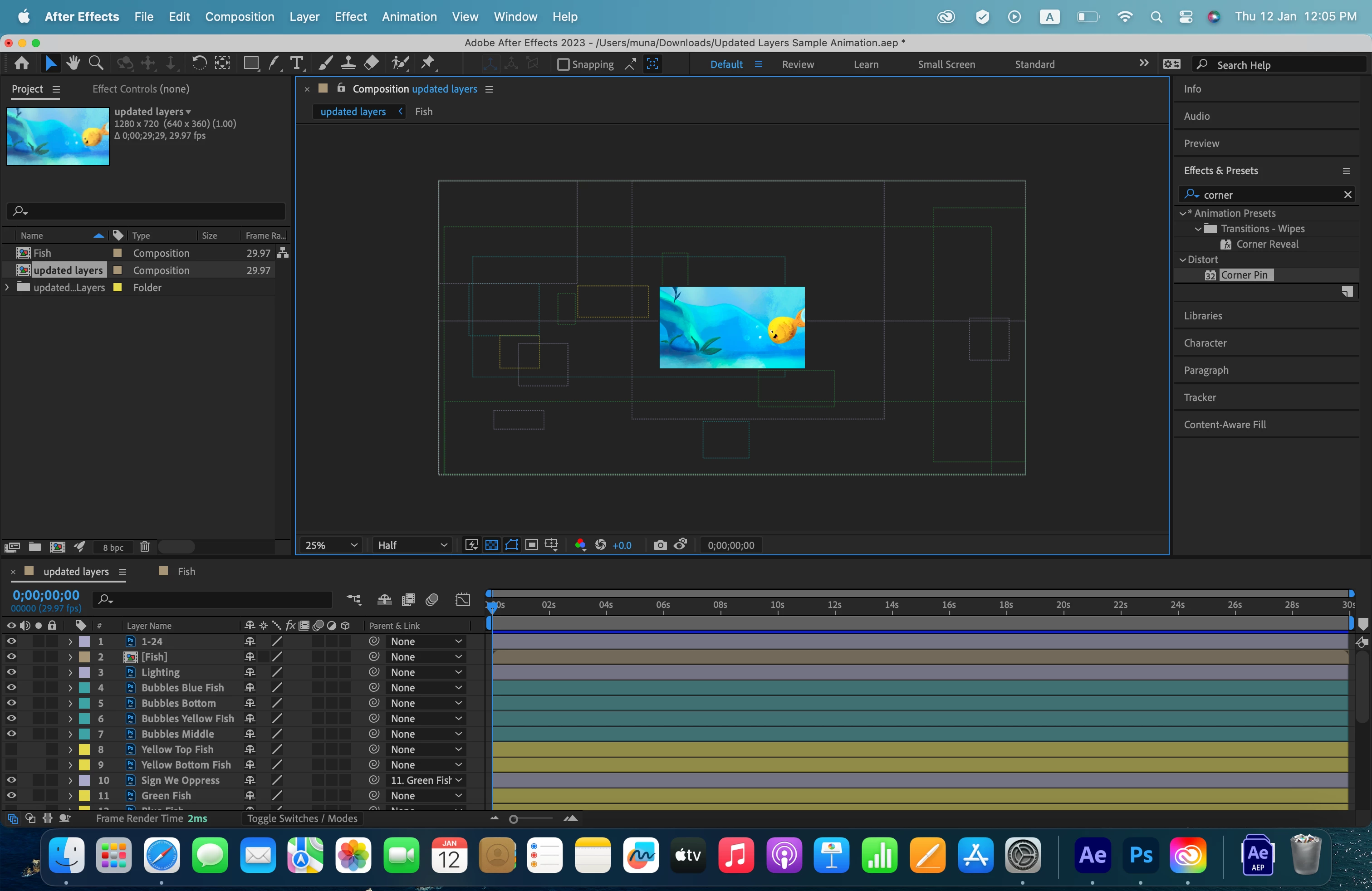
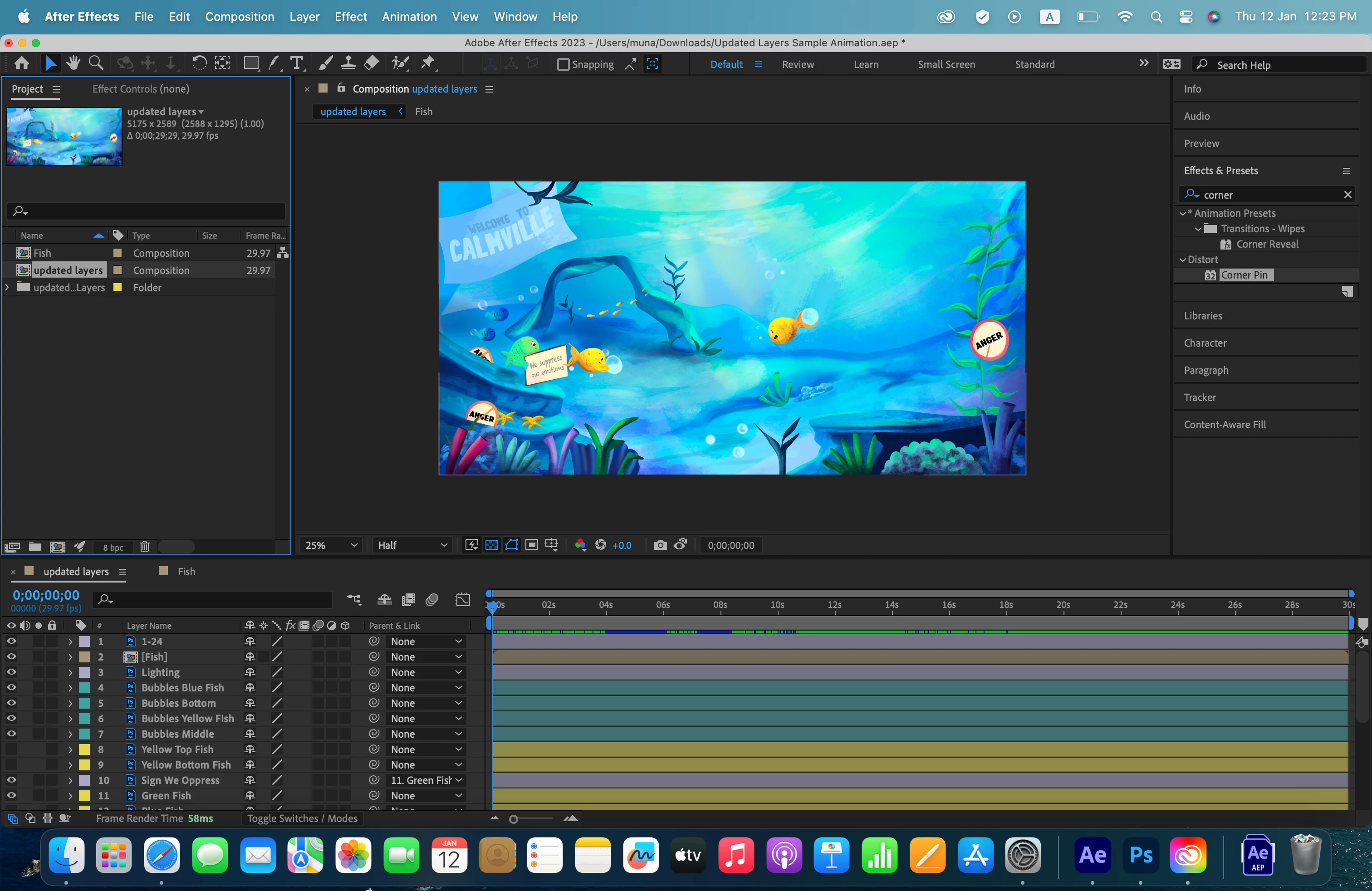
This topic has been closed for replies.
Correct answer Warren Heaton10841144

Layered in Photoshop or layered in Procreate, it's more or less the same.  

It sounds like you're doing fine. 


It's often helpful to have source footage width and height be greater than the Comp width and height - especially for artwork that fills the frame.  

3 replies

Community Expert
January 12, 2023

Changing the Comp width and height in After Effects is similar to changing the Canvas Size in Photoshop.


If you've started animating, I would continue working in your 5175-by-2589 Comp and then nest that into a 16-by-9 Comp (you're using 1280-by-720 in your screen shot, but any 16-by-9 Comp size will work), scaling the nested to 5175-by-2589 Comp to fit to the containing Comp width (creating a letterboxed animation) or scaling the nested to 5175-by-2589 Comp to fit to the containing Comp height (creating a widescreen animation that crops the sides).  For example, nest the 5175-by-2589 Comp into a 1920-by-1080 or 1280-by-720 Comp and then choose Layer > Transform > Fit to Comp Width.  When you're ready to render, render the containing 16-by-9 Comp.

If you have not started animating, you could open a duplicate of your your 5175-by-2589 Photoshop document in Photoshop and make the desired Canvas Size change then Image Size change for animating in After Effects.  Be sure to add something like "for AE" to the filename of the duplicate document.  For example, in Photoshop change the Canvas size of the duplicate 5175-by-2589 document to 5175-by-2911, changing the frame aspect ratio from 2.0 to 1.78.  Adjust the layers as needed for the to fit the 1.78 aspect ratio.  Then change the Image Size to 3840-by-2160, 1920-by-1080, or 1280-by-720 (I'd lean toward the higher Image Size).  Save and import the resulting document into After Effects as a Composition.

Participating Frequently
January 12, 2023

Thank you so much for your reply. Will nesting the composition and then having it fit to comp affect the resolution of the images?

Community Expert
January 12, 2023

The image quality when reducing the scale of a source layer, including a nested Comp, is usually very good.


If anything unexpected happens, post back here and one of us will chime in.


If possible, post a link to the finished animation when you're done.  I'd love to see how this comes out.


Community Expert
January 12, 2023

Your original file is not 16:9. It is about 2:1, so something will get cropped when you put in a 16:9 comp.


It looks like you imported your PSD file as a composition. I can't tell if you chose Cropped Layers. Here are a few guidelines you should follow when creating a Photoshop or Illustrator file for video production,


  1. For Photoshop, the file should be an even number of pixels high and wide - odd-numbered rows or columns are not allowed in any standard video formats used for distribution.
  2. The frame size of your Photoshop file should be large enough so that no part of the image you will animate is scaled to more than 100%. That means if you want to fill the frame with one of the fish in your file that you want to fill half of a standard HD frame, then the fish should be at least 960 pixels wide in your original Photoshop file. Everything you are going to animate needs to be on a separate layer.
  3. If you are creating an Illustrator file, snap to pixel and Pixel Preview should be turned on and the artboard should match the video's frame size in points or pixels.
  4. The Color for PSD and AI files must be set to RGB.
  5. There are no inches in a video or in web graphics, so the PPI setting in Photoshop is irrelevant. You only need to pay attention to the number of pixels


When you import an AI or PSD file as a comp retaining layer size, and the frame size or artboard does not match the frame size of the video you want to produce you need to add a null to the timeline, parent every layer to the null, then scale the null to get everything to fit inside the composition frame. 


Unless you are an expert in video formats and compression technology, you should always use the Composition Presets for frame size and frame rates. Anything that is non-standard will foul up any project you render to share on the web.


I hope this helps. It might be a good idea to spend some time in the Learn workspace and with the User Guide so you can get a better understanding of workflows and the UI.


Participating Frequently
January 12, 2023

Thank you so much, that is very helpful. I tried something different and wonder if it's okay to proceed this way: I created a new composition of the 1920x1080 preset, imported my files into it, then scaled them down slightly to fit the height of the composition. I then animated it in 3D along the x and z axes so that the rest of the footage renders with a camera pan effect. Is it okay to do it that way or do I still have to resize them on Photoshop? One thing I did notice when I did that is that when I zoom in a lot, the resolution quality decreases. 


The files were created on Procreate and then imported into Photoshop so I'm not sure if it's okay to resize them the way you suggested. I do have every object on a separate layer, though.


Thank you again.

Warren Heaton10841144Community ExpertCorrect answer
Community Expert
January 12, 2023

Layered in Photoshop or layered in Procreate, it's more or less the same.  

It sounds like you're doing fine. 


It's often helpful to have source footage width and height be greater than the Comp width and height - especially for artwork that fills the frame.  

Mylenium
Legend
January 12, 2023

Sounds like you're simply clicking on the presets. Nothing stops you from dialiung in your own numbers in the composition settings, though.


https://helpx.adobe.com/after-effects/using/composition-basics.html


Mylenium

Participating Frequently
January 12, 2023

Thank you for your quick reply. The reason I'm selecting a preset is that I want the final video to be in 16:9. If I change the numbers in the composition, it will automatically change the aspect ratio, won't it? I may not fully understand how this works.