
Participant
October 15, 2017
Answered

Composition is now showing over my video,,

  • October 15, 2017
  • 1 reply
  • 358 views

Hello folks.

I am a newbie with Adobe products but struggling to make something.

So here is my premiere. Everything is up-to-date version.
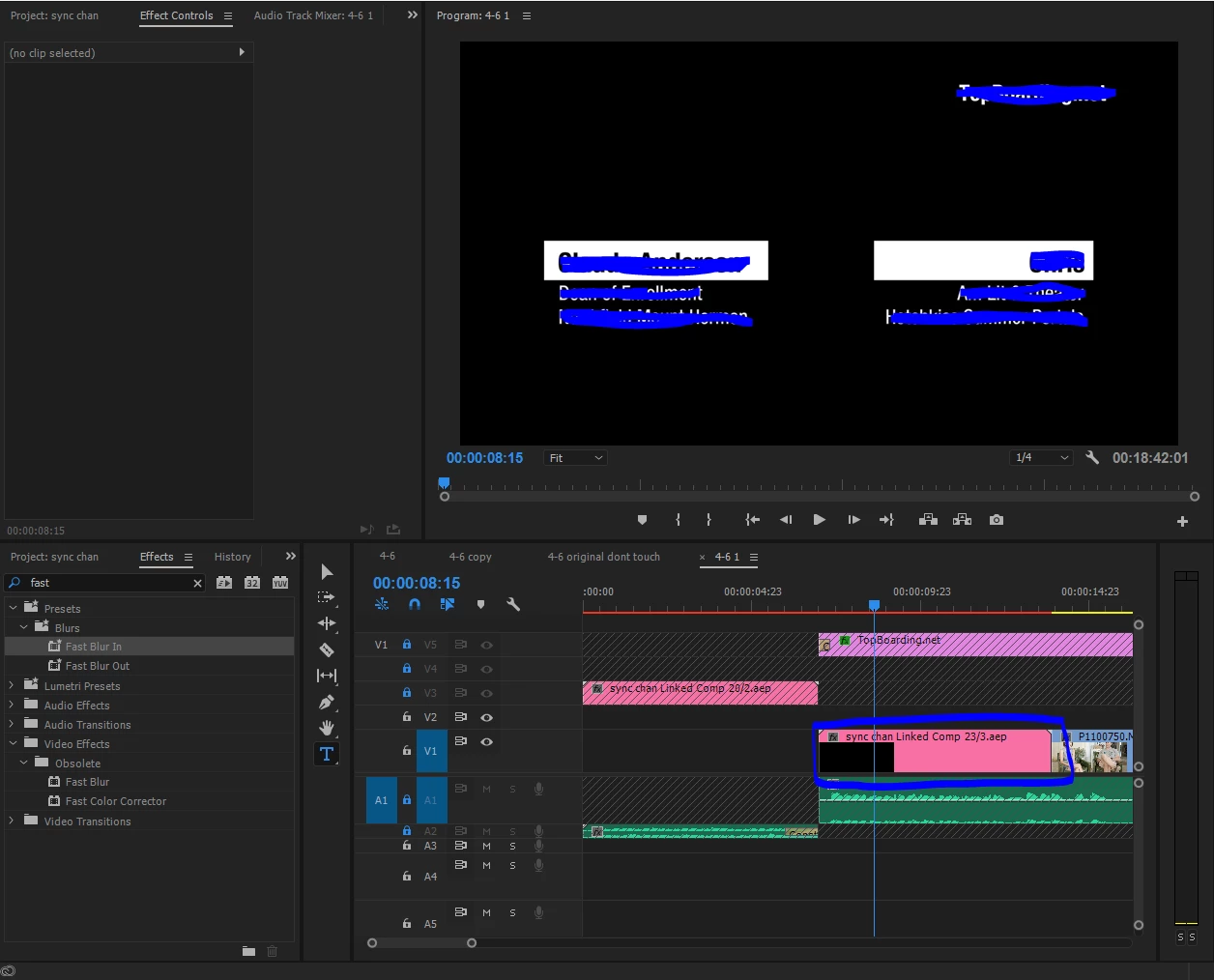
For that blue area, I chose to "Replace with After Effects Composition".
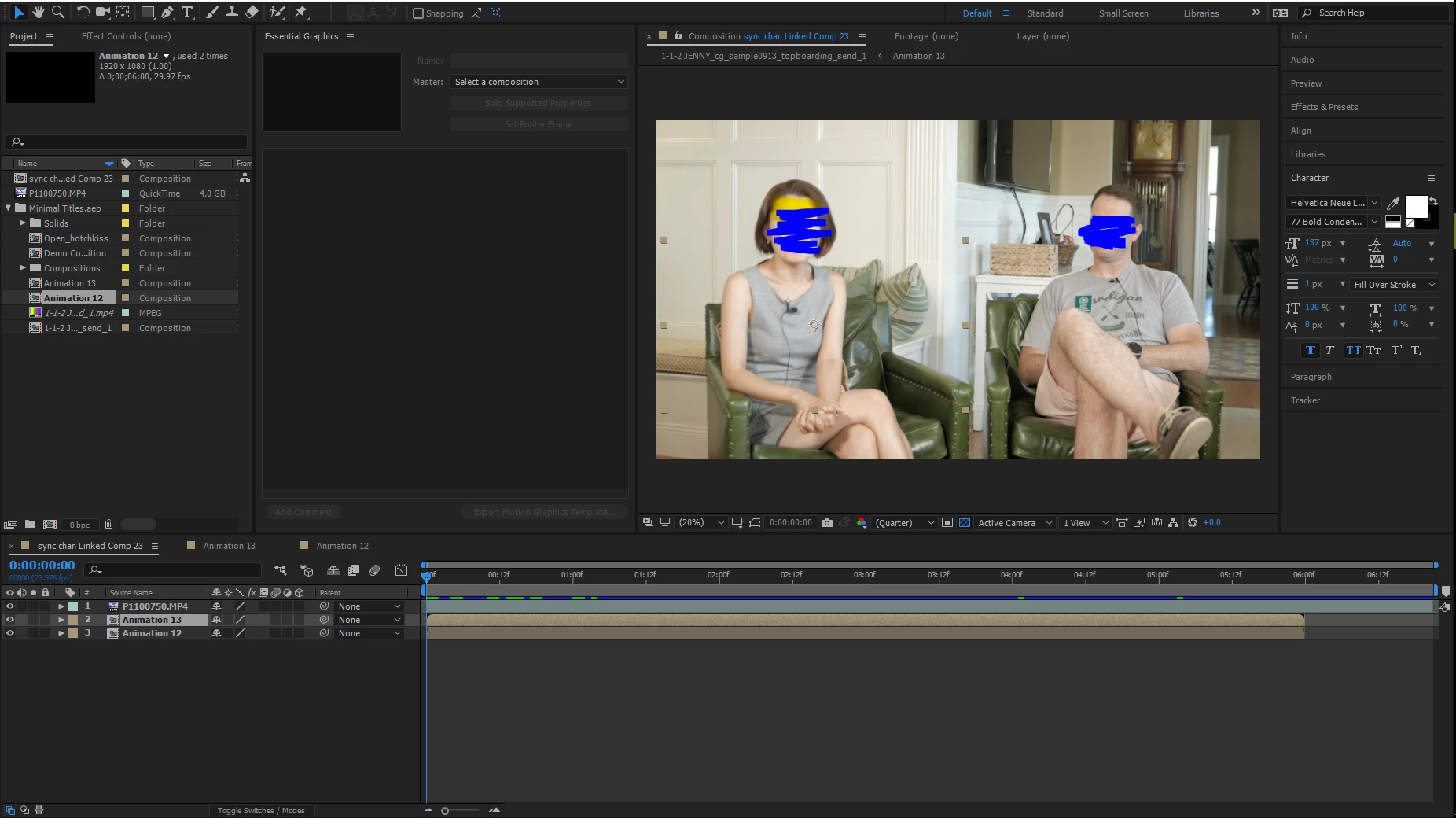
Here is the deal.

The first line is the video from the premiere

and the second and the third are the compositions of animation. They are like name tags for the interviewer and the interviewee.
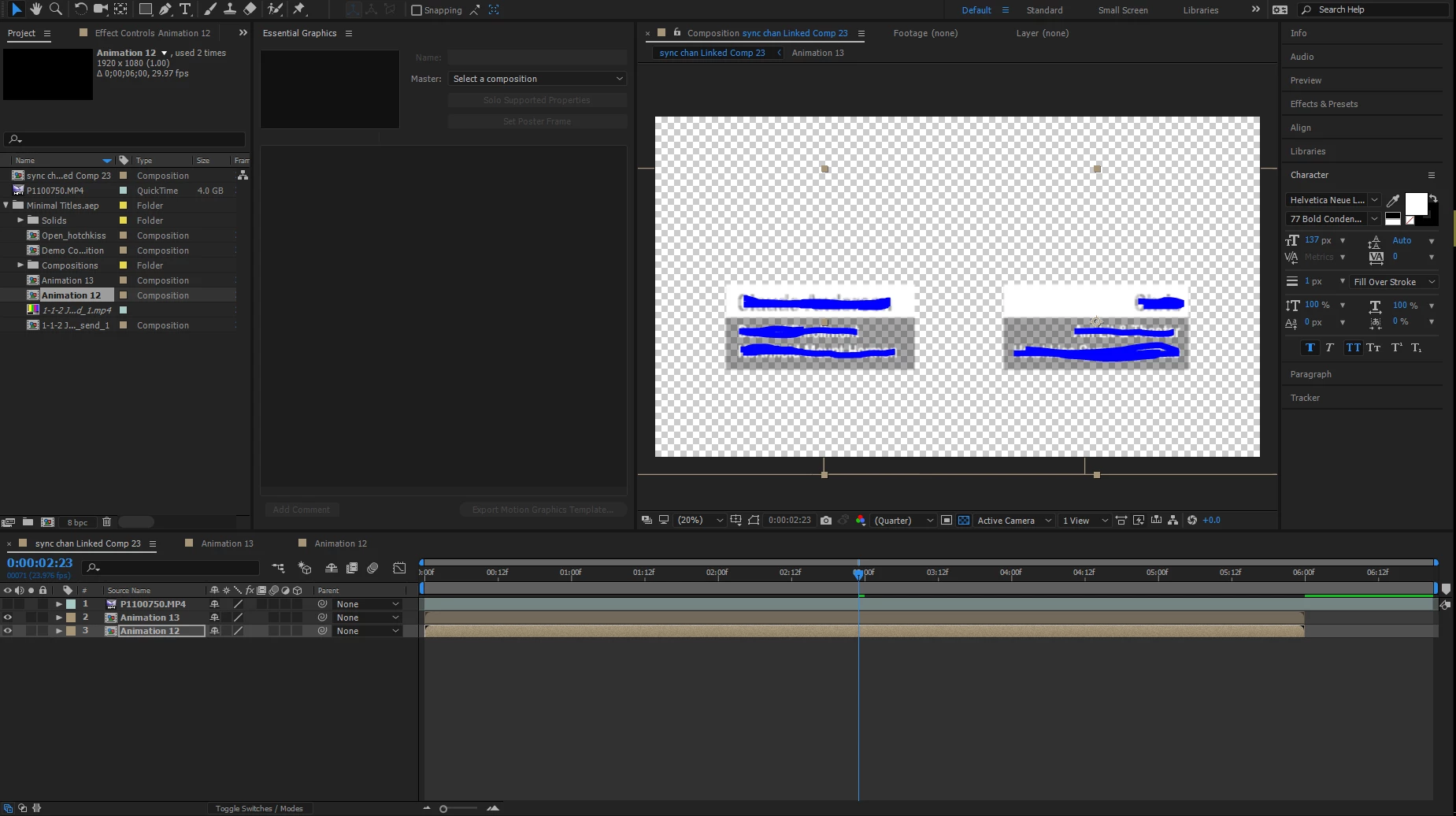
Yeah, like this.

My problem is there is no way I could overlay these nametags on the video from the premiere.

Only video is shown or only nametages are shown. Not together.

I tried with 'Switches' section, but it didn't work.

Somehow my first part of the video worked with overlaying something, but these are not working. and I am *** damn exhausted now..

Please save and help me!!

---------------------------------------------------------------------

update 1.

So I changed the opacity of the video. (50%)
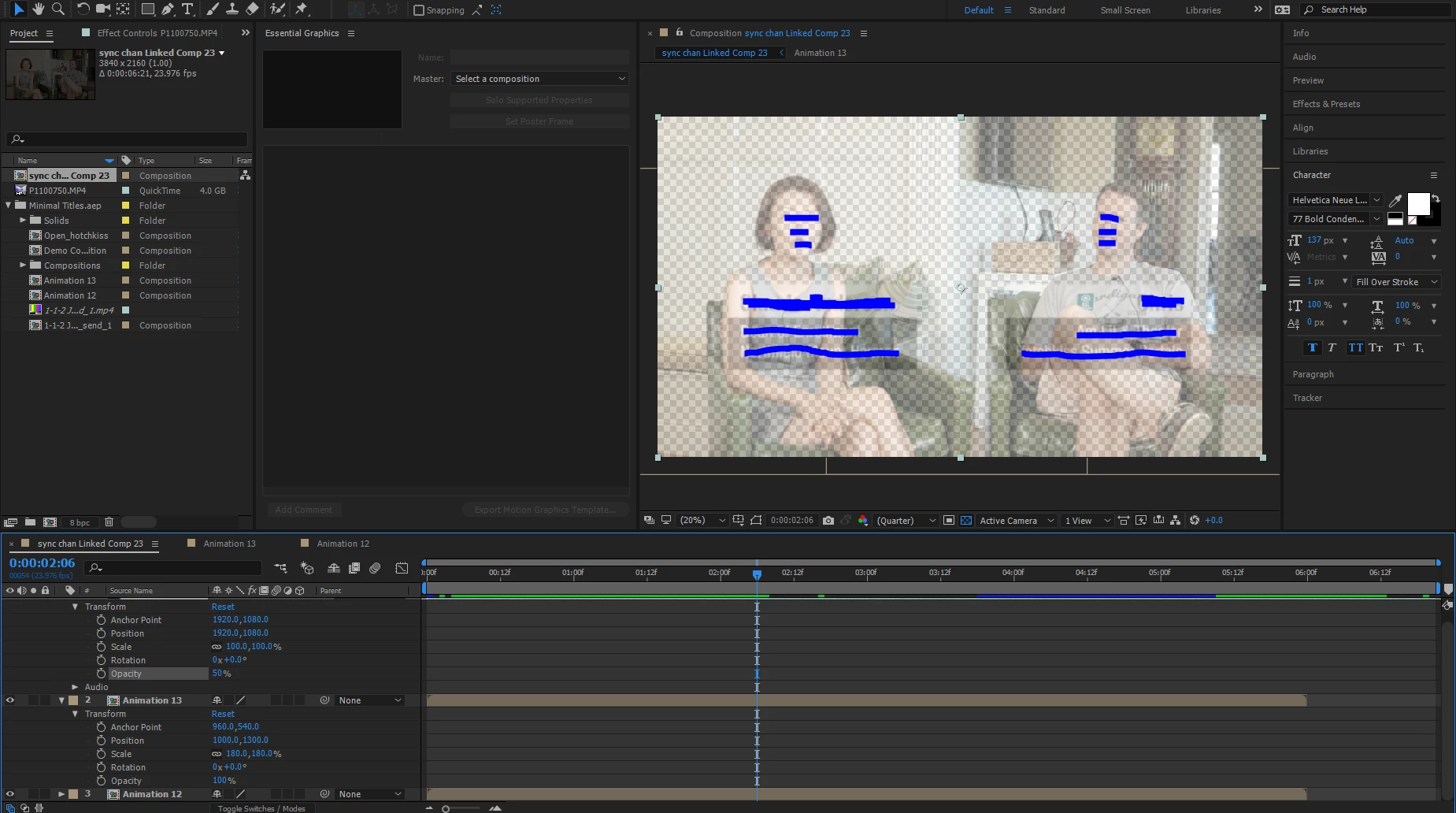
It does appear at my screen on After Effect.

So as Premiere.
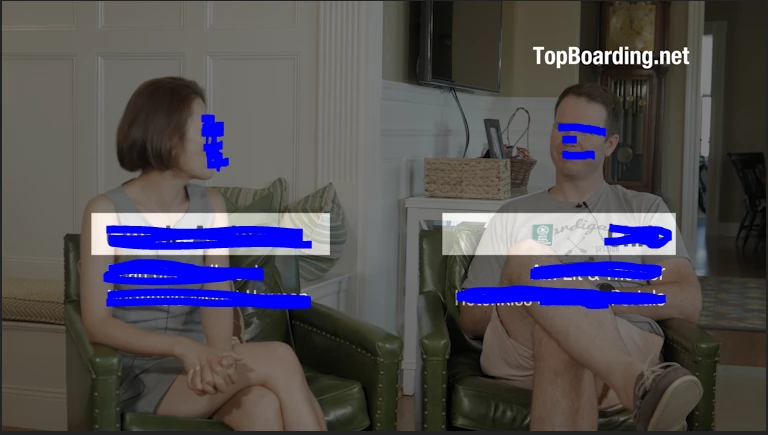
Now my problem is I don't want my whole video with 50% opacity to show nametags.

This topic has been closed for replies.
Correct answer ck_jedi

This looks like a simple layer order issue. If Animation 12 and Animation 13 are your name tag layers, you've placed them below your footage, so of course they're going to be obscured. Click and drag them above your footage in the After Effects comp and you should be fine. Not sure if you're just used to another editor, but in both Premiere and After Effects (just like Photoshop), layers at the top of the stack will appear above anything beneath it UNLESS you're working with 3D layers and a camera, which it doesn't look like you are doing here.

1 reply

ck_jediCorrect answer
Inspiring
October 15, 2017

This looks like a simple layer order issue. If Animation 12 and Animation 13 are your name tag layers, you've placed them below your footage, so of course they're going to be obscured. Click and drag them above your footage in the After Effects comp and you should be fine. Not sure if you're just used to another editor, but in both Premiere and After Effects (just like Photoshop), layers at the top of the stack will appear above anything beneath it UNLESS you're working with 3D layers and a camera, which it doesn't look like you are doing here.