
Inspiring
September 18, 2018
Answered

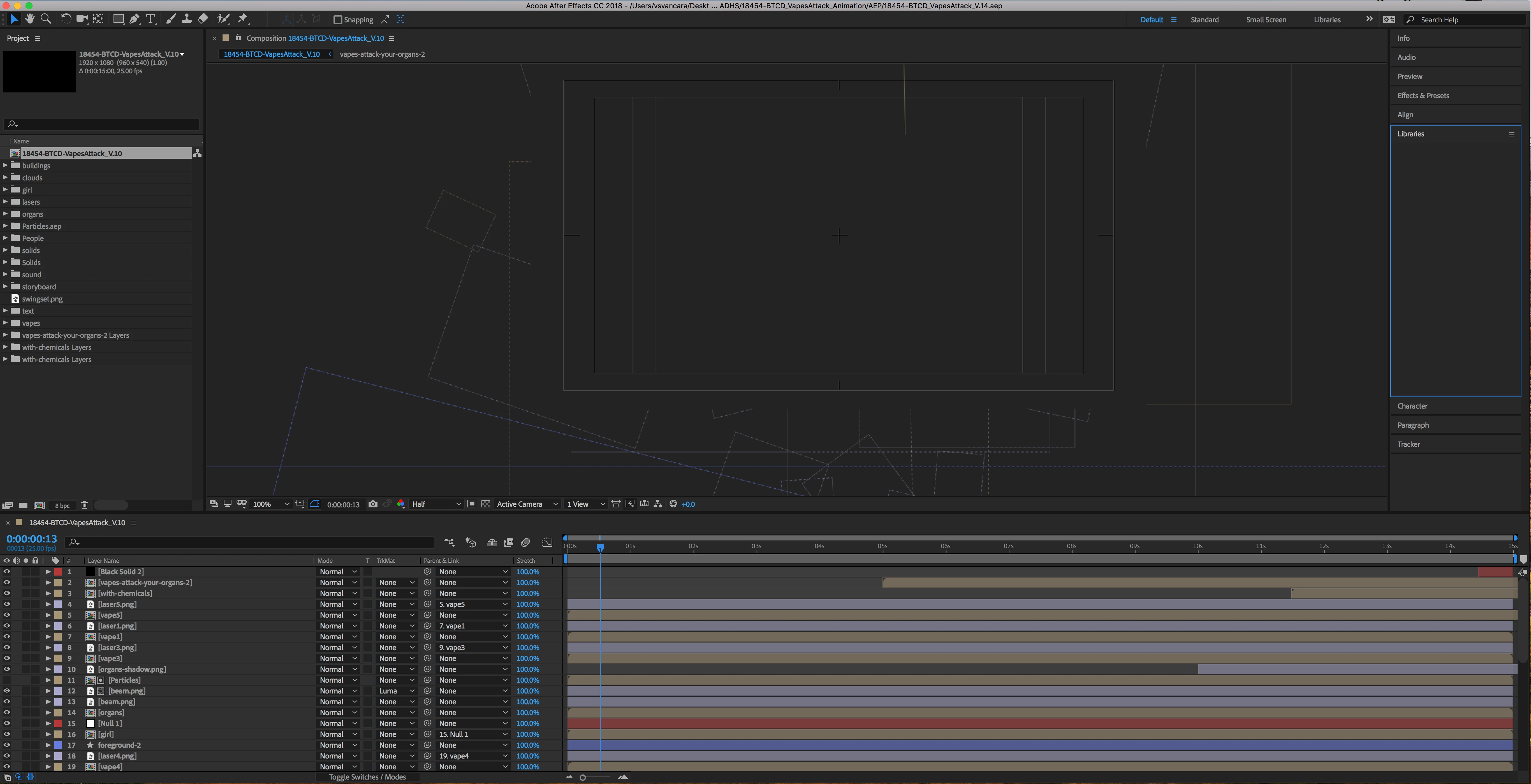
Composition window only showing wireframes

  • September 18, 2018
  • 8 replies
  • 23404 views

I seem to be having issues with a group of files I have been working on. It started with one, and now Im this issues with all of them. When I try to open the file, all I see are wireframes in composition window, no images (screenshot attached). When I try to preview I get the error message "Cached preview needs two or more frames to playback." And when I export to media encoder, it tends to stall and crash.

*On a side note, I AM able to view the images in the precomps. Just not in the main timeline.

The size of the working file is 6.9MB. There are also a lot of layered .psd links and around 11 precomps (not sure if that info is useful or helpful)

Computer Specs:

MAC OS High Sierra

Processor: 3.2 GHz

Memory: 8G

Graphics: AMD Radeon R9 M390 2048 MB

Software Specs:

After Effects CC 15.1.2

Media Encoder CC 12.1.2

Things I've tried:

- Restarts

- Removing and reinstalling After Effects and Media Encoder

- Checked for broken links

- Preview mode: full

- Empty Disk Cache

- Clean Database and Cache

- Set max memory to AE (6.5G to AE, 1.5 to other software)

- Composition > fit to window size

- Tried preview panel, as opposed to preview from timeline

Any thoughts on what the issue could be?
This topic has been closed for replies.
Correct answer vsvancara

I wanted to follow up and share what I did to resolve this, in case anyone searching here has similar issues.

So what I did was create a new document. Then I imported my old AEP file (the one that was not working). I brought in each layer of the old file (one by one) and tested it, saving my new file along the way. I found that there was one png file that seemed to be corrupted so I recreated that one and imported it in. Once I had all layers and assets imported into the new document I saved it and then started to re-organize it so that preview would run more efficiently. I took my precomps that contained the animated .psd layers and rendered them into .mov's. Once I had the .mov's I brought those into the timeline. I grouped the rest of the layers in the timeline by precomposing them. I also made sure I was previewing on lower quality (half or quarter). Seems to be running much better now.

Thanks to everyone who responded!

8 replies

Participant
September 11, 2023

I know this has a posted correct answer, but I came across another potential explanation and solution that may help other folks that arrive at this thread after a google search like me. It may save the trouble of loading into a new project.


Make sure to toggle switches to show the "Layer Switches" toggles and check to see if the Quality and Sampling boxes are switched to wireframes which would show an X. If so click them again to show and forward slash and the images should come back. I realize I hit the wrong keyboard shortcut for creating a null object (Shift+Opt+Cmd+Y) and accidentally hit the shortcut for Layer>Quality>Wireframe (Shift+Opt+Cmd+U) while all layers were selected.


Just leaving this here in case this randomly happens to someone else.

Participant
March 26, 2024

help please it doesnt work its so fing anoying

vsvancaraAuthorCorrect answer
Inspiring
October 2, 2018

I wanted to follow up and share what I did to resolve this, in case anyone searching here has similar issues.

So what I did was create a new document. Then I imported my old AEP file (the one that was not working). I brought in each layer of the old file (one by one) and tested it, saving my new file along the way. I found that there was one png file that seemed to be corrupted so I recreated that one and imported it in. Once I had all layers and assets imported into the new document I saved it and then started to re-organize it so that preview would run more efficiently. I took my precomps that contained the animated .psd layers and rendered them into .mov's. Once I had the .mov's I brought those into the timeline. I grouped the rest of the layers in the timeline by precomposing them. I also made sure I was previewing on lower quality (half or quarter). Seems to be running much better now.

Thanks to everyone who responded!

Participant
April 6, 2022

I found a solution for anyone who is frustrated and doesn't know how to make the image appear and you see the gridlines. 

> Window > Workspace > All Panels

vsvancaraAuthor
Inspiring
September 19, 2018

So I've switched computers, I now have 16G ram. Still having the same issue with black comp window.

Also tried viewing file on coworker's computer--same thing.

So it has to do with the file.

Community Expert
September 19, 2018

Are you tried this?

Byron.
vsvancaraAuthor
Inspiring
September 19, 2018

tried adaptive resolution and fast draft. no changes.

Community Expert
September 19, 2018

What effects are you applying?

Byron.
vsvancaraAuthor
Inspiring
September 19, 2018

*update - I'm about to switch to another iMac with more ram at work (I believe it has 16G), so we'll see if this helps....

Mike_Abbott
Legend
September 19, 2018

Yes - mulit-layered PSD's + limited RAM... memory could well be the issue.

angie_taylor
Legend
September 19, 2018

Just checking that you havent got the draft 3D button switched on?

vsvancaraAuthor
Inspiring
September 19, 2018

3d button is off.

Dave_LaRonde
Inspiring
September 19, 2018

You probably should know that 8 gigs of memory is not much for running AE.

vsvancaraAuthor
Inspiring
September 19, 2018

Yeah that's what I'm thinking. It's running fine on my smaller projects.

Community Expert
September 18, 2018

Check the comp panel preview settings at the bottom right of the panel.

vsvancaraAuthor
Inspiring
September 18, 2018

It's currently set at Off (Final Quality). I tried the others - "adaptive resolution" and "fast draft" and didn't change anything.

Mike_Abbott
Legend
September 19, 2018

Create a new project and import your existing project into it. See if that helps.