Inspiring
June 3, 2023
Answered

Copy pasting the path moves the shape object from its position

  • June 3, 2023
  • 1 reply
  • 316 views

Hi forum.


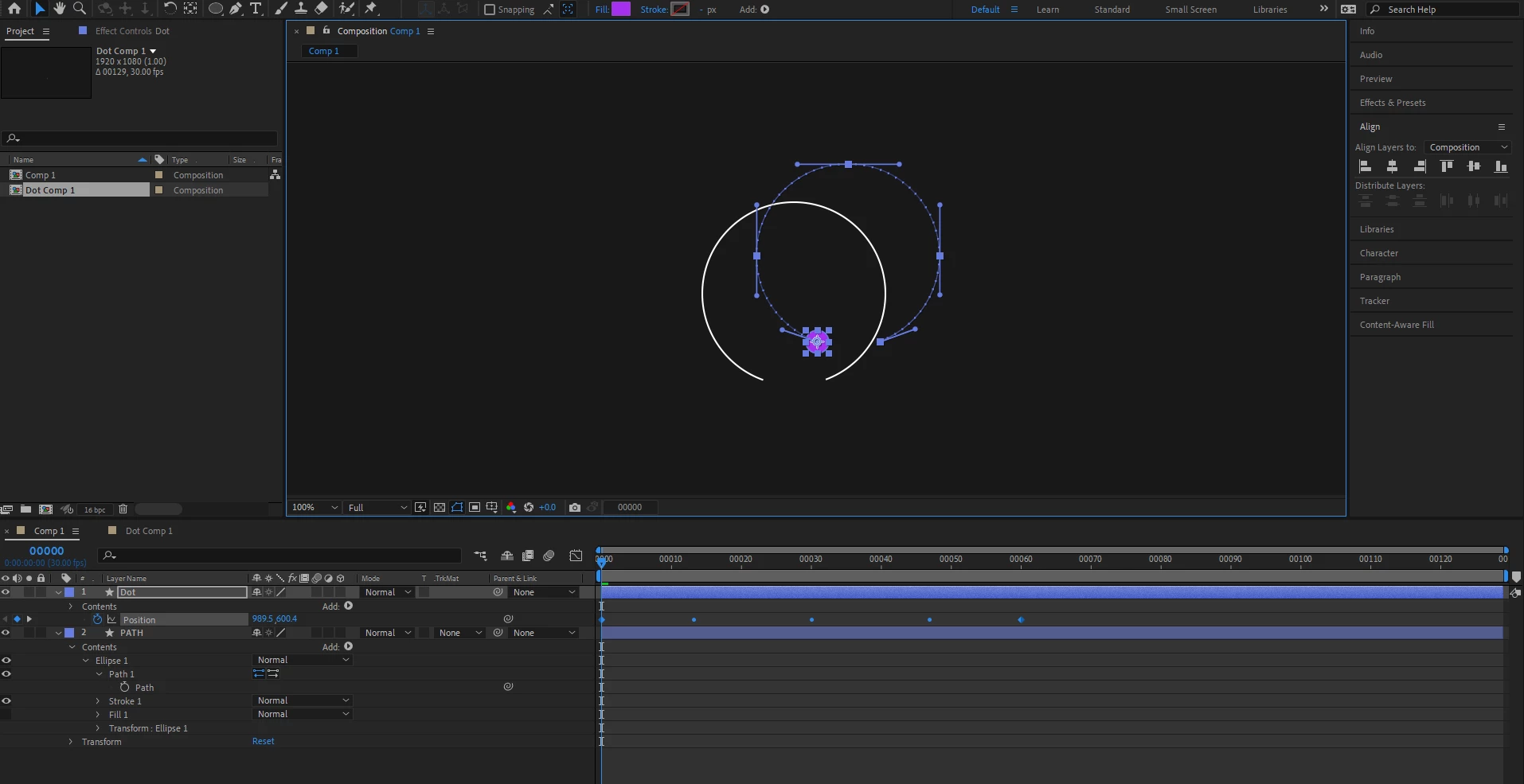
I'm copy and pasting the shape paths into the shape objects position (small circle). And when I paste into the position, it jumps from where it was initially. I then use alt and mouse click to reposition it. Why is it doing this? Is there a way for the shape not to jump from is initial position? The anchor points for borth shapes are in the middle of the canvas perfenctly centred.


This topic has been closed for replies.
Correct answer Rick Gerard

The coordinates of a path are based on Layer Size, not Comp size. Check the "Path" layer's Layer/Transform/Position, Rotation, and Scale. All three properties must be at their default or Reset positions to get a motion path to match a vector path without any further fiddling around.


Here is the fix: add a null to the comp, parent the "Dot" layer to the new Null, then Shift + parent the Null to the Path layer to shape the Null to the current position of the "Path" layer. Or, you can Reset the Transform properties of the "Path" layer before you copy the vector path and paste it to the position property of the "Dot" layer, then parent the Dot to the Path and move the path to the desired position.


1 reply

Rick GerardCommunity ExpertCorrect answer
Community Expert
June 3, 2023

The coordinates of a path are based on Layer Size, not Comp size. Check the "Path" layer's Layer/Transform/Position, Rotation, and Scale. All three properties must be at their default or Reset positions to get a motion path to match a vector path without any further fiddling around.


Here is the fix: add a null to the comp, parent the "Dot" layer to the new Null, then Shift + parent the Null to the Path layer to shape the Null to the current position of the "Path" layer. Or, you can Reset the Transform properties of the "Path" layer before you copy the vector path and paste it to the position property of the "Dot" layer, then parent the Dot to the Path and move the path to the desired position.