Participant
May 29, 2020
Resuelto

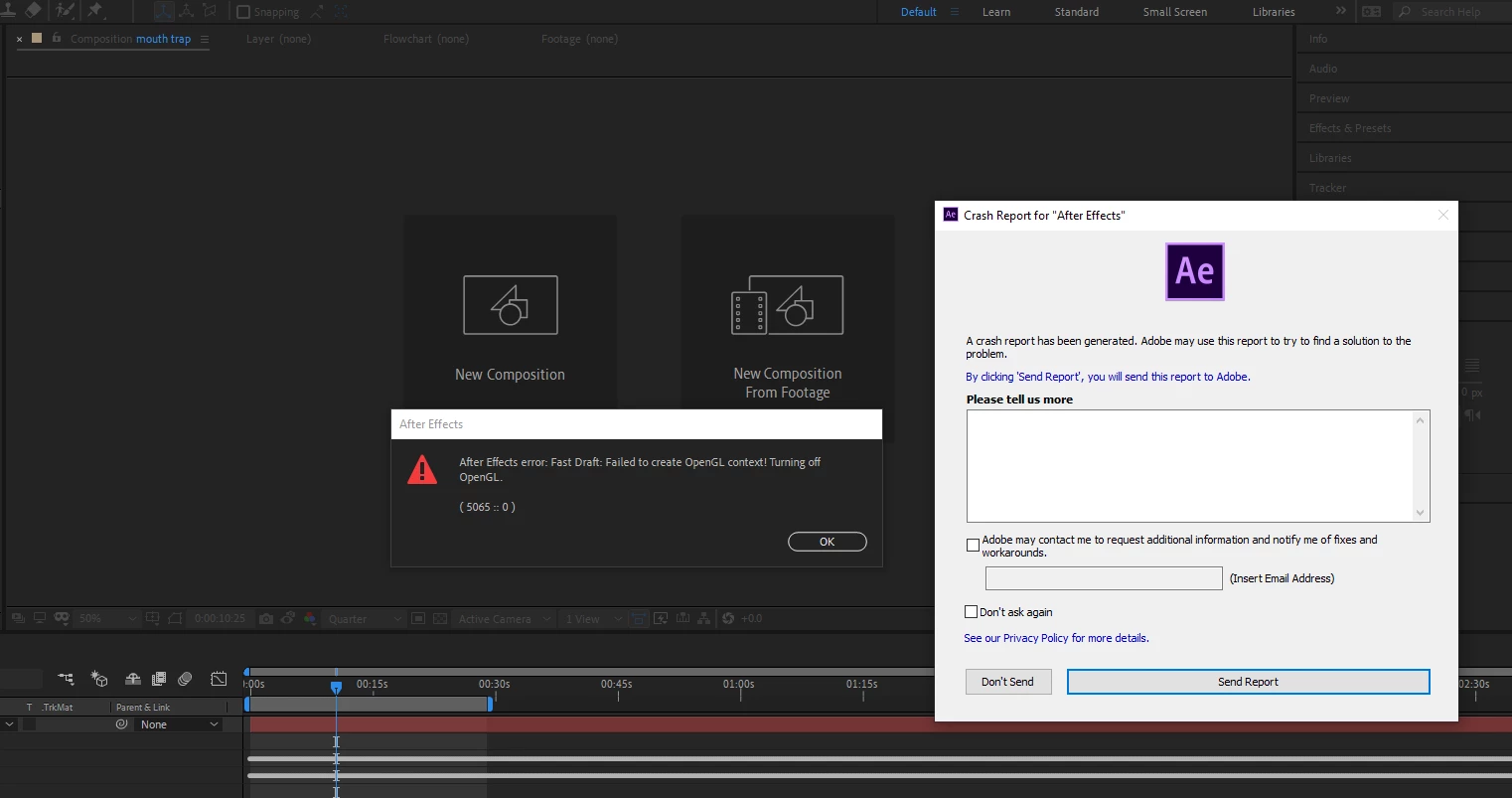
Crashing on Project Open, OpenGL Failure, White Screen on Preview Window

  • May 29, 2020
  • 2 respuestas
  • 3585 visualizaciones

Since recently installing the newest update to AE, the program has stopped working. I will open AE, open a project, and one of three things will happen:

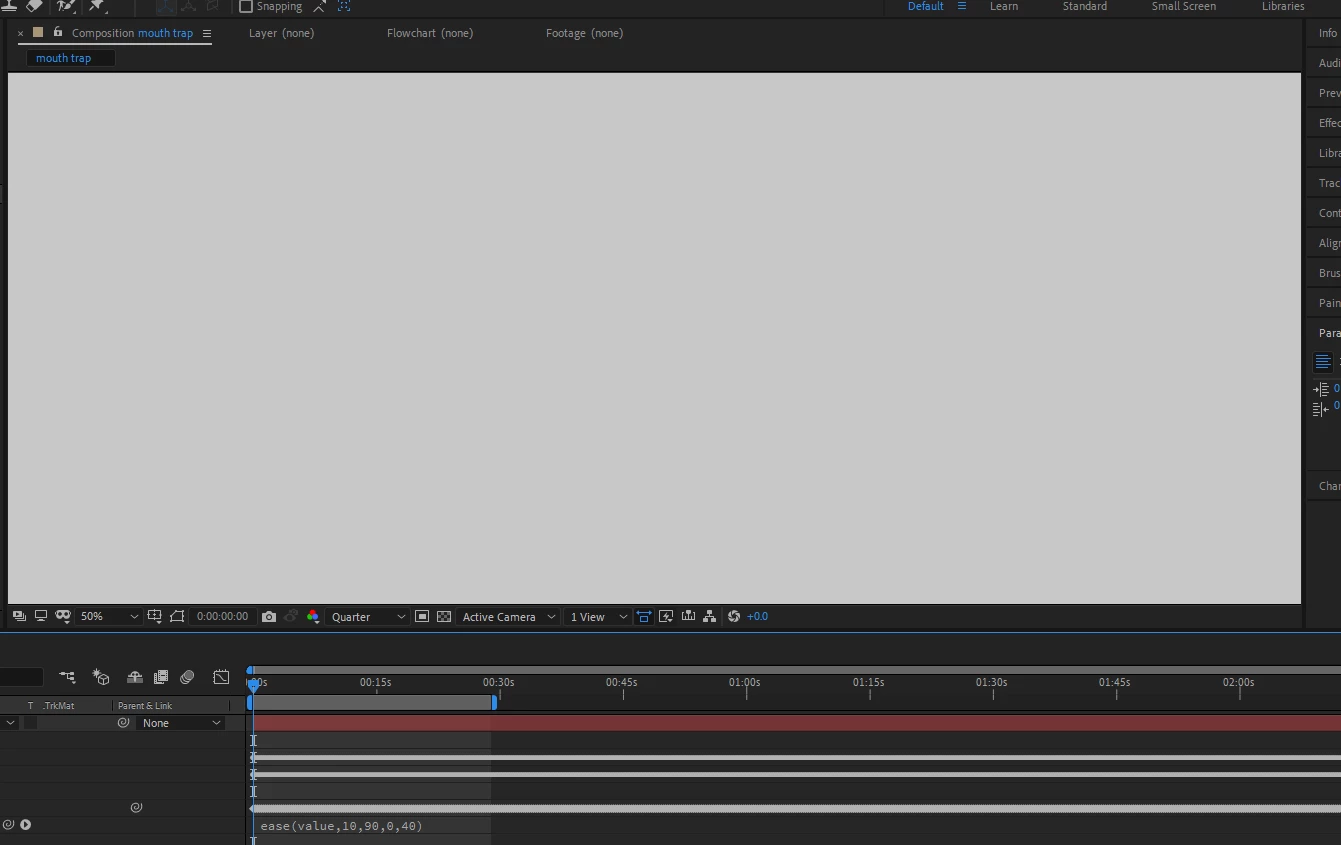
  1. My screen will freeze, go black, and return to a project with a white preview screen. AE will be unresponsive or a crash report window will open, and upon closing close AE.
  2. Same as 1, but I can scrub through the timeline, until eventually not responding/crashing
  3.  I will get an error message reading "Fast Draft: Failed to create OpenGL context! Turning off OpenGL. (5065 :: 0)" AE will close. 


Solutions I have tried:

  • Updating graphics card drivers
  • Clearing cache (seemed to work once, but never again)
  • Placing the "Always Disable Advanced OpenGL" script into the Startup folder
  • Uninstalling and reinstalling AE


Computer Specs:

  • Processor: AMD Ryzen 7 3700X 8-Core Processor, 3593 Mhz, 8 Core(s), 16 Logical Processor(s)
  • OS: Microsoft Windows 10 Home Version 10.0.18362 Build 18362
  • 16 GB RAM
  • AMD Radeon™ RX 580 (8 GB RAM)


Any help or guidance would be appreciated. Thanks.


Este tema ha sido cerrado para respuestas.
Mejor respuesta de ianburrito

Resetting the preferences worked. Ctrl+Shift+Alt is my new best friend. Thanks!

2 respuestas

Participant
November 10, 2020

I Have the same problem. 

And nothing of soluction.

Participant
November 22, 2020

I also have this problem. Its hindering me with my School Work. I had to turn to Hitfilm to do my homework. Its an Adobe Class. Any ideas?.

I too have tried every option, including the solutions here, and it doesn't help. I've even dropped money to upgrade my computer and it has done nothing to solve my problem

nishu_kush
Legend
June 2, 2020

Hi ianburrito,


Thanks for the detailed post.

Is it happening with all the projects or a particular one?

Here're a few suggestions that you can try:

  1. Change the Renderer to Software Only (File > Project Setting).
  2. Go to Edit > Preferences > Display > uncheck "Hardware Accelerated Composition, Layer, and Footage Panels".
  3. Reset the preferences of After Effects: https://community.adobe.com/t5/after-effects/faq-how-to-reset-trash-preferences-in-after-effects/td-p/10634342?page=1

Let us know how it goes.


Thanks,

Nishu

ianburritoAutorRespuesta
Participant
June 15, 2020

Resetting the preferences worked. Ctrl+Shift+Alt is my new best friend. Thanks!