j_wang
Participant
October 18, 2017
Answered

Create shapes from vector layer changes bounding box problem

  • October 18, 2017
  • 4 replies
  • 6744 views

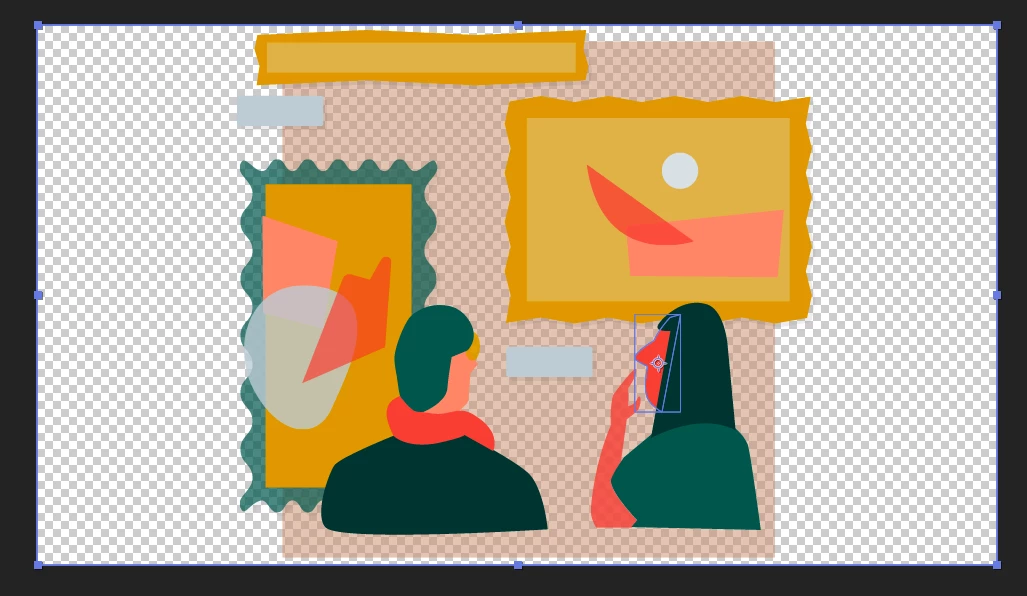
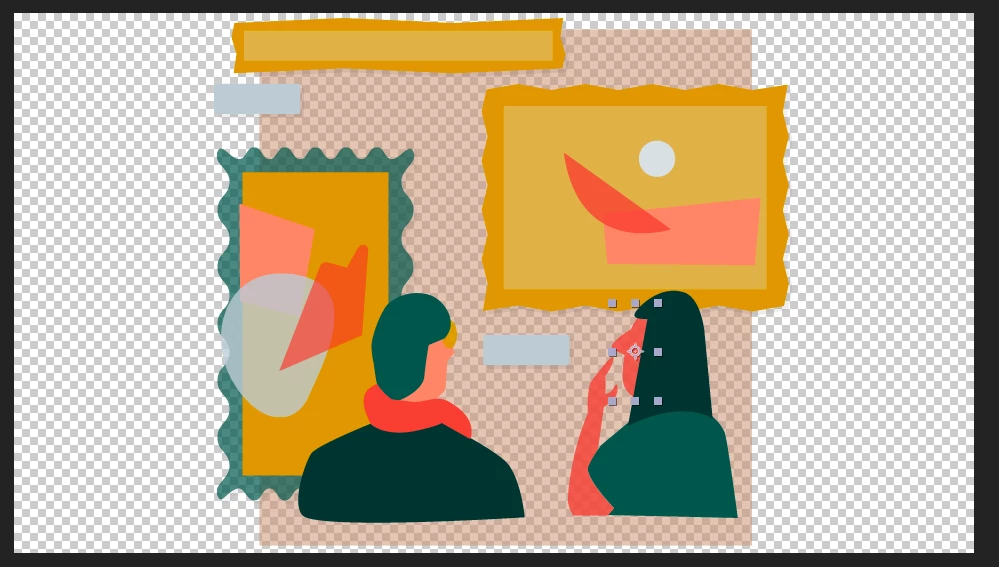
Hi, when I import an Illustrator file and click 'Create Shapes from Vector layers' the bounding box changes to the artboard size and I can't figure out why.

When importing the .ai file I have selected Composition - Retain layer sizes so that isn't an issue.

I've also copy and pasted the illustrator layers into another existing .ai file which has worked successfully in After Effects before, but the same problem occurs when I import it with these new layers.

I've read through this thread and many others but none of them resolve the problem I have below, does anyone know how to fix this?

Thanks,

Juliana
Correct answer Roei Tzoref

opacity or blend mode changes to any object in your illustrator file will cause the "create shapes from vector layer" feature to any of the layers to behave in the following manner: your shape layer will have an additional group in the shape hierarchy that will contain paths that constitute your Ai artboard and another merge paths operation. and it's very annoying

it could look like something like this if you work in an HD Preset.

BTW HD preset gives you 2 artboards.. it's actually a good thing:Re: AI (illustrator) layers not showing up in AE (after effects) CC 2014 )

here is the shape hierarchy comparison of Layer 1 that is normal and Layer 2 that has 50% opacity:

as you can see the artboard is here as a group with 3 paths and there is an additional merge path operation to the content of the shape.

What to do?

  1. if it's after the fact: you can just manually delete the group and the merge path from your shapes, or remove the blend mode / opacity from the layers in Ai (or set them to 100%/set them to normal) which is what Ae is going to do anyway, save the file again, and create shapes from vector layer again.
  2. before the fact - proper workflow:  it is already known that opacity and blend mode (and not only them) don't translate to a corresponding shape anyway, so this makes this an easy workflow decision: if you do plan to convert to shapes, prior to importing to Ae - set your blend modes to normal and opacity to 100% if it's not.
  3. there's also this script: Explode Shape Layers 3 - aescripts + aeplugins - aescripts.com that is very handy for dealing with the whole conversion of Ai to shapes and it has the "Remove Artboard" feature. this from the script description: If any of your Illustrator layers have non-100% opacity or go outside of the frame, you've probably noticed that converting brings in an empty artboard artifact that gets in the way. No more! Remove it with Remove Artboard.

4 replies

KaduAlves
Participant
April 4, 2023

Salve illustrator as "Illustrator CS" version, problem solved here.

Jonathan Lutjens
Known Participant
August 11, 2022

Came across this thread while trying to solve the same issue. Multiple extra groups and empty artboard paths when using the "create shape from vector layer" command. I didn't find a solution (including the correct answer below) within AE or AI, but I did find out that the script I already have, zl_ExplodeShapeLayers has a button that correctly converts your vector layer to a shape layer without any of the extra jibber-jabber. You can find it at aescripts.com. A great tool beyond just this usage.

Roland Kahlenberg
Legend
August 12, 2022

Lots of users use the Overlord Extension - https://www.battleaxe.co/overlord
It's an excellent tool for getting layers from AI into AE and vice versa.

Very Advanced After Effects Training | Adaptive & Responsive Toolkits | Intelligent Design Assets (IDAs) | MoGraph Design System DEV
Participant
August 10, 2018

This happens because you have an extra artboard in your Ai file, however, even when you delete the extra artboard Ae still will make that extra shape for the original artboard. I don't know why tho.

I'll appreceate if someone can tell the reason of why that happens with the artboard.

Regards,

PD: sorry for the bad english.

Roei Tzoref
Roei TzorefCorrect answer
Legend
October 19, 2017

opacity or blend mode changes to any object in your illustrator file will cause the "create shapes from vector layer" feature to any of the layers to behave in the following manner: your shape layer will have an additional group in the shape hierarchy that will contain paths that constitute your Ai artboard and another merge paths operation. and it's very annoying

it could look like something like this if you work in an HD Preset.

BTW HD preset gives you 2 artboards.. it's actually a good thing:Re: AI (illustrator) layers not showing up in AE (after effects) CC 2014 )

here is the shape hierarchy comparison of Layer 1 that is normal and Layer 2 that has 50% opacity:

as you can see the artboard is here as a group with 3 paths and there is an additional merge path operation to the content of the shape.

What to do?

  1. if it's after the fact: you can just manually delete the group and the merge path from your shapes, or remove the blend mode / opacity from the layers in Ai (or set them to 100%/set them to normal) which is what Ae is going to do anyway, save the file again, and create shapes from vector layer again.
  2. before the fact - proper workflow:  it is already known that opacity and blend mode (and not only them) don't translate to a corresponding shape anyway, so this makes this an easy workflow decision: if you do plan to convert to shapes, prior to importing to Ae - set your blend modes to normal and opacity to 100% if it's not.
  3. there's also this script: Explode Shape Layers 3 - aescripts + aeplugins - aescripts.com that is very handy for dealing with the whole conversion of Ai to shapes and it has the "Remove Artboard" feature. this from the script description: If any of your Illustrator layers have non-100% opacity or go outside of the frame, you've probably noticed that converting brings in an empty artboard artifact that gets in the way. No more! Remove it with Remove Artboard.
j_wang
j_wangAuthor
Participant
October 19, 2017

Thanks a lot Roei! I deleted Group 1 and Merge Paths as you suggested and it's resolved the problem. Will adjust future Ai files as suggested too, thanks a lot for your help!