
Participant
September 23, 2022
Answered

Creating resposive background for text layer for lower third title

  • September 23, 2022
  • 2 replies
  • 232 views

Dear Users,

I have been assigned to replicate this effect, whereas the shape background has been pinned to the left side of the frame and will appear from there till wherever the text is extended if you adjust the text, the shape from the right side would constantly adjust accordingly.

As I have seen in the project file, they have used guide layers and pins and complicated coding. could someone show me how does this possible? maybe in a simpler method but getting the same result.

Regards,
This topic has been closed for replies.
Correct answer Rick Gerard

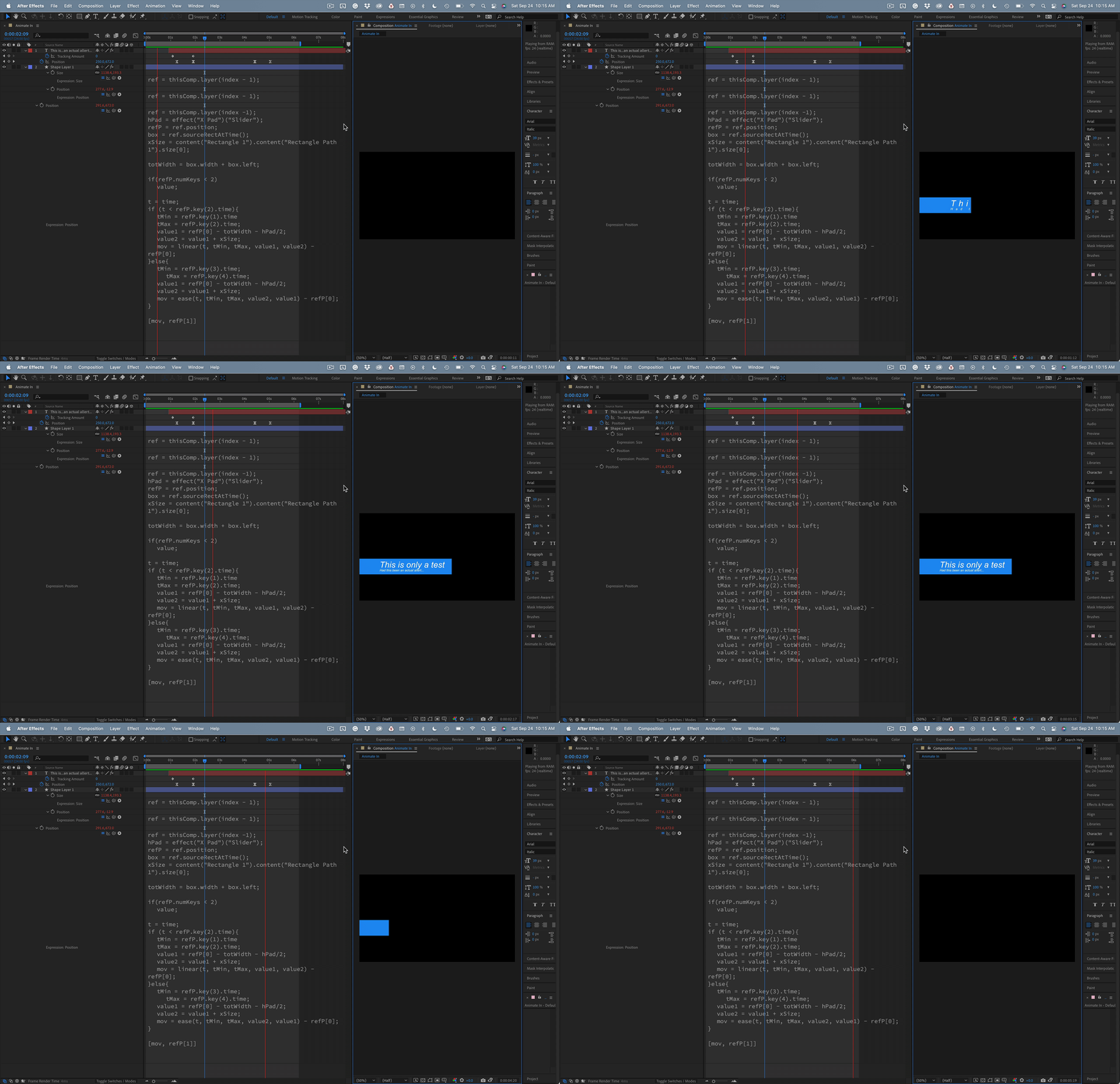
I did some more fiddling (Re: Adding two Ease expressions to the same proper...) and ended up with a solution that requires a double-click on an animation preset, a text layer with only 4 position keyframes, and Set Matte.


Add a text layer, animate the position from right to left, then pause, then animate the layer left to right, right to left, or just add two more keyframes to the text layer. Then double-click the Animation Preset and drag the new shape layer below the text layer, and you're done. You can also add text animators for tracking and end up with this in about two minutes.

I've uploaded a project file that contains the expressions. I also need to thank Dan Ebberts for helping me fix a problem with the Position expression.

2 replies

Community Expert
September 23, 2022

I would animate the text layer's position and add a tracking animator. This could be saved as an animation preset. 


I would then add a shape layer with some expressions to control the size and position of the rectangle so that it lines up with the text. The position of the shape layer would be tied to the Y position of the text layer with an expression that allows you to animate the X position. This could also be saved as an animation preset.


I would then add Set Matte to the text layer and select the Shape layer as the Alpha Source to wipe on the text. 


Here are the expressions I would use for the shape layer:

// Rectangle 1/Rectangle 1 Path1/Size:
src=thisComp.layer(index - 1);
ref = sRc.sourceRectAtTime(2);
refScale = sRc.scale * .01;
x = ref.width + 300; // add 300 px padding
y = ref.height + 50; // add 50 px padding

[x * refScale[0], y * refScale[1]]

//Rectangle 1/Rectangle 1 Path 1/Position/
src=thisComp.layer(index - 1);
box = src.sourceRectAtTime(2);
refScale = src.scale * .01;
x = box.width / 2;
y = box.height / 2;
t = box.top;
l = box.left;

[value[0] + (x + l) * refScale[0] + 150, (y + t) * refScale[1]]

// Shape layer Position
ref = thisComp.layer(index - 1);
[value[0], ref.position[1]];

This is what the comp looks like:

It's not a perfect match, but it is close.

Rick GerardCommunity ExpertCorrect answer
Community Expert
September 25, 2022

I did some more fiddling (Re: Adding two Ease expressions to the same proper...) and ended up with a solution that requires a double-click on an animation preset, a text layer with only 4 position keyframes, and Set Matte.


Add a text layer, animate the position from right to left, then pause, then animate the layer left to right, right to left, or just add two more keyframes to the text layer. Then double-click the Animation Preset and drag the new shape layer below the text layer, and you're done. You can also add text animators for tracking and end up with this in about two minutes.

I've uploaded a project file that contains the expressions. I also need to thank Dan Ebberts for helping me fix a problem with the Position expression.

Participant
September 25, 2022

Dear Rick,
Thank you so much for your kind answer and time.
I truly appreciated the time you have given for solving this.
I will try to have a look at the project file and get my head around it.
If there were any issues that I could not understand or solve, might bother you again here.
Regards,

Mylenium
Legend
September 23, 2022

Not sure what you mean by "complicated coding". At its simplest, those could be linear wipe effects that you adjust by eyeball not requiring any code, at worst it's a simple sourceRectAtTime() expression as you can find them dime a dozen on the Internet. A simple example for a shape layer rectangle could look something like this:


mText=thisComp.layer("Text");
mPad=20; //extra padding

mCom=thisComp.layer("Controller").effect("Completion")("Slider");

mWid=mText.sourceRectAtTime().width;
mHei=mText.sourceRectAtTime().height;

X=linear(mCom,0,100,0,mWid+mPad)
Y=mHei+mPad*2;


Of course you have to set up the layers accordingly or adjust the references to suit your needs and then animate the slider. Either way, I would suggest you actualyl look up a tutorial based on sourceRectAtTime() for a better understanding of what it actually does and also read the online help on soem expression basics.


https://helpx.adobe.com/after-effects/using/expression-basics.html


Mylenium

Participant
September 25, 2022

Dear Mylenium,
Thank you so much for your kind answer and time.
I appreciated.
Regards,