AhmedSheshtawy
Inspiring
November 27, 2017
Answered

CUDA issues in After Effects CC 2018 on MacOS

  • November 27, 2017
  • 9 replies
  • 26992 views

==UPDATE== November 27, 2017

I contacted Adobe about that issue and they told me " We apologize but it is a known issue going on with the NVIDIA cards and Adobe applications and no fix for that till now and might be fixed in future updates".

Hi,

Since I upgraded my MacBook to High Sierra and upgraded my Adobe CC to 2018 and my AE is driving me crazy.

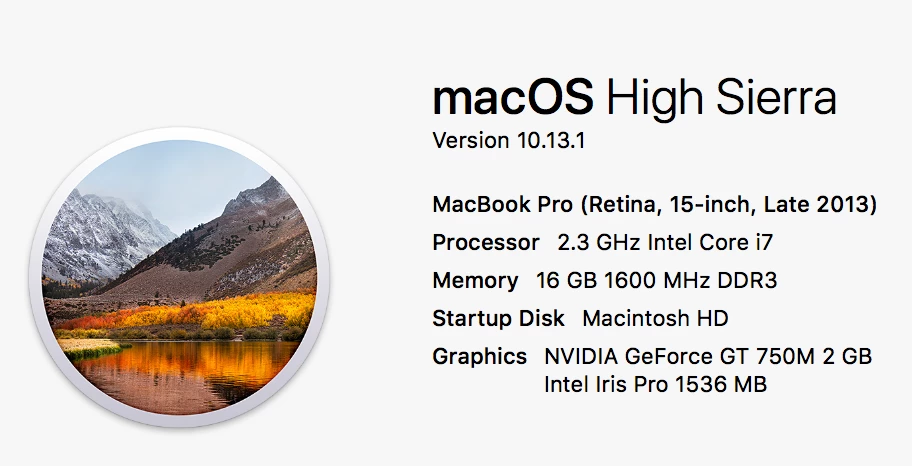
My graphics card is Nvidia Geforce 750M. First CUDA 9 was not showing in the GPU preferences page in AE and it was only showing Open CL, Metal and Software only , I contacted Adobe and unfortunately they let me download CUDA 8 and they told me that this is the supported version right now. That was wrong though! and it made my MacBook so laggy and I got kernel panic couple times while working on projects.

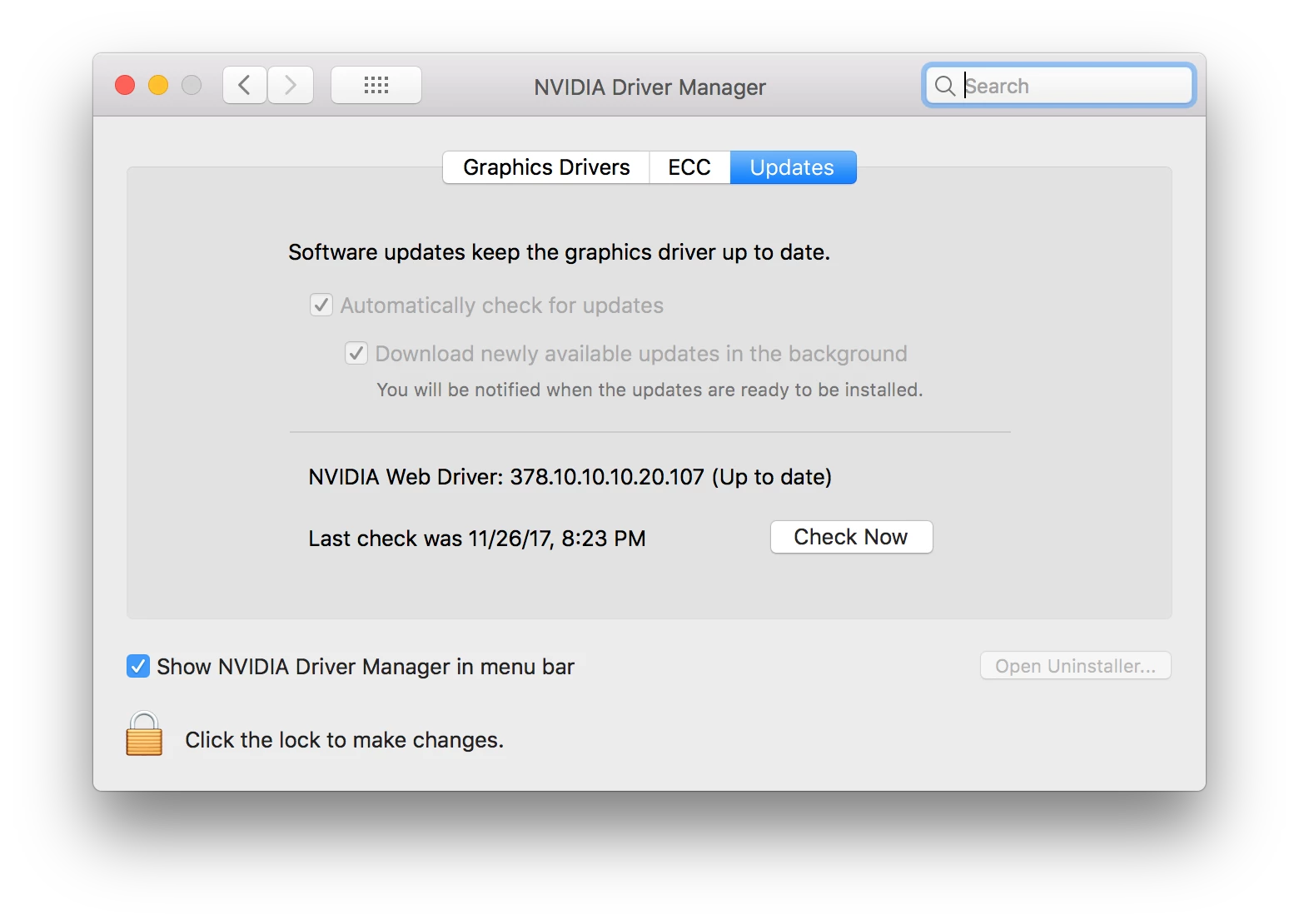
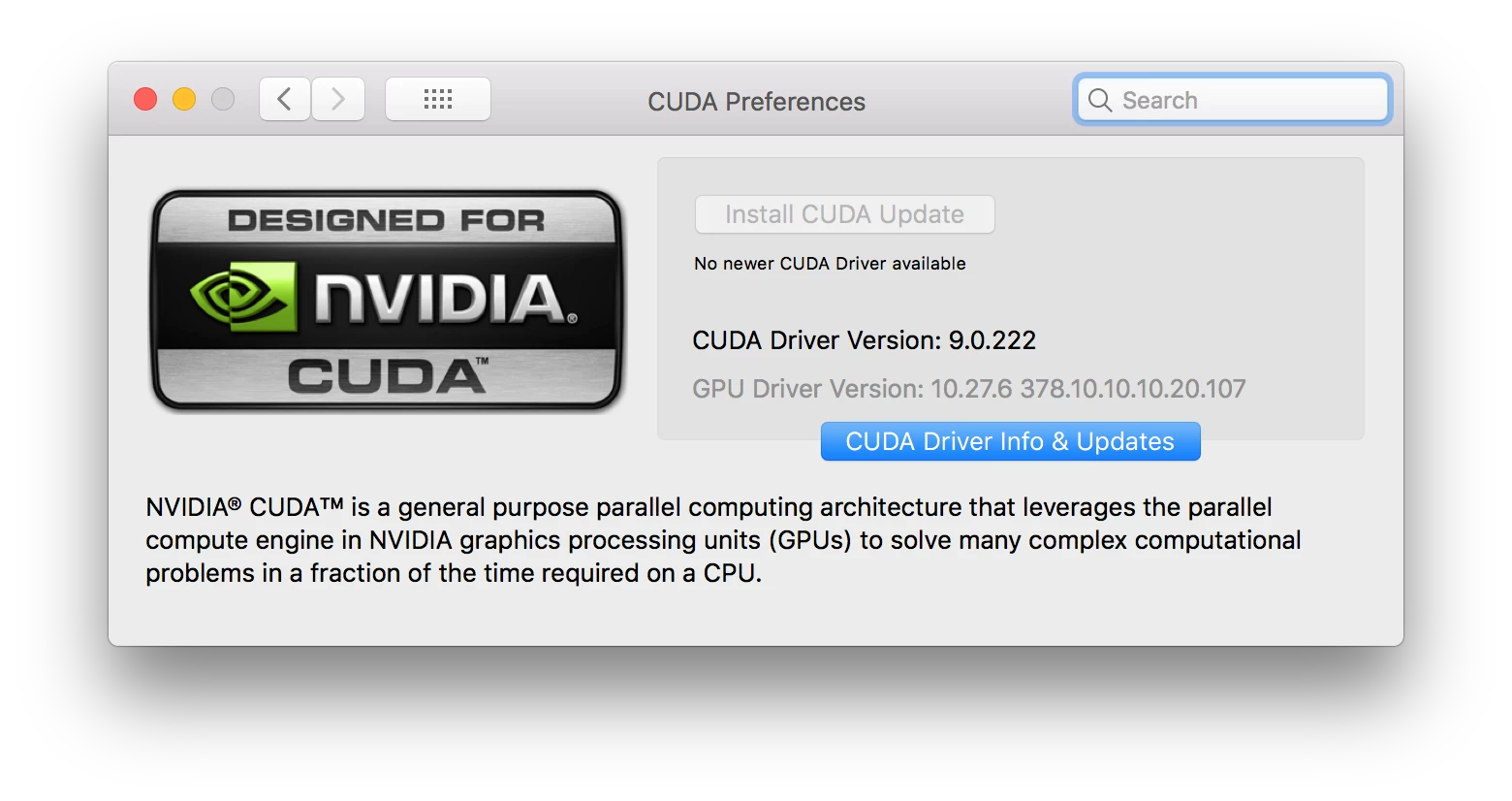
-In case you had the same problem too- I figured out that if you are running the new MacOS you have to download "Nvidia Driver Manager" and use the driver that Nvidia developed rather than the driver that Apple is offering, and then download CUDA 9 and everything should work fine!

That made my AE more stable and more responsive, specially while working with chroma and Keylight, but still AE is slower than usual when RAM preview videos.

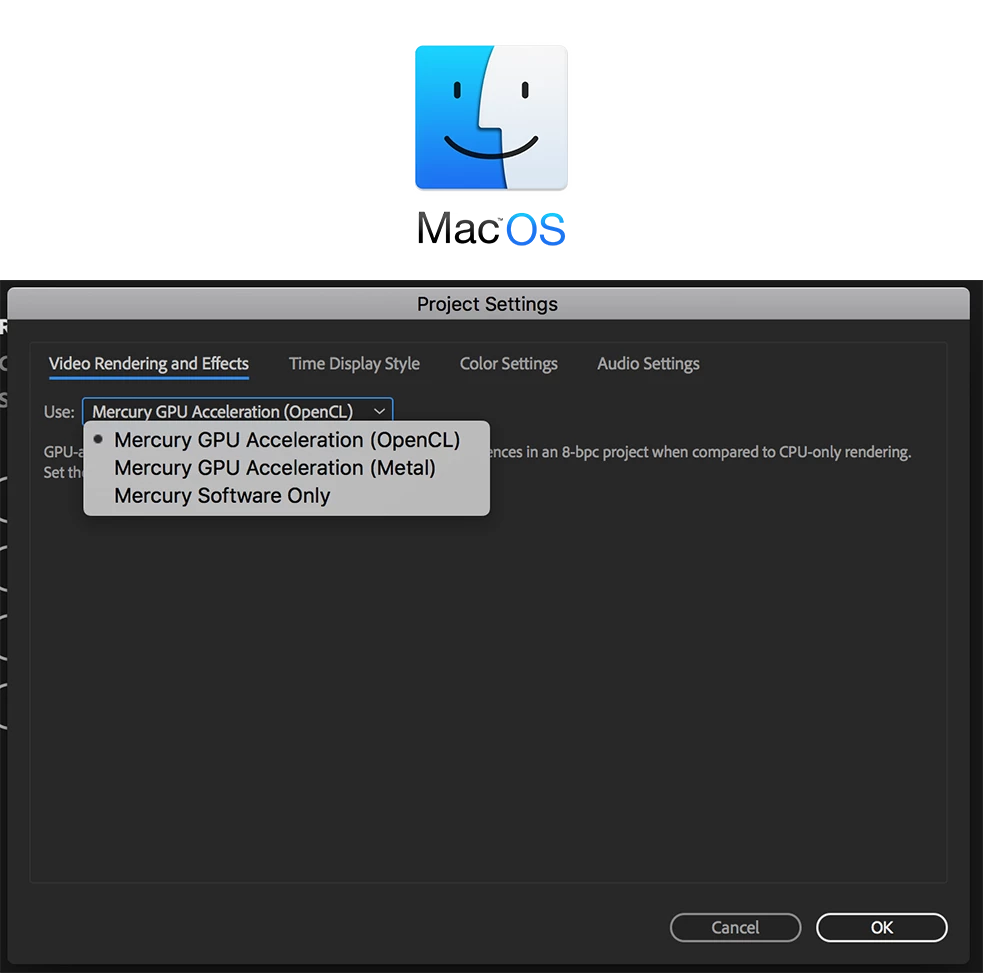
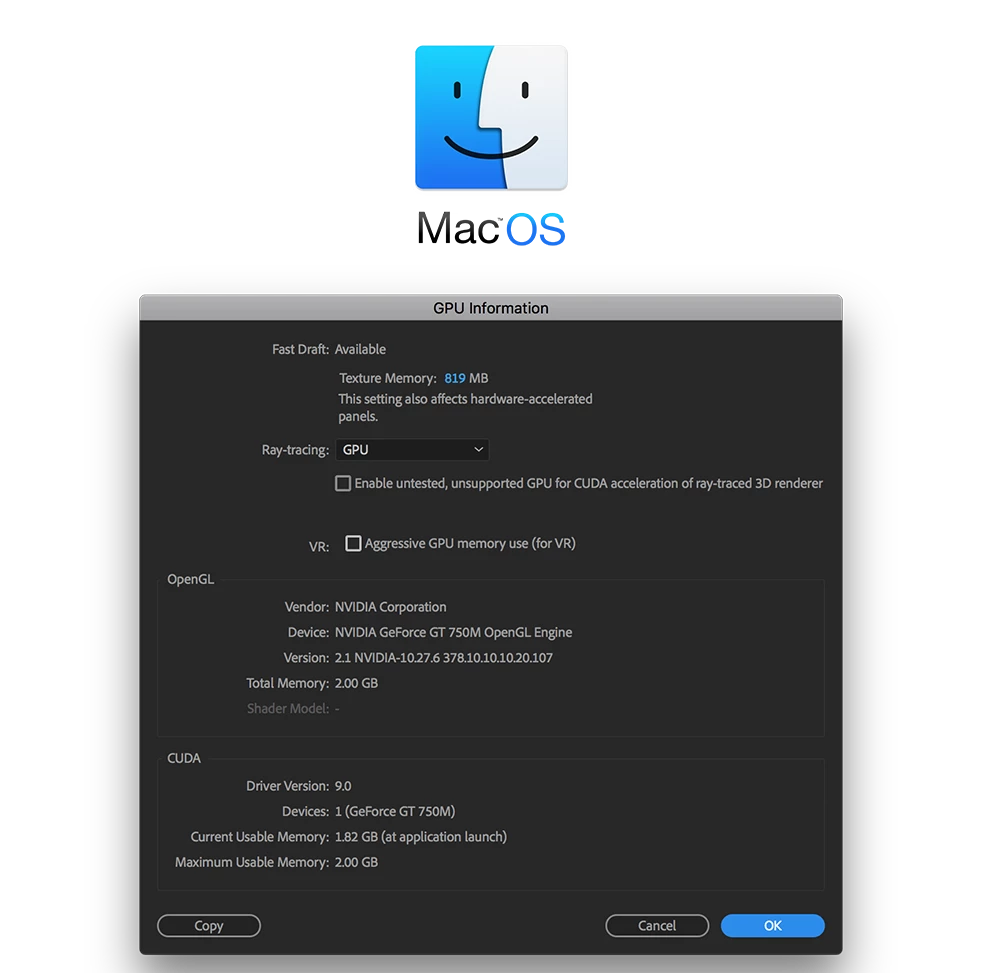
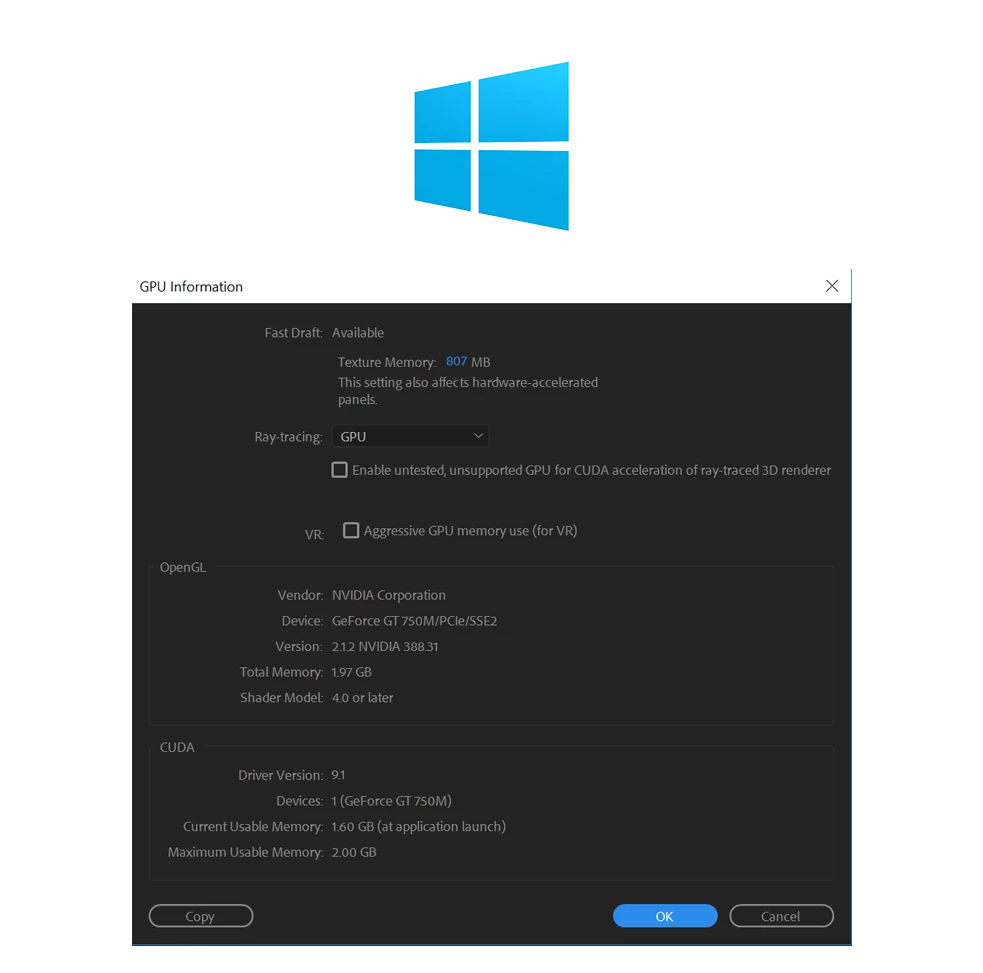
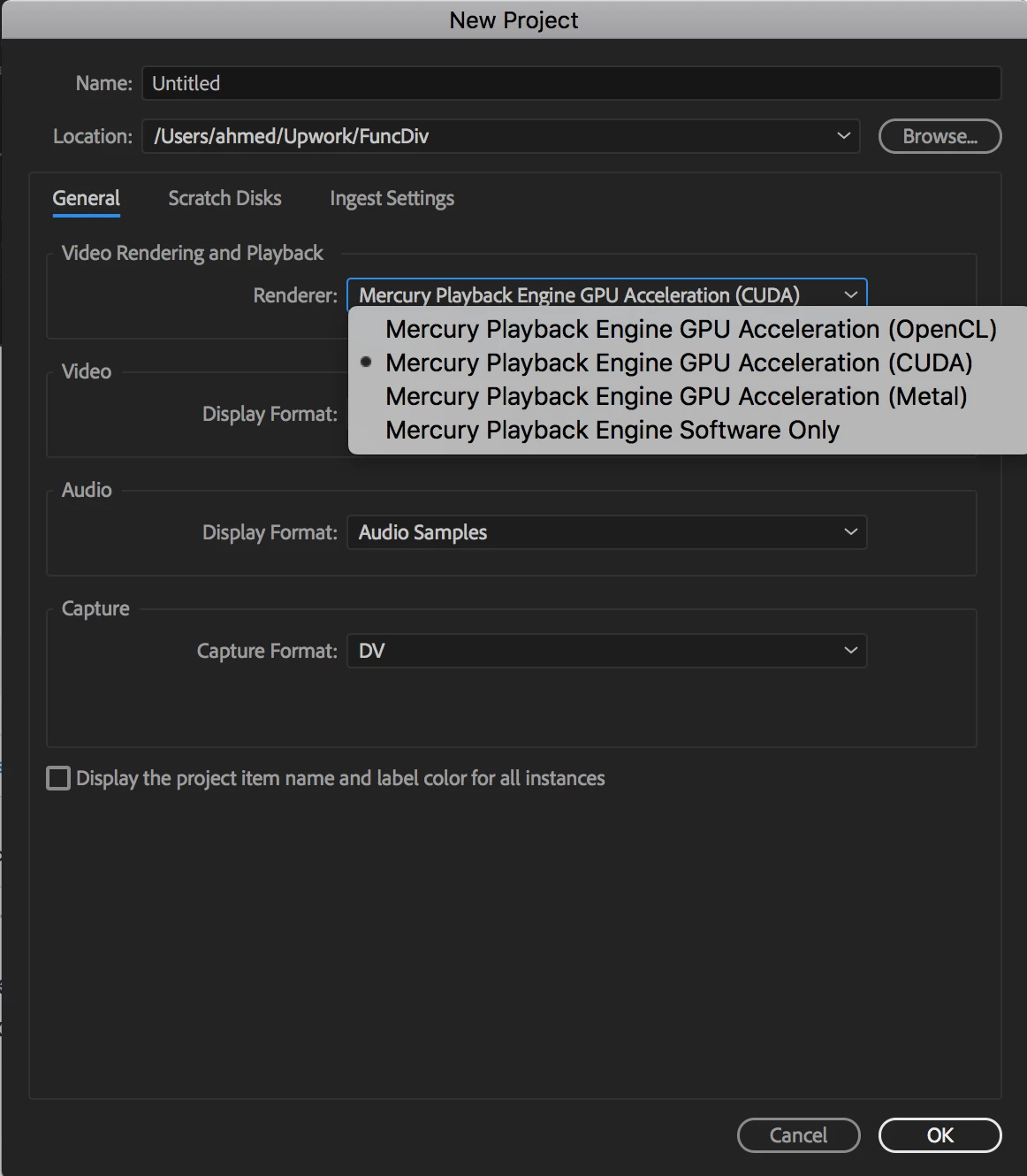
I went to my project preferences page and I was shocked when I figured out that CUDA is not on the list of the video renderers while it's showing in the GPU information in the preferences panel!

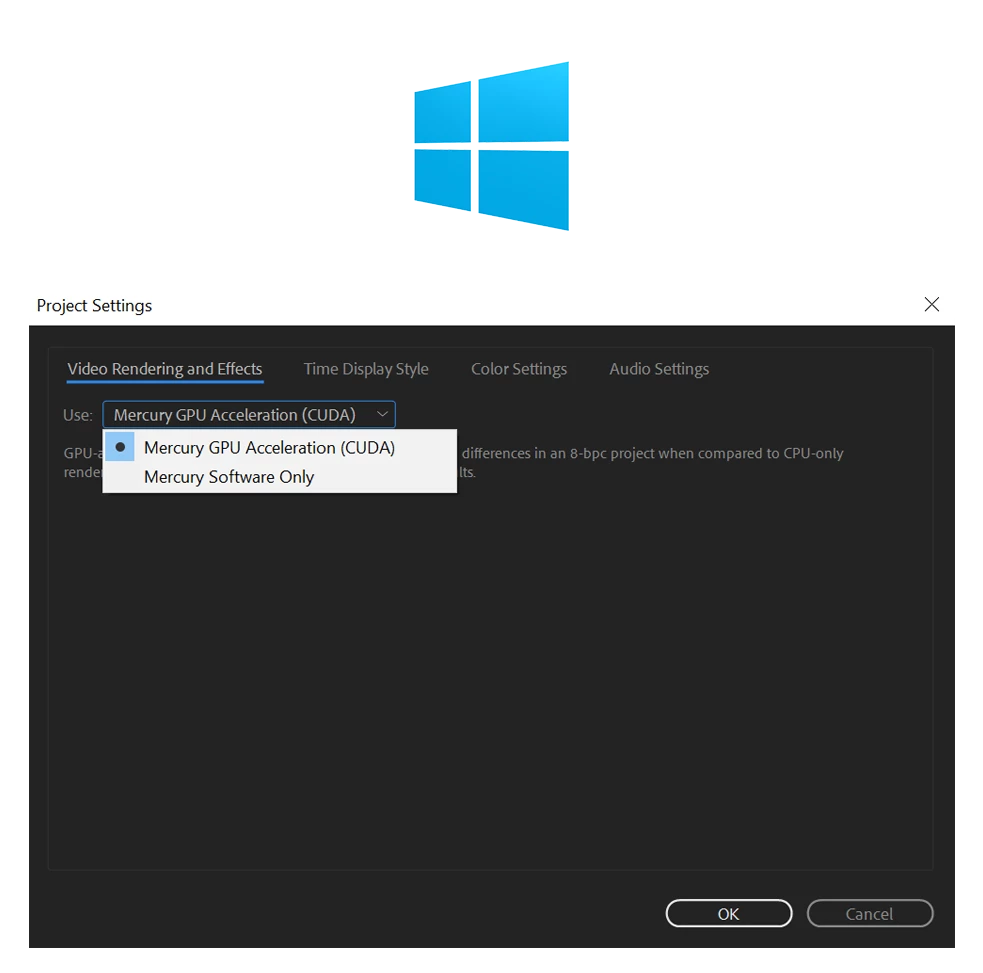
I tried everything you would imagine and nothing worked for me. I decided to install Windows on my MacBook and try and no surprise CUDA was there in the list and AE on Windows is way faster than AE on MacOS's RAM preview!  I also noticed that the Shared Model in the GPU preferences panel on the MacOS is showing "-" while on Windows it's "4.0 or later".

Please find attached some pictures showing my MacBook specs and some comparisons between MacOS and Windows running AE.

Hope you guys can find a solution and help me fixing this issue!
Cheers!

Ahmed
This topic has been closed for replies.
Correct answer AhmedSheshtawy

bartj68547825​ It's working for me in Premiere Pro CC 2018

All you need to do is to remove your current CUDA

Delete the following:

/System/Library/Extensions/CUDA.kext

/Library/Frameworks/CUDA.framework

/Library/LaunchAgents/com.nvidia.CUDASoftwareUpdate.plist

/Library/PreferencePanes/CUDA/Preferences.prefPane

/System/Library/StartupItems/CUDA/

If you installed the tookits and samples, delete the following also:

/Developer/NVIDIA/CUDA-5.0

/usr/local/cuda

Then download and install Nvidia Driver Manager from here:

NVIDIA DRIVERS Quadro & GeForce macOS Driver Release 378.10.10.10.20.107

Restart your MacOS

Download and install the latest CUDA:

NVIDIA DRIVERS 9.0.222 

Restart your MacOS one more time

And That's it

*Be sure that Nvidia web drivers are selected in Nvidia Driver Manager from system preferences.

Cheers

;-)

Ahmed

9 replies

Known Participant
November 30, 2018

The answer given as the "Correct Answer" is NOT the correct answer. That answer is for Premiere and other applications, not After Effects. It may be helpful, but it doesn't slve the problem given in the title, "CUDA issues in After Effects CC 2018 on MacOS". AFTER EFFECTS. Not Premiere. Even the screenshot is from Premiere, not AAE. As this problem persists with AE2019, it should remain open and with an unanswered status.

AhmedSheshtawy
Inspiring
May 7, 2019

I believe it's marked correct answer for the question he asked about Premiere Pro not for the post!

Also this solution only works in MacOS High Sierra, Apple decided to kill CUDA and NVIDIA support in MacOS Mojave.

Thanks,

Inspiring
October 26, 2018

Is there a known fix for this?

Running into same issue with After Effects CC 2019. 

Project Settings > Video Rendering and Effects > Use Mercury GPU Acceleration shows Metal, OpenCL, and Mercury Software Only.

Preferences > Previews > GPU Information > Shows CUDA, lists driver version and current GPU.

Premiere Pro & Media Encoder CC 2019 BOTH allow CUDA renderer options.

macOS 10.13.6 17G65

NVIDIA Web Driver 387.10.10.15.15.108

CUDA Driver 410.130

Happens with both EVGA GTX 680 Mac Edition (official version) and NVIDIA GTX 1080 Founders Edition (not flashed).

Participant
May 28, 2018

Same here,

Sierra 10.12.6, 3,5 GHz Intel Core i7, 32Go 1600 MHz DDR3, GeForce GTX 780M 4096 Mo.

studiofreak
Participant
May 16, 2018

Same here, high sierra 13.4 and gtx 1080... no cuda in aftereffects and its giving me headaches

Inspiring
August 22, 2018

Were you ever able to fix this?

timaging
Inspiring
April 19, 2018

Same here. I can see it in Premier but not After Effects.

Participant
April 23, 2018

I am having the same problem. Installed all the latest Nvida web and cuda drivers specifically for High Sierra (10.13.4), on 12 core Mac Pro and have downloaded the latest Adobe Premiere, Media Encoder and After Effects versions. I only see the Cuda driver in Premier and Media Encoder

Participant
March 9, 2018

AhmedSheshtawy

Thank you very very^^

Your my savior.

iestynx
Inspiring
February 22, 2018

Has anyone managed to get this to work for After Effects? I still only get OpenCL, Metal and Software only as options in the project settings for video rendering.

Using:

OS X 10.12.6

AE 15.0.1

NVIDIA Quadro K5000 (All latest drivers)

Participating Frequently
February 27, 2018

Me too unfortunately, even though Adobe Media Encoder and Premiere seem to use CUDA fine...

Story_Launch_2023
Participant
April 11, 2018

I am having the same problem too. Adobe Premiere CC 2018 and Media Encoder C 2018 both see CUDA, but After Effects CC 2018 does not. I have even tried using previous versions of After Effects that I know worked with CUDA, and they don't see it either.

Participant
February 2, 2018

I'm trying to instal the NVIDIA driver at link, but Says this...

My sistem is

AhmedSheshtawy
Inspiring
February 8, 2018

Hey Andrea,

With every MacOS update the web drivers needs to be updated too.

So what I always do is to go to Nvidia web drivers page: http://www.nvidia.com/Download/index.aspx?lang=en-us

And then I choose Geforce 600 series, then GTX680 and then select Show me all operating systems and choose the software version that matches my MacOS version.

As for today the latest version is MacOS 10.13.3 and the driver is here : http://www.nvidia.com/download/driverResults.aspx/130633/en-us

*P.S: download the GTX680 anyways, I know it's not the same model as yours but it should work

Participating Frequently
November 27, 2017

I am having the exact same issue in Adobe Premiere Pro 2018 with CUDA no longer being an option for exporting with my 750M.  I am running the exact same machine as you.  It’s a shame there is no fix for this.  OpenCL is painfully slow on my exports.  Really hope they can get that 750M accessed again and give me my CUDA acceleration back!

AhmedSheshtawy
AhmedSheshtawyAuthorCorrect answer
Inspiring
November 27, 2017

bartj68547825​ It's working for me in Premiere Pro CC 2018

All you need to do is to remove your current CUDA

Delete the following:

/System/Library/Extensions/CUDA.kext

/Library/Frameworks/CUDA.framework

/Library/LaunchAgents/com.nvidia.CUDASoftwareUpdate.plist

/Library/PreferencePanes/CUDA/Preferences.prefPane

/System/Library/StartupItems/CUDA/

If you installed the tookits and samples, delete the following also:

/Developer/NVIDIA/CUDA-5.0

/usr/local/cuda

Then download and install Nvidia Driver Manager from here:

NVIDIA DRIVERS Quadro & GeForce macOS Driver Release 378.10.10.10.20.107

Restart your MacOS

Download and install the latest CUDA:

NVIDIA DRIVERS 9.0.222 

Restart your MacOS one more time

And That's it

*Be sure that Nvidia web drivers are selected in Nvidia Driver Manager from system preferences.

Cheers

;-)

Ahmed

Participating Frequently
November 28, 2017

@AhmedSheshtawy I don't see any of those files you mentioned on my system.  I have no ever used the NVIDIA Manager, only the one that pops up from the System Preferences in macOS.  Could this be why?  Could an install of the NVIDIA Manager and installing the drive that way work?