
Inspiring
August 13, 2024
Question

Curving the Position property of a shape?

  • August 13, 2024
  • 1 reply
  • 830 views

Hi!

Curving the Position property of a layer is easy:
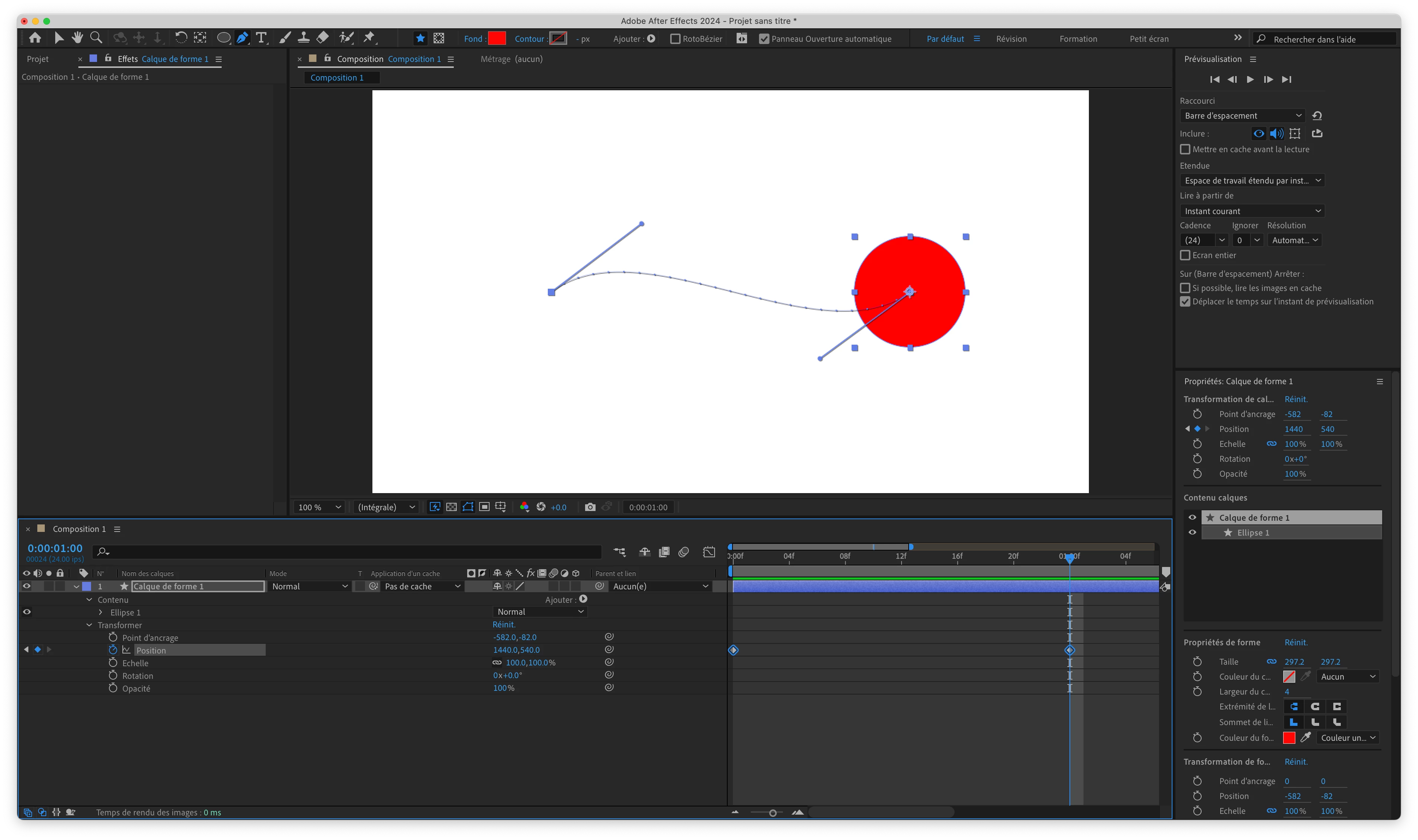


But I can't seem to be able to do the same with the Position property of the the shape:
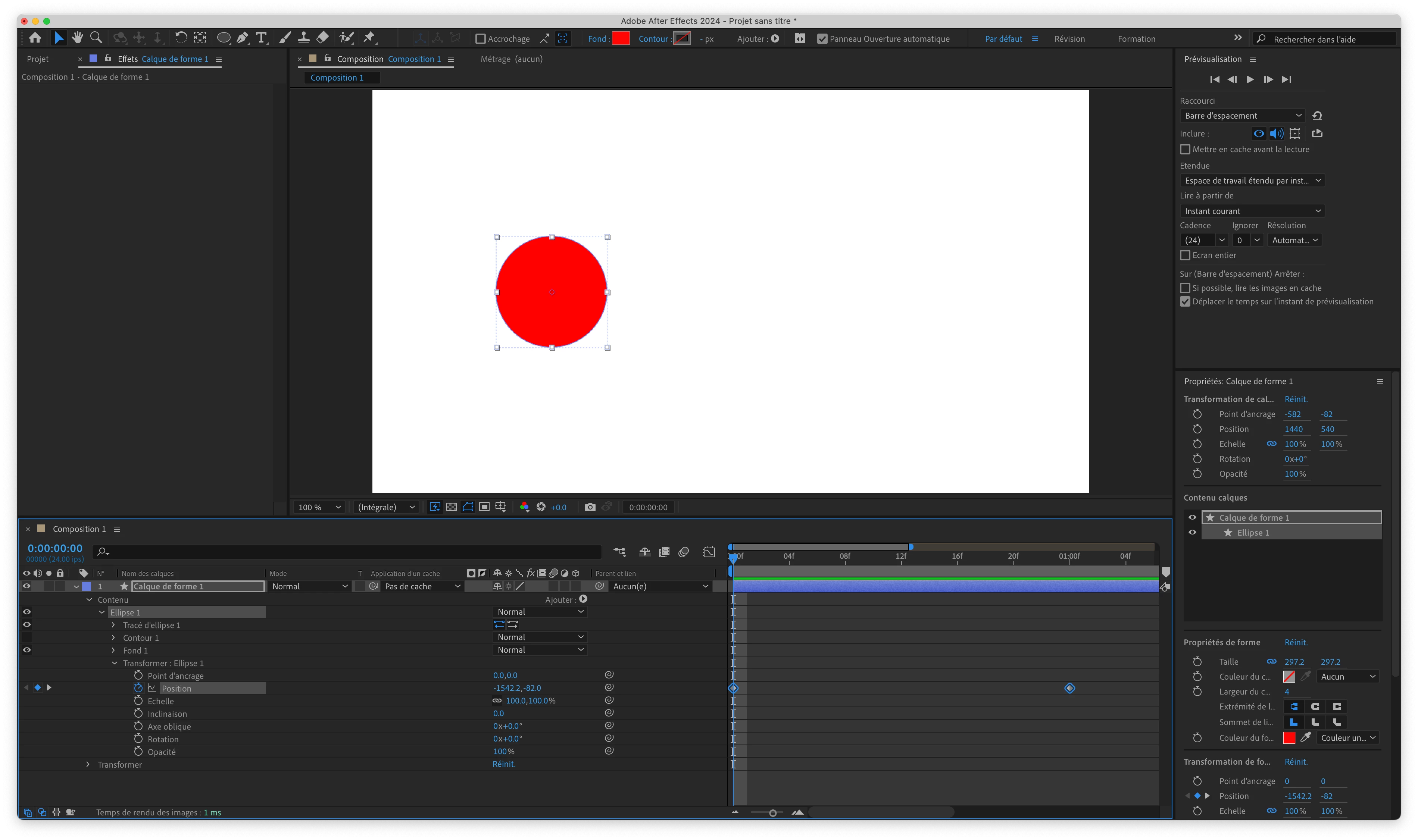


Other than pasting a path in the Position property, is there a solution?


Thank you!


Chris.

This topic has been closed for replies.

1 reply

Inspiring
August 13, 2024

I found a solution:

  • Activate the Position property of the shape.
  • Create an animation using at least 3 keyframes.
  • Select the keyframes.
  • Right-click > Keyframe Interpolation > Auto Bezier for Temporal Interpolation and Spatial Interpolation.
  • Right-click > Rove Accross Time.
  • Easy Ease the keyframes.
  • Use the Graph Editor to control the velocity.


Now if only I could find a solution for Path animations... (Found it: lots of tweeking with the Graph Editor seems to work.)


Community Expert
August 13, 2024

Unfortunately, the only motion path available for viewing or editing in the Composition Panel is the Layer/Transform/Position property. 


If you have position properties from effects applied to text or other layers, you can open the layer in the Layer Panel, select the property in the render menu in the right corner, and then see and adjust any effect/motion path.


Unfortunately, Shape layers cannot be opened in the Layer panel.


The easiest option you have if you want to see the motion path in the comp panel and be able to edit it there is to add a vector path to the shape layer with no stroke, then use the Window/Create Nulls from Paths.jsx/Trace Path script to create a null from the Shape Layer path, then add this expression to the Shape Layer/Contents/Ellipse 1/Transform Ellipse 1/Position property:

p = thisComp.layer("Trace Shape Layer 1: Path 1 [1.1]").transform.position;
cSize = [thisComp.width/2, thisComp.height/2];
[p[0]- cSize[0], p[1]-cSize[1]]

You can then adjust the timing with the Trace Path/Progress keyframes on the null layer, and you can edit the motion path at any time.  If the shape is not round and you want to add rotation to it, a simple pickwhip expression to the Null's rotation property will fix that.

You could also modify the expression added to the Trace Null's Position property and apply it directly to the Transform Ellipse/Position property if you want. 


I use the Create Nulls from Paths script all the time. It is a great time saver when you want to create complex motion graphics that can be edited. It even works with MOGRT's in Premiere Pro.

Inspiring
August 13, 2024

Thank you so much! Everything works exactly as planned according to your instructions. However, when I test with a triangle, the shape moves out of place when I use the pickwhip expression to link it to the Null's rotation property.