
Legend
May 8, 2017
Answered

Display and performance issues with GTX 1080 Ti

  • May 8, 2017
  • 5 replies
  • 5220 views

Is this video card not fully supported yet? I'm having the following issues with it:

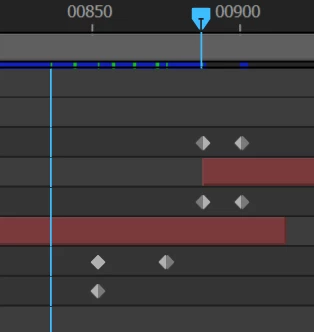
Disconnected playhead:

Jumping to keyframes disconnects the playhead from its tail, which is pretty disorienting when working with several keyframes.
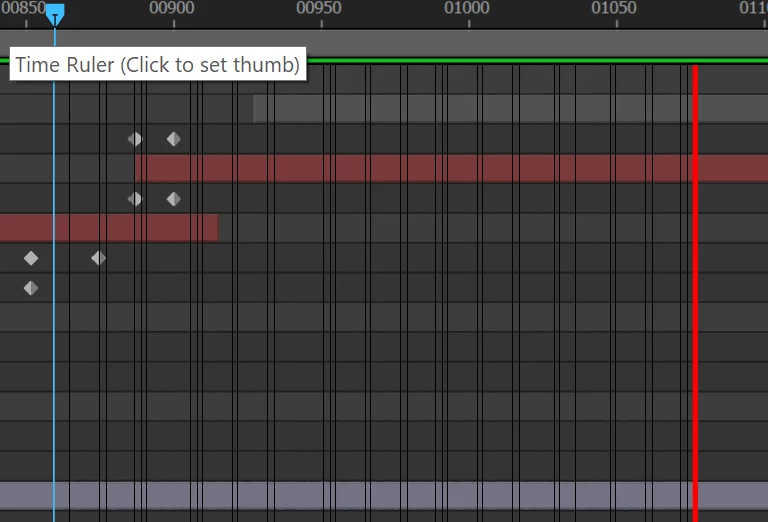
Playback leaves a random trail of black lines:

This one isn't a big deal, but still a bit distracting.
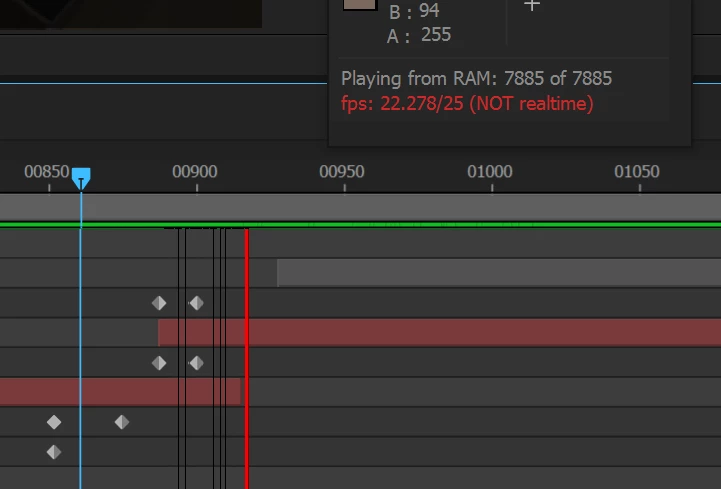
Also, I haven't been able to consitently reproduce it, but I will frequently get frame drops even when everything is cached to RAM and green across the board, producing the curious message in the Info panel, "Playing from RAM (NOT realtime)
The project itself is dead simple - 1080p 25 FPS basic text, masks and solids animation overlaid on still images and image sequences. I'm not using any plugins or effects apart from Curves and a Linear Wipe here or there. I am using the Ease and Wizz expression on some keyframes, but I've been using this for years with no performance issues.

After Effects 2017.2 (14.2.0.198)

Core i7 7700K

GTX 1080 Ti (381.89 which is the latest version of drivers)

64 GB RAM

Media Cache set to a dedicated SSD, separate from OS and project files

Windows 10 Pro 1703 (15063.138)

This topic has been closed for replies.
Correct answer eikonoklastes

I'm re-posting from here: Bug: UI is glitchy and slow on high DPI monitors – Adobe video & audio apps

Early impressions of the new AE (16.0.0 Build 235) seem to indicate that this issue is finally resolved! The UI responds as expected and there are no unexpected frame drops or drawing glitches.

It's like a breath of fresh air. After several months of struggling with this issue, it's so nice to be able to work freely again.

Thank you, Adobe.

5 replies

eikonoklastesAuthorCorrect answer
Legend
October 16, 2018

I'm re-posting from here: Bug: UI is glitchy and slow on high DPI monitors – Adobe video & audio apps

Early impressions of the new AE (16.0.0 Build 235) seem to indicate that this issue is finally resolved! The UI responds as expected and there are no unexpected frame drops or drawing glitches.

It's like a breath of fresh air. After several months of struggling with this issue, it's so nice to be able to work freely again.

Thank you, Adobe.

Mike_Abbott
Legend
June 21, 2017

Not that it helps - but you have my sympathy. These sort of things can be a pain to troubleshoot.

I realise it's a lot of hassle - but would it be worth swapping out your 1080Ti for your old card - if you still have it - just to check if it absolutely is card related?

Legend
July 17, 2018

It has been a while, but I have found a workaround that doesn't involve resetting your display scaling to 100% (which makes the UI too tiny to use).

This one involves overriding the display scaling, and causes AE to load up with a pixellated UI (including the viewer). However, when working on an intensive project, this is a far more desirable state of affairs because all the performance issues go away, and the UI is silky smooth.

It's still a stop gap, because working with a blurry UI and viewer is not ideal, but it's a trade-off between performance and display quality, so you can choose your poison.

Please upvote the bug over here so Adobe can finally get around to fixing it:

Bug: UI is glitchy and slow on high DPI monitors – Adobe video & audio apps

Here is the workaround on Windows:

Right click the AE shortcut and choose Properties (you might have to first choose Open File Location), then follow these:

Participating Frequently
May 15, 2020

THANK YOU!!! this works. Crazy this is a workaround for a program that has such a steady cashflow


Mike_Abbott
Legend
June 20, 2017

One further contribution:

I've had a similar issue of the 'black lines in the timeline' when I had display scaling on in Windows 10.

I'm not of a Windows 10 machine as I type - so I can't give you the exact dialog info , but if you look under display settings - check that all the display settings are at '100%' - and that you've not got some unusual display scaling like 120% or something...

Legend
June 21, 2017

It might be too early to say for sure, but the display scaling does seem to have sorted my black bars issue!

I have a 4K monitor, and had my scaling set to 175% (hey, don't judge me), and AE didn't seem to like that. I've set it to 150%, which is what Windows says is recommended for my display, and AE seems much happier with that. No black trailing lines for now.

I am still getting disconnected playheads and poor playback and playhead scrubbing performance on large Timeline panels though, even with my display scaling set to 100%.

Here is a video of the issue:

https://1drv.ms/v/s!AhyOTAuOwz3Hl-JerIL1AEf-5ATRrg  

Kevin-Monahan
Community Manager
Community Manager
June 15, 2017

Hi eikonoklastes,

Is the most current version exhibiting this behavior? Any closer to solving this issue? Please let us know what's up.

Thanks,
Kevin

Kevin Monahan - Sr. Community and Engagement Strategist – Adobe Pro Video and Audio
Legend
June 18, 2017

Hi Kevin,

I just (excitedly) installed the update (14.2.1.34), but unfortunately, all the above issues persist.

I have no progress on the disconnected playhead or the black bars, but with regards to the playback performance I strongly believe it to be linked to the display of the Cache Indicators.

With Show Cache Indicators on, my frame rate will frequently drop even when playing back over green, cached frames.

With Show Cache Indicators disabled, the frame rate never drops until playback actually catches up with the frames being cached, which is the expected behaviour.

As a temp workaround, I can disable the indicators when smooth playback is paramount, but having the indicators on is also very important to me.

Edit: there also seems to be a strong correlation between the size of the Timeline panel and general AE performance. When the Timeline panel is hidden, or even made very small, I get much better playback performance. As a workaround, I have resorted to shrinking the Timeline or maximizing the Comp panel every time before playback.

Also, when the Timeline panel is large, dragging the playhead is very stuttery, but when the Timeline panel is shrunk down, dragging the playhead is very smooth. This stuttery dragging extends to resizing the panels itself. When the Timeline panel is large, resizing the Timeline is very stuttery, but gets smoother when the Timeline panel is smaller.

This stuttery dragging does not apply to dragging the layers themselves. They move around smoothly regardless of the height of the Timeline panel.

Szalam
Community Expert
Community Expert
June 20, 2017

That is very useful information, eikonoklastes​. Thank you for sharing it. It'll help me help others on the forum with similar issues.

Also, PLEASE file a bug report at this link with all of that information in it. I feel it will help the AE team narrow down these last few playback issues.

Legend
May 8, 2017

So the performance issue seems to be related to how After Effects draws the playhead on high DPI displays. I'm using a 4k monitor with a DisplayPort connection, and if I maximize the composition panel, the cached video playback is always silky smooth, even when AE is preloading the frames ahead.

However, if I have the timeline visible, the playhead causes the stutter fairly regularly.

This seems like the exact same issue describe here for macOS:

After Effects 2017 CC - Preview Lagging - MacSierra

Hopefully a Windows fix comes shortly.

Szalam
Community Expert
Community Expert
May 8, 2017

I haven't heard of issues with Windows machines like you describe unless they're using a specific model of Dell monitors. What exact monitor are you using?

Legend
May 9, 2017

I'm using a pretty bad monitor, admittedly - a Samsung U28E590D, which I wouldn't recommend to anyone who isn't using it only for Office. It wasn't my call and I'm having it replaced shortly.

Regardless, it's just the colours that are awful - the actual resolution and performance is decent. I'm running it at 4k @ 60 Hz over DisplayPort and I'm not experiencing any other performance or display issues in any other applications.

I'm curious though - why would the monitor have any effect on AE's display performance?