
Inspiring
March 16, 2022
Question

dissolving mask function

  • March 16, 2022
  • 2 replies
  • 1722 views

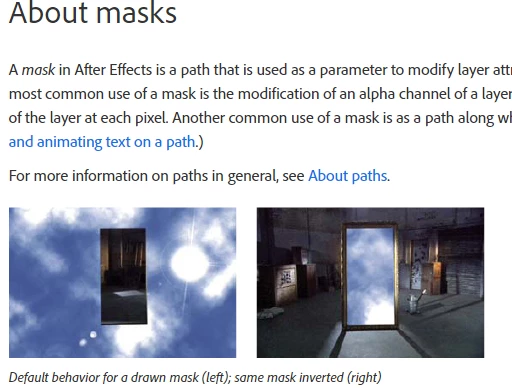
I want to dissolve a mask in and out. I want to reveal an image inside a background image and then have the inner image dissolve back to the background image. I created a cutout in the background image which is locked down. No motion. As simple as this should, I am unable to do this AE so, I am using Mocha to do this which is a bit of a pain because the mask jiggles which forces me to key frame the tracking. And so, why can't AE create alpha channels with masks? I have to use Fusion to do this simple work. Is there a plugin for AE to solve this? 

Per Adobe help section. 

https://helpx.adobe.com/after-effects/using/alpha-channels-masks-mattes.html#sa_src=web-messaging

The image on the right is simular to what I want to achieve. However, there is no way to achieve this because the inverted mask globally clears the entire image. The only way to achieve this is with Mocha or a similar plugin. 


This topic has been closed for replies.

2 replies

Community Expert
March 17, 2022

If you want to go from no mask to a mask you can animate the mask opacity.


If you want to fade in or out of a layer that has a mask you can animate opacity.


You can also use the luminance or the alpha channel of a layer to reveal or hide the layer by placing the layer above the layer you want to mask and animate the opacity. 


You can also use Set Matte or several other effects to use the luminosity, color channel, or alpha channels of any layer to animate the opacity of all or part of any other layer.


I think you are way over co plicating the process. If you have a stack of layers and you want to show or reveal one of them just animate opacity. If you want to animate the effect of a mask on a layer you can just animate the opacity of the mask.

Indie767Author
Inspiring
March 17, 2022

Hi Rick,

The first things I tried is animating mask opacity but because of the invert option, the entire image is affected by the opacity level instead of just the masked area. No matter what combination of ADD, SUBTRACT and INVERT used, it renders the mask opacity tool useless because either the non masked area shows or the masked area shows, but not both. Hence, I could not composite such a simple shot because you cannot use the mask opacity tool for this kind of work. I did find a workaround in Premiere Pro, so my issue has been resolved for now. 


Thanks,


DC

P.M.B
Legend
March 19, 2022

Whatever you say.  Apparently you're the expert.

~Gutterfish
P.M.B
Legend
March 17, 2022

Probably better to use a track matte.  Here's a tutorial  https://www.youtube.com/watch?v=zgbXGqYMxq4


Or I'm ssure theres tutorials in the official help where you found themask tutorial as well.

Track Mattes!  Sweet 


~Gutterfish
Indie767Author
Inspiring
March 19, 2022

Hi Gutterfish,

I don't think we are on the same page. I thought I could create a cutout inside a video track using a shape. AE is not capable of doing this - shapes cannot not roto out or delete pixels within the shape to for compositing work. The exception is using Mocha. The way to achieve these type of cutout is to create a shape in Photoshop, export as a .png file and then import into AE to animate. Sorry about the confusion. 

DC

P.M.B
Legend
March 19, 2022

OK.   Yes if it's a moving video then you would need an animated mask or rotoscoping but I though your descriptions said there "No motion"

Reading your desctiprion carefully again I'm certain I don't understand.

In fact if not for the words "locked daown" and "tracking" it sorta sounds like you you could just animate

the opacity.  

"An image dissolve in inside (over?) a background and dissolve back out"???

What does "inside"  mean?  In AE layers fade in and out OVER each other, not inside.

And why create a shape in Photoshop, export it is as .png into AE when you could create a "shape" directly

in AE?  


And as for you statement about 

"AE is not capable of doing this - shapes cannot not roto out or delete pixels within the shape"

What are you talking about?  Do you know?  I mean you absolutely can using a matte or the Set Matte feature and both sahpes and masks can most certainly be animated.  And there are some "auto-roto" options in AE.  There's also the AUto Trace feature which I've gotten some pretty good results from in the past.


Both Rick and I mentioned trying a set matte and while I might not be a real expert,  I can say for certain Rick knows what he's talking about.

I know much less than Rick but I know this.


Whatever you were trying to do and whatever you did I'm glad you got it

worked out but to me it reads like you figured some incredibly complcated way to fad one layer on over another layer.  That or you just phrased your question badly.  


Yeah...we're on different pages for sure.  Even you descrition of how you solved it makes zero sense to me.


but...  there are indefiniable variable so... 

 Anyway Good luck. & glad you fixed it.


~Gutterfish