
Element 3D diffuse not showing image
Hello and good day!
I am new to Element 3D and it is my 2nd day trying to use it. Though I came across a problem yesterday. I am trying to make a 3D model out of a transparent emoji PNG using Element 3D. I have auto-traced the PNG, added a black solid on top, and then added Element.
My auto-traced PNG:
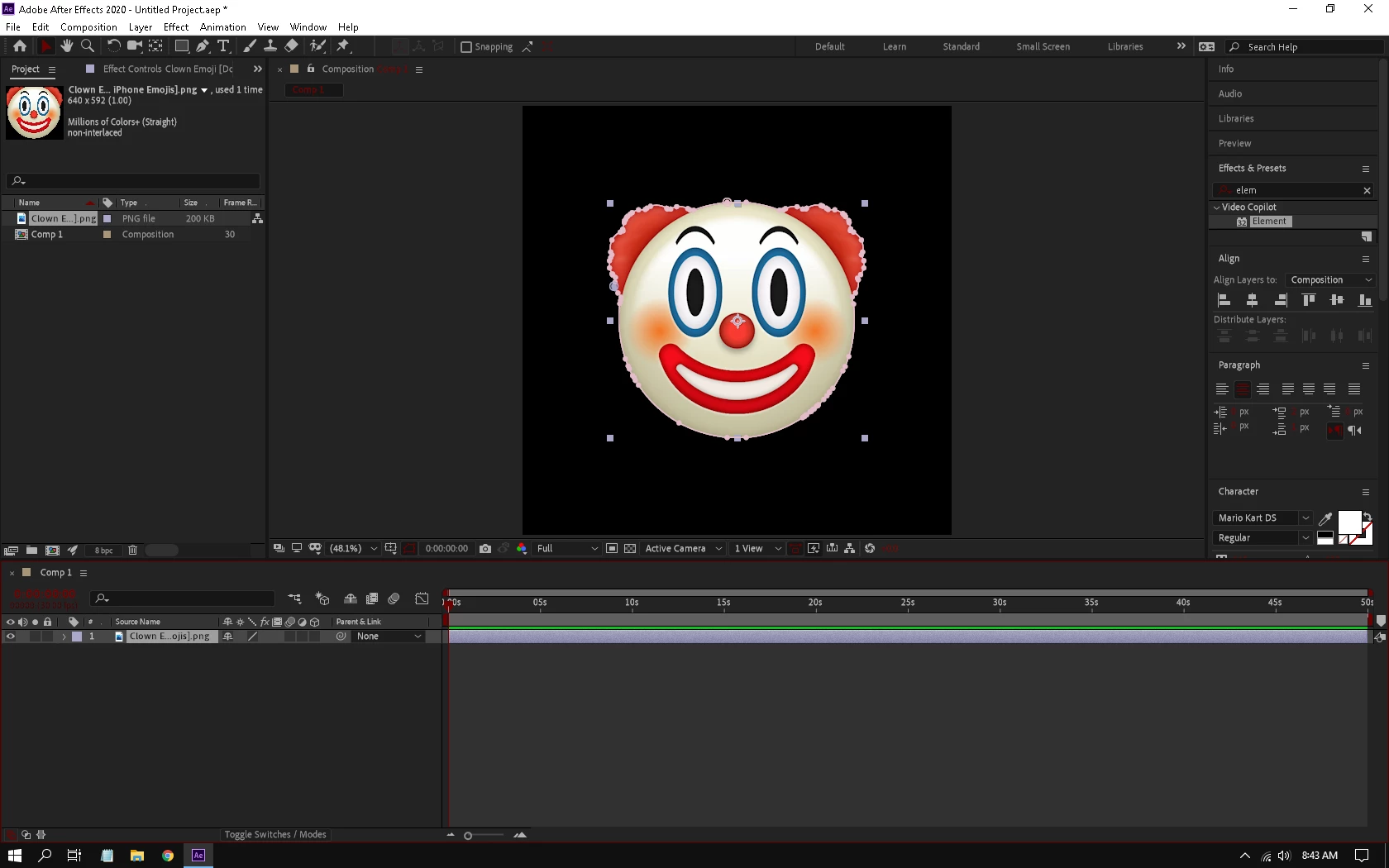
Here is what I did in Element 3D:
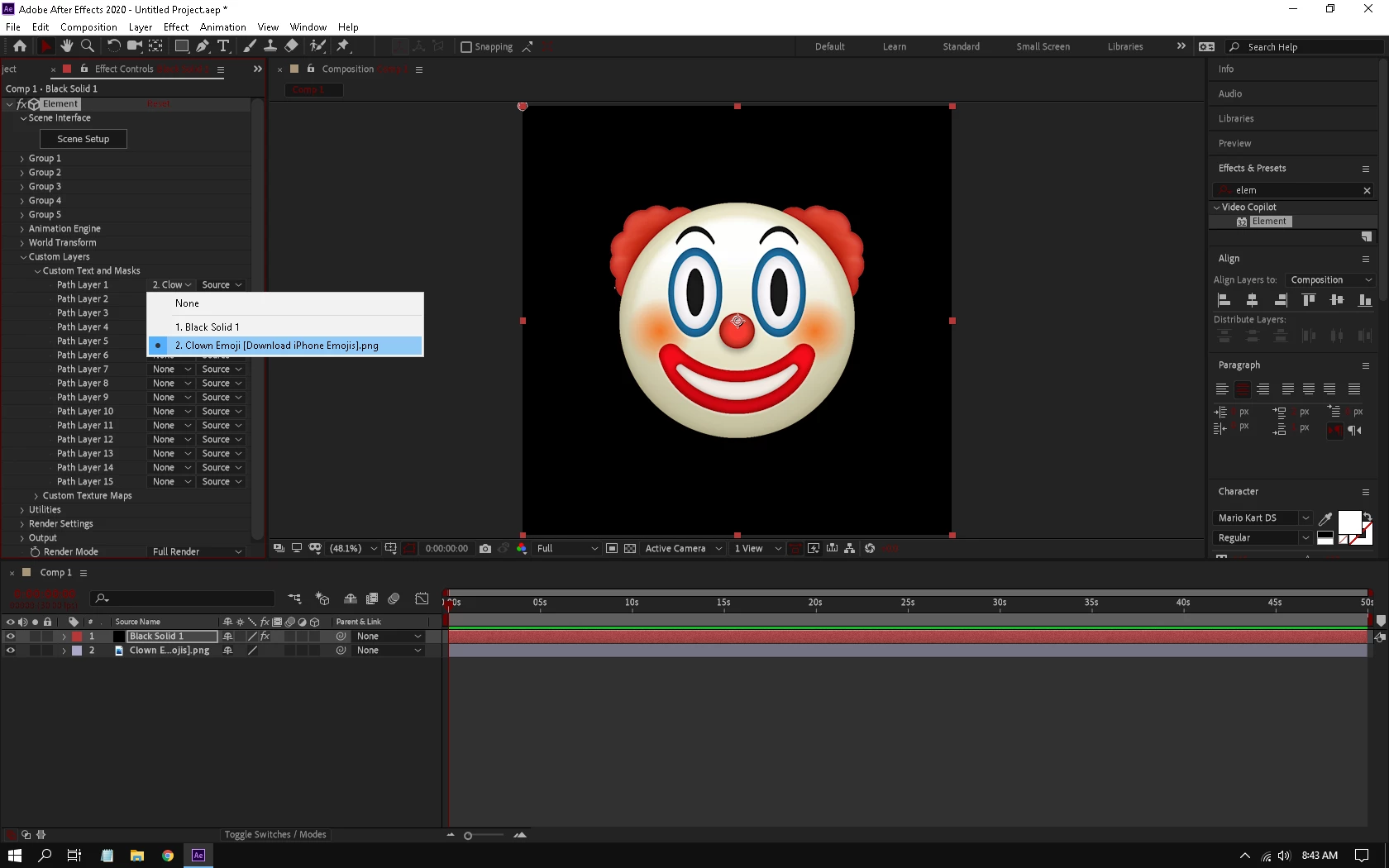
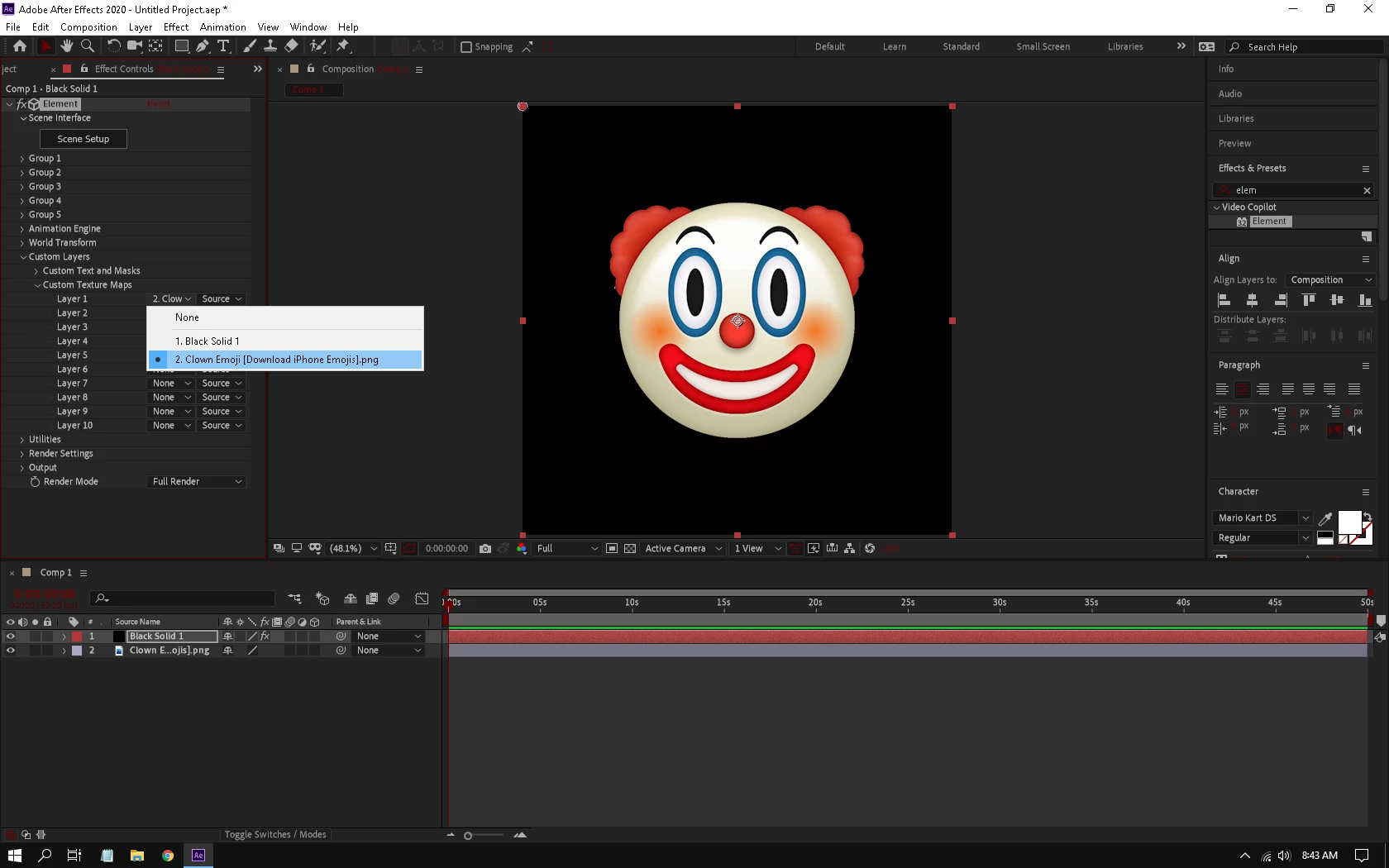
Then I opened Scene Setup. Everything else was working fine until I extrude > extrusion model > bevel > texture - diffuse. Instead of showing my image / PNG in the diffuse tab, it only showed the same plain black view.
Here:
What it looks like (which looks normal):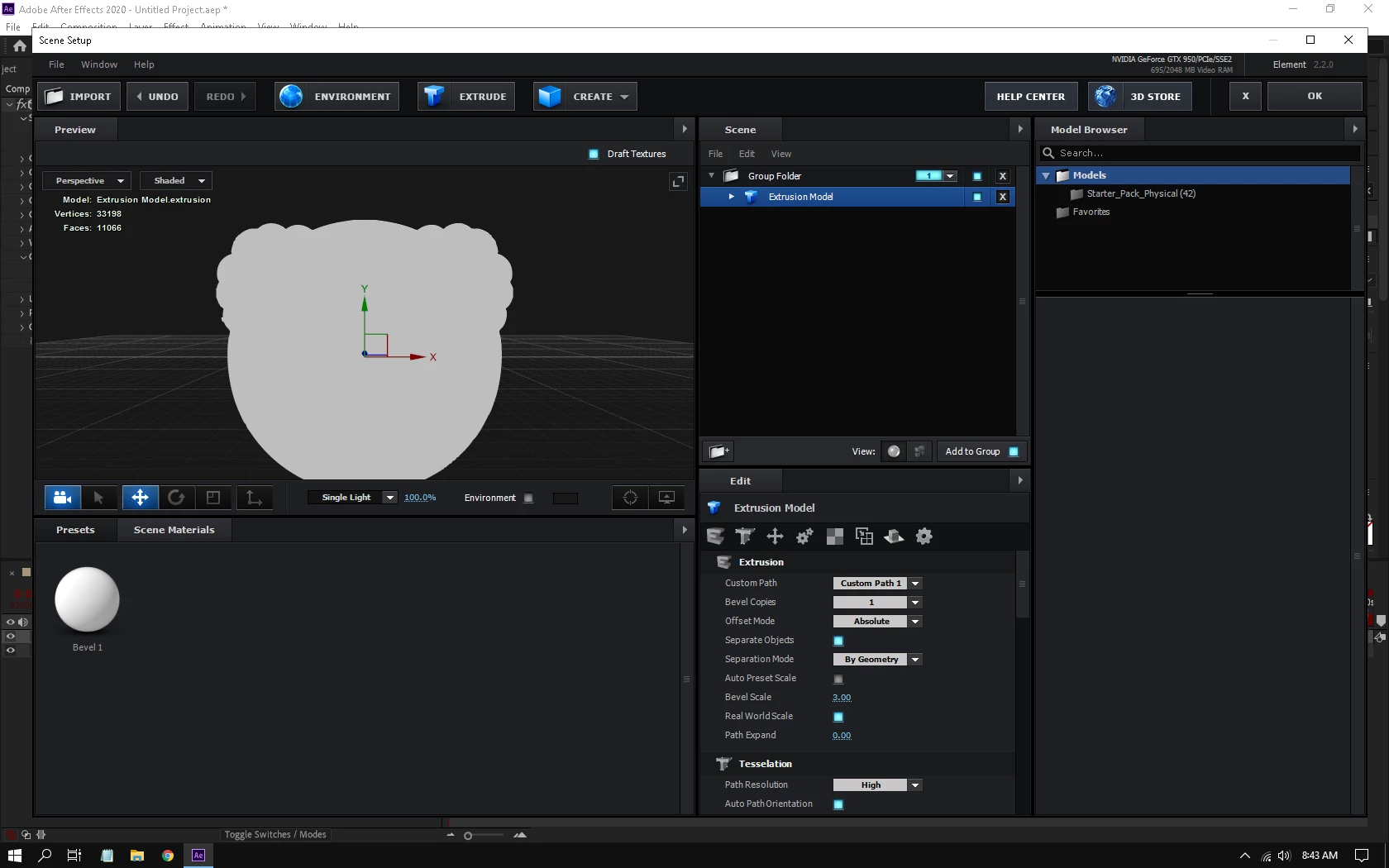
Diffuse:
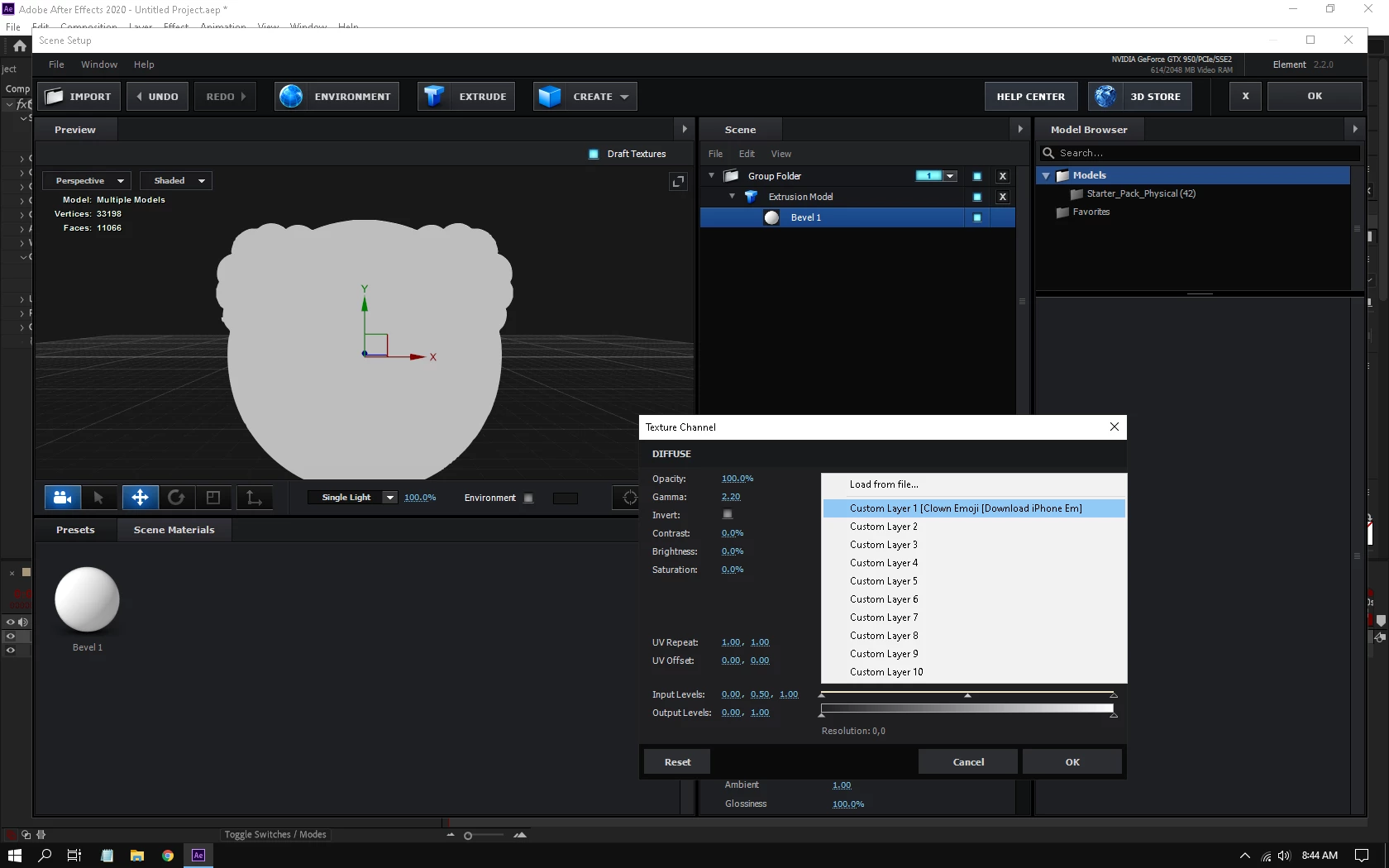
Diffuse showing empty preview:
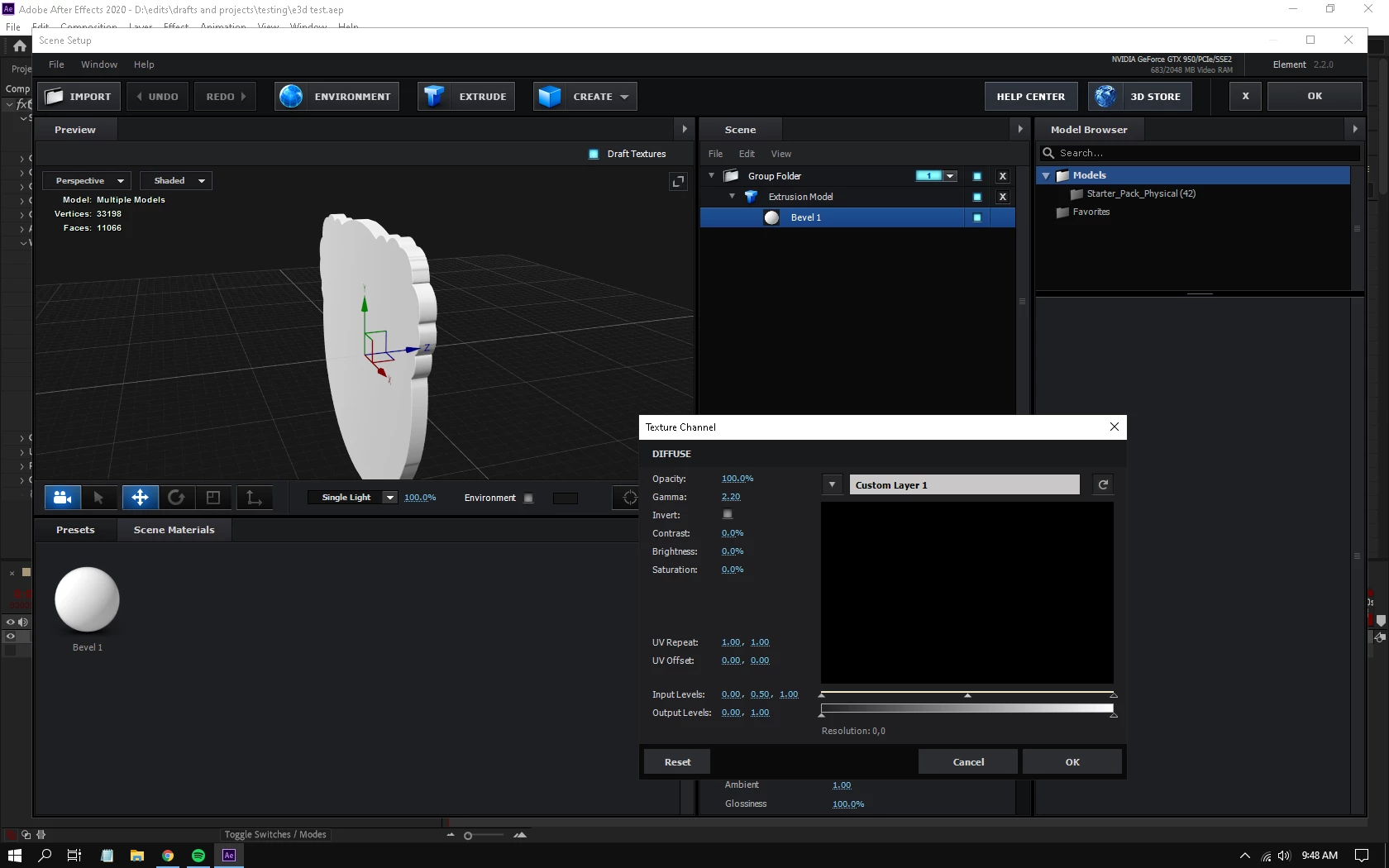
See, nothing has happened. Even when I chose Custom Layer 1 (PNG name). It still shows a black image under diffuse tab, and nothing has happened to my model! But what's weird is, when I clicked OK, the PNG has appeared in the model! But it didn't, when it was in the scene setup! Though, the PNG seems distorted in the model. It's because I couldn't adjust it in the diffuse tab.
Model (distorted a bit):
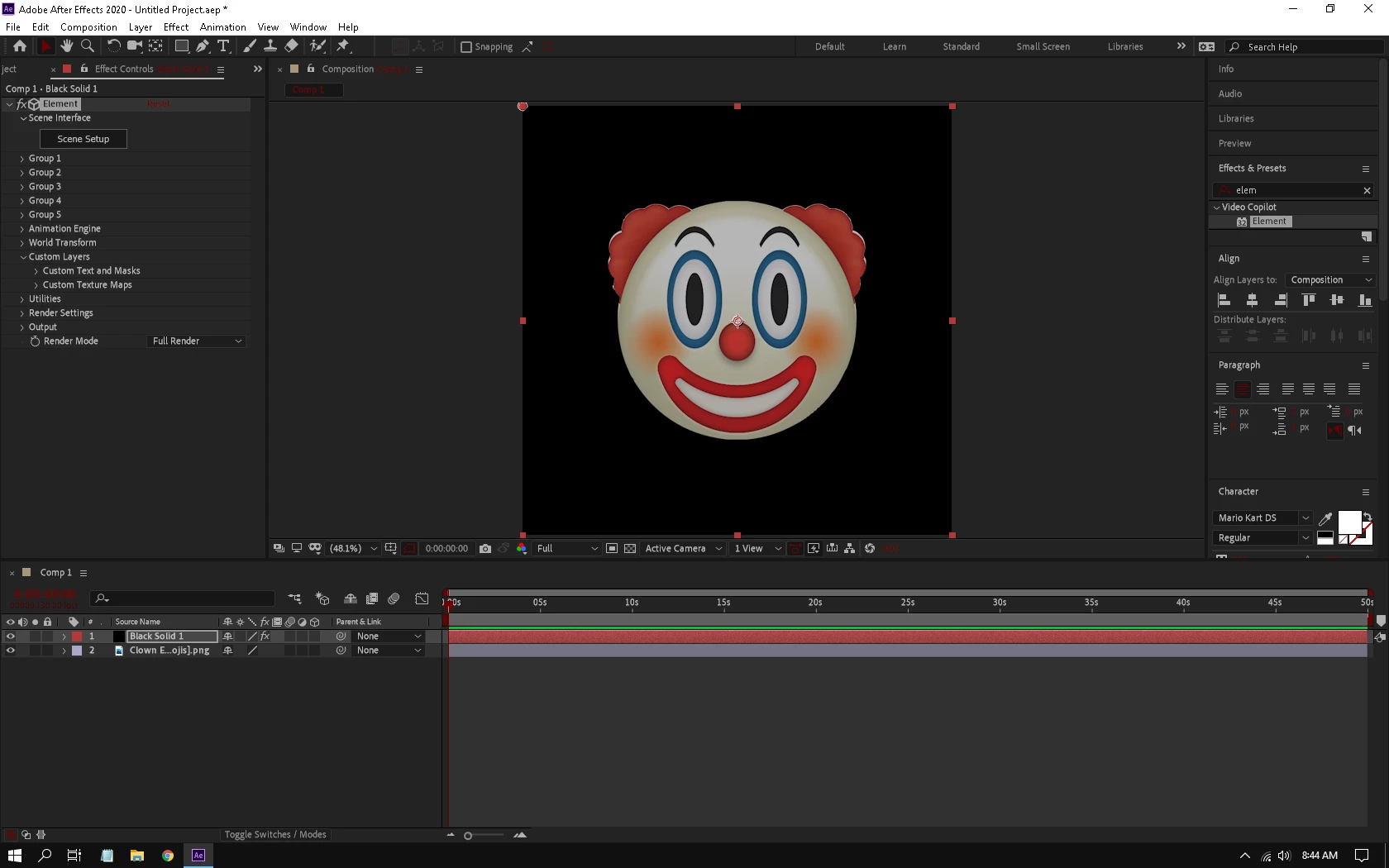
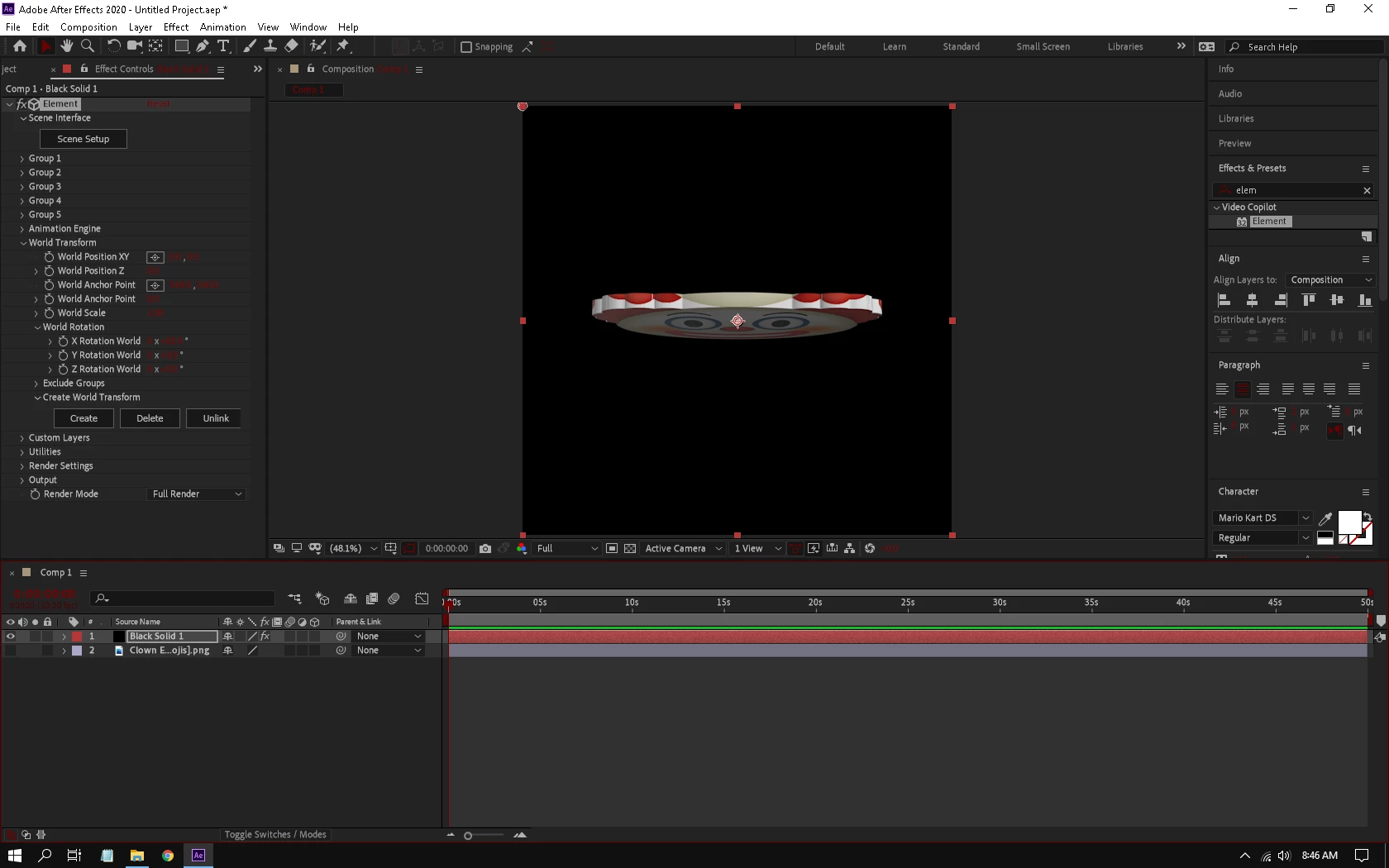
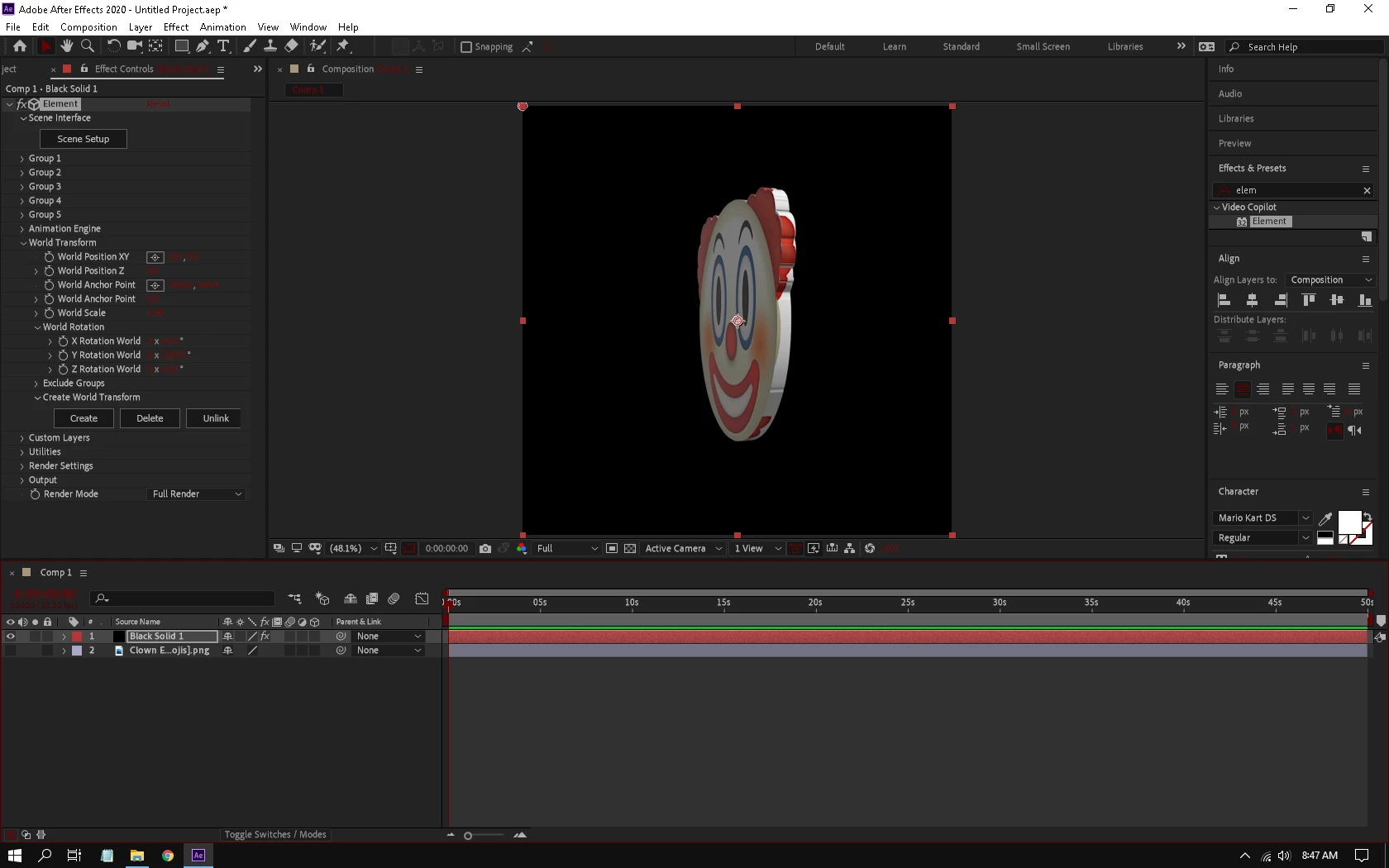
See, some goodies seem to be out of place! That's why I'm asking if the diffuse tab can be fixed, or else all pictures in my 3D models will be distorted and out of place when I make it 3D, since diffuse isn't showing me an image for me to adjust. I have already auto-traced it too. I don't have any problem with adding textures and stuff to it, though. It's really just diffuse that's having problem with me (not showing any image when it should, can't adjust any image, which results in a distorted picture in my model, diffuse tab always empty, 3D model stays the same, but has the picture now when clicked OK, but distorted a bit).
Thank you so much for reading. I hope I get an answer, at least. I will appreciate it!


 AdChoices