DylanReeve
Participating Frequently
January 17, 2020
Question

Evaluated Expression Position Not Actual Position

  • January 17, 2020
  • 5 replies
  • 1731 views

I think I have either found a bug in the way expressions are handled on multiple instances of the same sub-comp within a composition, or some other weird undocumented behaviour... 

I have made a copy of my AE 2020 example project available here:

https://drive.google.com/file/d/1uUdvwBsClis1eBvwk5fked9Spc568EHs/view?usp=sharing


First a summary of what I'm trying to achieve... I need a composition that allows me to put text messages on screen with variable content and timing. Because of the nature of the project it needs to be as automated as possible. The text comes from offscreen and animates to a defined position. If another message arrives while one is already on screen it moves to accomidate the new message. 


So, with that in mind I've been through a lot of iterations but ultimately what I'm working on currently is a comp that contains multiple instances of a 'MESSAGE' sub-comp, which in turn contains a couple of text layers that are populated via Master Properties.


In my main comp I then also have a couple of text layers that are doing some evaluation work - the main one looks though the comp layers for instances of the MESSAGE sub-comp and puts a handful of vaules in an array which is sorted based on their in-points.


In the MESSAGE layers themselves I then walk through that array and set tween'ed animations based on the message itself and any that come after it.


So far, so good - it's a little hacky, but it works. And if all the messages have the same number of lines then it works. But when one copy of the MESSAGE comp has a different number of lines then it positioning doesn't behave as it should.


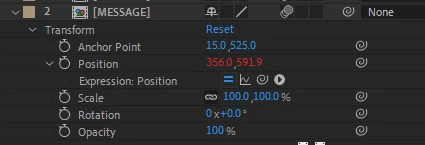
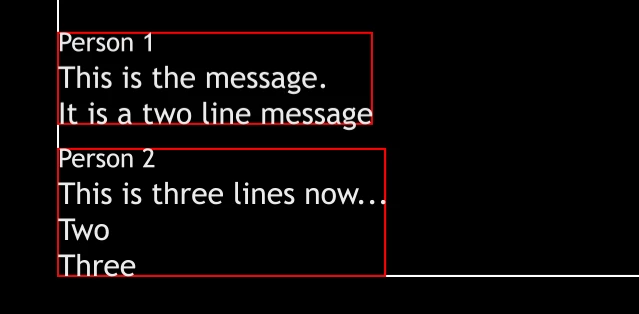
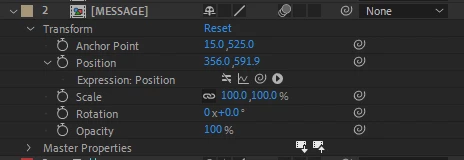
The evaluated Position will show correctly based on the calculated height of the subsequent messages, but it won't actually be drawn in the position that is indicated, which can be verified by disabling the expression and manually setting the position to that which is displayed.


The following images illustrate this - first is the way it's displayed and the position value when the expression is enabled, then the same layers when the expression is disabled and the values set statically to the same as the expression evaluated. 
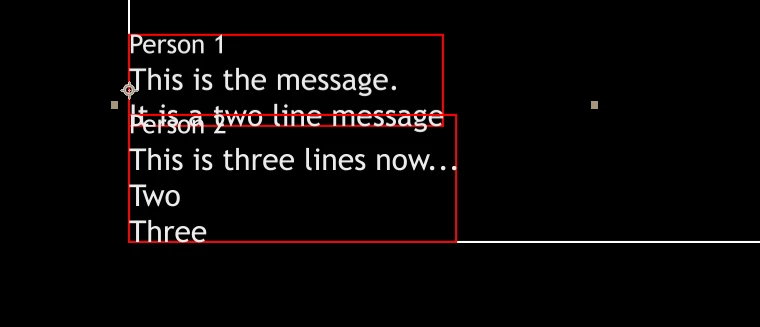


If I take a copy of the exact same composition, make an unchanged duplicate of the MESSAGE sub-comp in my project and replace the second instance of the MESSAGE layer with that duplicate composition (so that the two layers are referencing different comps) then it works as expected, but this isn't a practical workflow when I'm looking at hundreds of messages in many sequences.


In the demo comp I've linked above the questionable behavior is evident at around 3 seconds in "text v1" whereas an identical version of the comp with a second sequence referenced is there as "text v2"


There's also a bunch of weird hacky stuff going on in the comps which I'll briefly explain:


I'm setting the text content of the 'MESSAGE' layers from Markers on the layers, this provided the easiest way to access the values, rather than drilling to the Master Properties for each.


There are duplicate text layers that are just X's - they are used to help be calculate text height without descenders and I've found them necessary to maintain consistent spacing. 


There are a variety of layers visible that in production would be either guide layers or simply have their visibility. They just provide clarity on values during development.


I have opted to create the text messages as comps rather than text layers as I need the ability to style the Sender Name text differently to the message body text. I had previously used a single text layer with a 'Basic Text' effect to achieve the Sender Name - this all worked fine, except the Basic Text effect wasn't be affected by motion blur. 


Various values are being calculated in text layer JSON objects for visual debugging purposes - it was getting way too hard to determine what was being calculated otherwise.


If anyone has another good example of how I might achieve the end result I'm looking for, I'm interested. 

This topic has been closed for replies.

5 replies

Community Expert
January 20, 2020

I have a bunch of animation presets that automatically move layers into and out of the comp frame based on the in and out points of the layer. I have created about 50 of these. I took one of them that you can apply to any 2D text layer with any font size and any scale and fly the layer up from the bottom, bounce to a stop, then slide off to the left. I modified the expression so that it would look at a text layer above and compensate for a new layer moving into position. I only spent about 15 minutes on the code, it's not perfect but if you start with an empty text layer as layer 1 and you add additional text layers below and stager their in-point, you'll get a series of text layers that animate in and adjust positions making room for every new layer as they to. 


Here's a screenshot:

This is the expression:


/*
Add an empty text layer above the other text layers and position it at the bottom center of the composition
you can use this expression for the empty text layer to automatically set the layer's position':

	[thisComp.width/2, thisComp.height]
	
*/
sif = effect("slideIn Frames")("Slider");
sof= effect("slideOut Frames")("Slider");
// find in and out pointOfInterest
stime = time - inPoint;
inTime = sif * thisComp.frameDuration;
	if (effect("Match SI SO")("Checkbox") == 0) {
	outTime = sof * thisComp.frameDuration;
	}
	else if (effect("Match SI SO")("Checkbox") == 1) {
	outTime = inTime;
	}
// Find layer size: 
w = thisLayer.sourceRectAtTime().width;
h =thisLayer.sourceRectAtTime().height;w
lyrSize = [w, h];
// Fix  layer size when scaled
sf = scale - [100, 100];
xSize = lyrSize[0] + (lyrSize[0] * sf[0]/100);
ySize = lyrSize[1] + (lyrSize[1] * sf[1]/100);
realSize = [xSize, ySize];

// Get Positions
txtHeight = text.sourceText.style.fontSize * .7;
xRightEdge = 0 - realSize[0] + realSize[0]/2 ;
yTop = height - realSize[1];
rstx = value [0];
rsty = value[1];
epy = thisComp.height + realSize[1] - realSize[1]/2;
startY = yTop + realSize[1] + txtHeight;

// create movement 
freq = effect("bounce Frequency")("Slider");
        amplitude = effect("bounce Amplitude")("Slider");
        decay = effect("bounce Decay")("Slider");
    posCos = Math.abs(Math.cos(freq*time*2*Math.PI));
	nt = time-inPoint;
    y = amplitude*posCos/Math.exp(decay*nt);
yMove = Math.min(linear(stime,0,inTime, startY , y + value[1]));
restPos = [value[0], yMove] 


// check for layer above this one;
topLayer = thisComp.layer(index - 1).position[1];
posOffset = startY - topLayer;


if (posOffset - txtHeight < restPos[1] - ySize)
	restPos
else
	[value[0], topLayer - ySize - txtHeight]


As I said, it's not perfect but it's a starting point. To perfect it I need to factor in the size of the text in the layer above and compensate for the comp center or less being the minimum y value for text layer position.


Here's the animation preset for you to play with: https://www.dropbox.com/s/r8yol0zl28mv1gk/bump%20up%20text%20layers.ffx?dl=0


All you have to do to get started is create a new comp, add an empty text layer positioned at the comp center and bottom, then add an additional text layer with as many lines of text as you want at the default position with no baseline shift. Apply the animation preset, adust the timing and bounce with the sliders, duplicate the layers as many times as you want, then enter your new text and adjust the in points.


I don't know if this helps or not. If I get the time in the next couple of days to fix the bugs in the expression I'll post an update. Dan Ebberts would write some much cleaner code, but I'm not Dan. Maybe he will jump into this thread.


Here's a project file for you: https://www.dropbox.com/s/h862mhg5a42a0g5/bump%20text%20layers%20cc%20%2816.x%29.aep?dl=0

(note: If your browser adds a .txt extension to the AEP file, just delete it)


DylanReeve
Participating Frequently
January 20, 2020

Thanks Rick. 

I had something similar in an earlier iteration but the hurdle was needing to have a second piece of text (the sender name) attached. I'll download your example and have a play around. 

Community Expert
January 21, 2020

If I get a chance I'll update the code. This was just a quick proof of concept. Deleted about 20 lines of code and wrote an if statement. It won't take much to get the difference between the layer text area on both layers, initiate the movement when the next layer slides up and make the whole thing work with different font sizes and layer scale. The current code gets a little wonky if you have different size fonts or scale on each layer, but it's a start.

DylanReeve
Participating Frequently
January 20, 2020

I appreciate the feedback, but ultimately I think the issue I'm facing is a bug within the expression engine. 


Issues with bounding box calclation were my first thought (hence the various debug layers that are reporting calculated values in my sample project). And I've worked through a lot of this. 


The fundamental variables I've landed on are that with zero changes to any of the expressions, it works exactly as I expect if I make each layer instance of the Message Comp point at a separate copy of the composition.

As it is, with each message layer being an instance of a single Message composition, all the height height and position calculations are correct and work as expected. But the layers don't render in the right place when each is an instance of the same composition. But only when the position is set by expression - if I disable the expression and manually set the position (using the same values that the expression reports) it renders where it should.


That's what I'm trying it illustrate in my screenshots - the expression evaluated position (356.0, 591.9) renders one layer too low, but disabling the expression and entering exactly the same value renders it in a different place - where it should be. 

Community Expert
January 20, 2020

I think it's an anchor point/text size problem, not a bug. I kind of see what you are trying to do but I would approach the problem differently. 

DylanReeve
Participating Frequently
January 20, 2020

I appreciate what you're saying, but I can verify the anchor point isn't changing, and with no changes at all to anything except disabling a single position expression and manually inputing the same value it reports that it was using I get the correct display. 

Similarly, if I change no expression scripts at all, but simple make a dupliate MESSAGE comp, and replace the source for one of the layers with that comp it also works. 


Everything I can verify about all the math involved is correct - all the bounding box heights are accurate etc... If I take the reported data and to the math manually, it all works as it should. 

Community Expert
January 19, 2020

Maybe this will help. The following expression will put the anchor point at the bottom of any number of lines of text.


h =thisLayer.sourceRectAtTime(t = time, includeExtents = false).height;
pt = text.sourceText.style.fontSize * .7;
[value[0], h - pt]


The multiplier is a good value for most font sizes because font designers typically fill up about 70% of the allotted vertical space with a T.  IOW if the font size in pixels is 100, the height of a "T" will typically be pretty close to 70 pixels. The sourceRectAtTime() will increase if there are descenders so you may have to take that into account in your design. You may have to adjust the multiplier for different fonts, but .7 works for most common fonts.


Starting with that expression for a text layer Anchor Point should give you a way to space layers apart a uniform distance no matter what their position, font size, or the number of lines. 


The math will be different if you create a text area for your text layer, but the idea will still hold. Get the Anchor Point of a layer at the bottom of the bottom line of characters, know the height of the text, and you should be able to easily separate layers a given number of pixels no matter what the font size or the number of lines.

Inspiring
January 18, 2020

Too much text! Start with sharing the Expressions you are using AND what you are trying to achieve.

Community Expert
January 18, 2020

I took a look at your project and I think the basic flaw is in the way you are calculating the size of the text and moving the anchor point. The workflow is not how I would have approached the problem. I would have locked the anchor point at the bottom of each text layer then set a padding value plus the height of the text layer with the goal of creating a MOGRT with editable text. 


I don't have time to fiddle with the problem right now, but I think the only error is in the way you are trying to link everything and it's way to complicated.

Mylenium
Legend
January 18, 2020

Most likely you're messing up things with your many duplicate auxiliary layers and how the expressions are strung together. From past experience this would be a pretty good guess. So the answer likely lies in changing the calculation method of the bounding box to actually force AE to correctly update the position.


Mylenium

Inspiring
January 18, 2020

Lots of talk about Expressions but I see no Expressions EXCEPT calling out calculation errors blamed on Expression. Oh Dear!