



S_ A
Inspiring
October 16, 2023
Question

Expression is not working

  • October 16, 2023
  • 1 reply
  • 267 views

Hello,

I am learning expression basics. I learned that multidimensional values can be manipulated by one dimensional value.

Like I can make a two dimensional thing (position) follow a rotation. Position will follow rotation in this case. I need to change the array; based on in which axis I want to be fixed.


 I am experimenting this on my project.

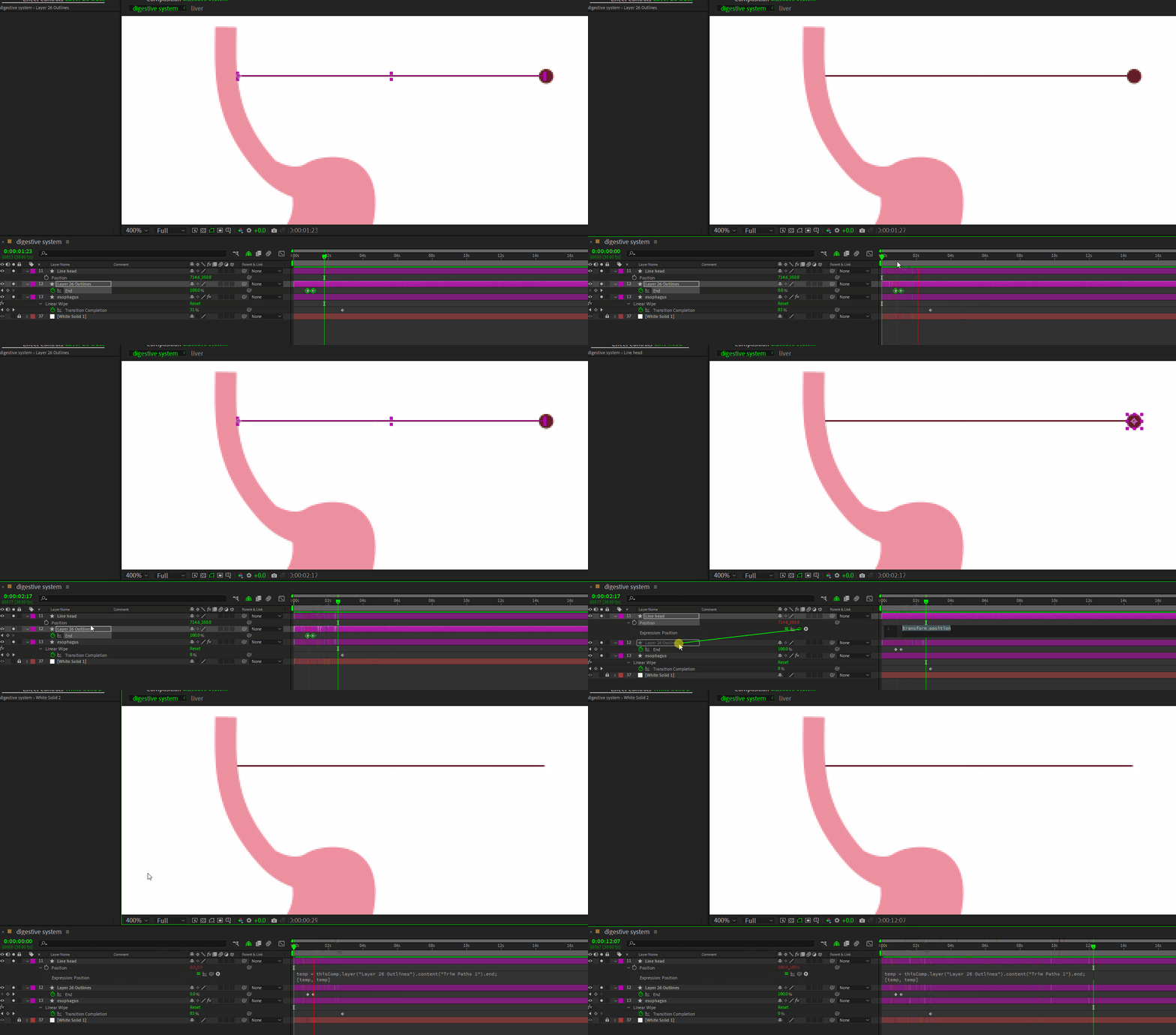
I want a shape’s position (x,y) to follow a trim path value.

In this case trim path is one dimensional and position is two dimensional.

So I activated the position’s expression field, whipped it to the trim path.

And then the shape disappeared 😞 


I must be doing something wrong.

If a position can be manipulated by rotation, why can’t I manipulate it by one dimensional ‘trim path’?

What am I doing wrong? Or, My understanding is incorrect.
 

This topic has been closed for replies.

1 reply

Community Expert
October 16, 2023

The start and end values for trim paths go from zero to 100. That's it. If you want to manipulate a property that has a different range of values you need to set up some interpolation. For example, if you wanted to move the position of a layer from 200, 200 (the upper left part of a frame) to 200, 900 (the lower left part of a frame, the expression would look like this:

ref = thisComp.layer("Shape Layer 1");
t = ref.content("Shape 1").content("Trim Paths 1").end;
strtY = 200;
endY = 900;
y = linear(t, 0, 100, strtY, endY);
[value[0], y];

As the end value moves from zero to 100, the Y value will change from 200 to 900, and the X value will stay at its original position.


If you want the layer to follow the end position of the path, there is a different workflow. You would need to select the path you want to use in the timeline, open the Window/Create Nulls From Paths.jsx script, and select Trace Path. This will give you a null named after the path that will follow the path from start to end and loop. An Effect Control slider named Progress and a Cycle checkbox will be added to the null. You would then turn off Cycle and adjust the keyframes on the Progress slider to match the start and end keyframes on the End property of Trim Paths in the timeline. Then, a simple expression like this would match the progress of Trim Paths to the Y position of the null:

ref = thisComp.layer("Trace Shape Layer 1: Path 1 [1.1]");
posY = ref.position[1];
[value[0], posY]

If you don't want to match the keyframe position of the Progress slider manually, you can drag the pickwhip from the End position of trim paths to the Progress slider, then adjust the timing of the progress keyframes. That is the workflow I usually follow.


S_ A
S_ AAuthor
Inspiring
October 16, 2023

Wow! I am reading your answer and trying to understand. Thank you so much for taking the time. I was seeing birds and stars around my head like cartoon..