


Fixed: Black Boxes covering UI buttons and text in After Effects, Audition, and Premiere Beta
Hi everyone,
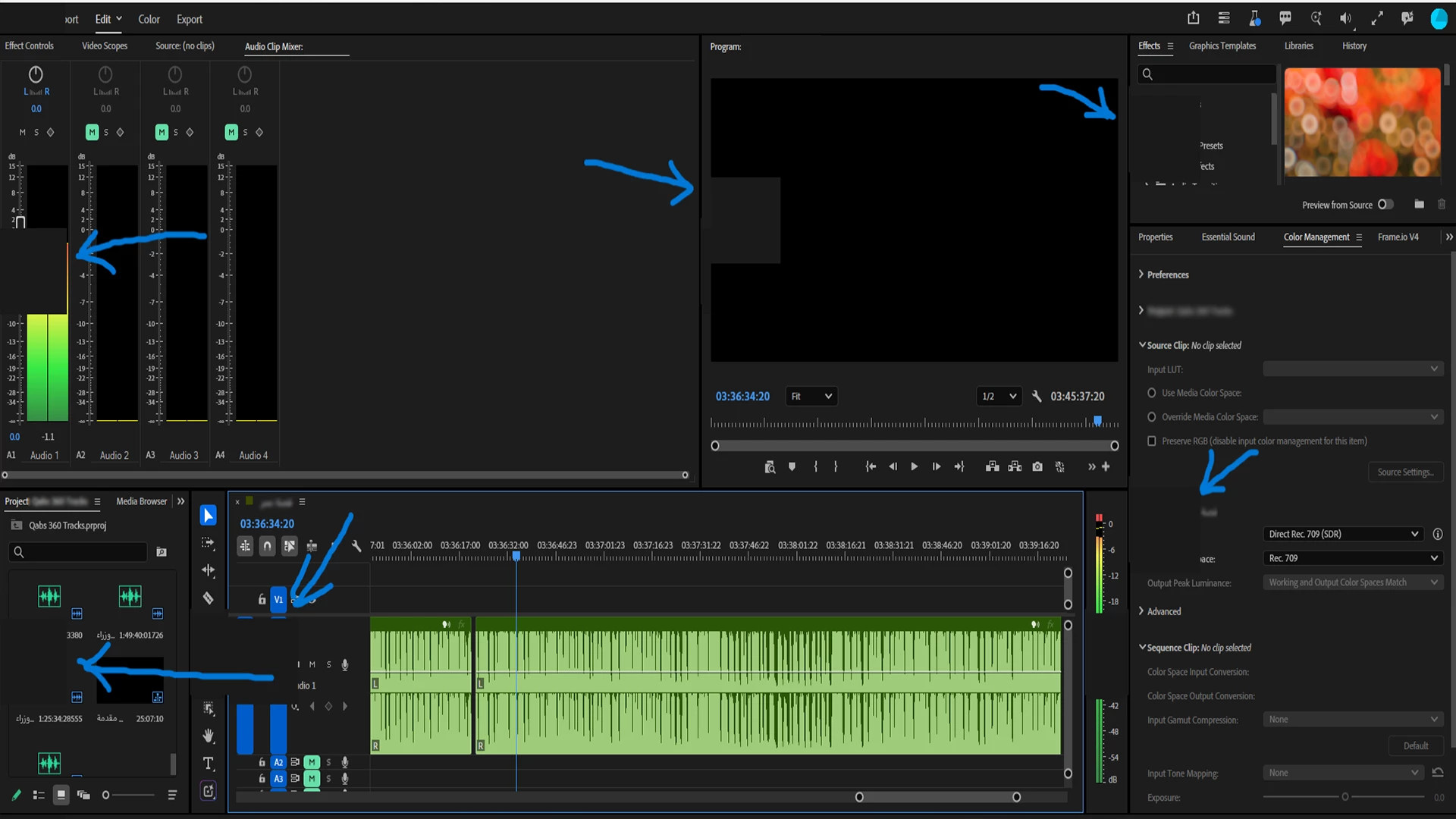
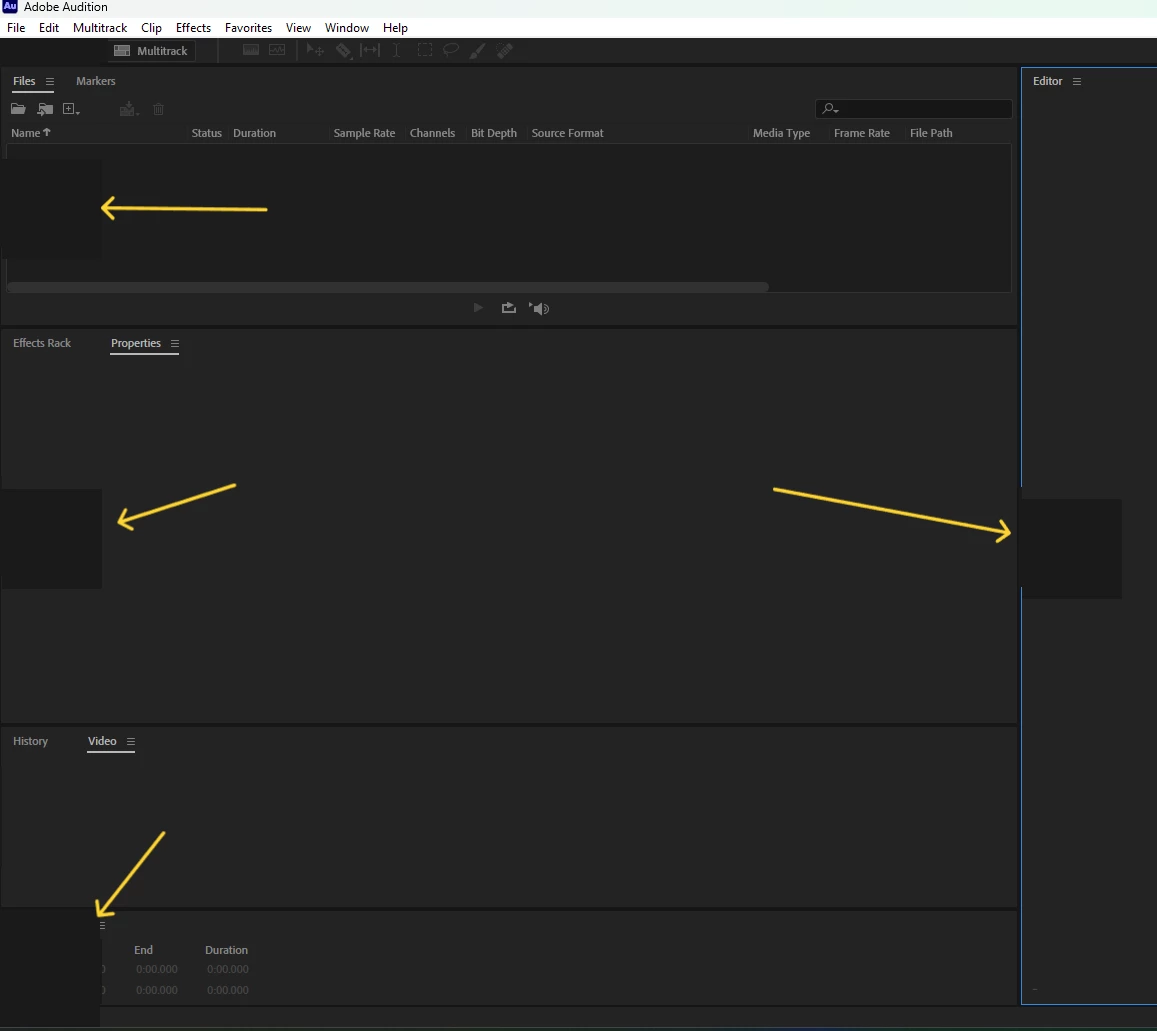
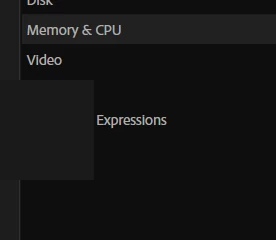
I want to describe a critical UI issue that has been affecting After Effects, Adobe Audition, and Premiere Pro (Beta). Random solid black or dark gray square boxes suddenly appear over UI elements, completely covering up buttons, text fields, and menu options, making it impossible to click or see anything underneath.
I have been suffering from this incredibly frustrating issue for the past 6 months. Every single time Adobe released a new update, I had high hopes that it would finally patch this glitch. Unfortunately, it never did.
Over the last half-year, I tried every possible solution out there. I completely reinstalled my Nvidia graphics drivers (swapping between Game Ready and Studio drivers), ran complex screen scaling overrides, messed with debug console settings, and even rolled back to older software versions. Nothing worked permanently, and those black boxes kept breaking the workspace.
Finally, after months of trial and error, I discovered the actual root cause: It was a background rendering conflict caused by MSI Afterburner—specifically its bundled on-screen component, RivaTuner Statistics Server (RTSS).
Adobe's new interface engine (Spectrum UI) does not play well with the hook/injection system that RTSS uses to track performance. The system interprets this as a visual error, drawing those annoying black squares right over your workstation layout.
Since my PC is a pure workstation and I don't use it for gaming, I found a way to kill this glitch completely without losing my custom GPU fan curves. Here is how you can fix it:
The Definitive Solutions:
Option A: The Permanent Global Fix (Highly Recommended for Workstations)
1. Open the RivaTuner Statistics Server (RTSS) interface from your system tray (the small blue monitor icon with a number).
2. Click on the Global profile in the list on the left.
3. Change the Application detection level on the right side to None.
*Note: If you don't need on-screen FPS overlays at all, you can safely uninstall RivaTuner Statistics Server entirely from Windows. MSI Afterburner will keep running 100% fine on its own to manage your cooling, temperatures, and fan speeds.*
Option B: The App-Specific Exception
1. Open RTSS and click the green Add button at the bottom left.
2. Go to your Adobe installation paths and add the main executables:
* For After Effects: AfterFX.exe
* For Audition: Adobe Audition.exe
* For Premiere Beta: Premiere Pro (Beta).exe
3. Click on each added application individually from the list and set their Application detection level to None.
Once done, restart your Adobe applications. The black boxes will disappear instantly and permanently. I really hope this saves someone else from the 6 months of headache that I had to go through!
 AdChoices