Participant
September 18, 2018
Answered

Font family not correct when using 3D Camera Tracker

  • September 18, 2018
  • 2 replies
  • 501 views

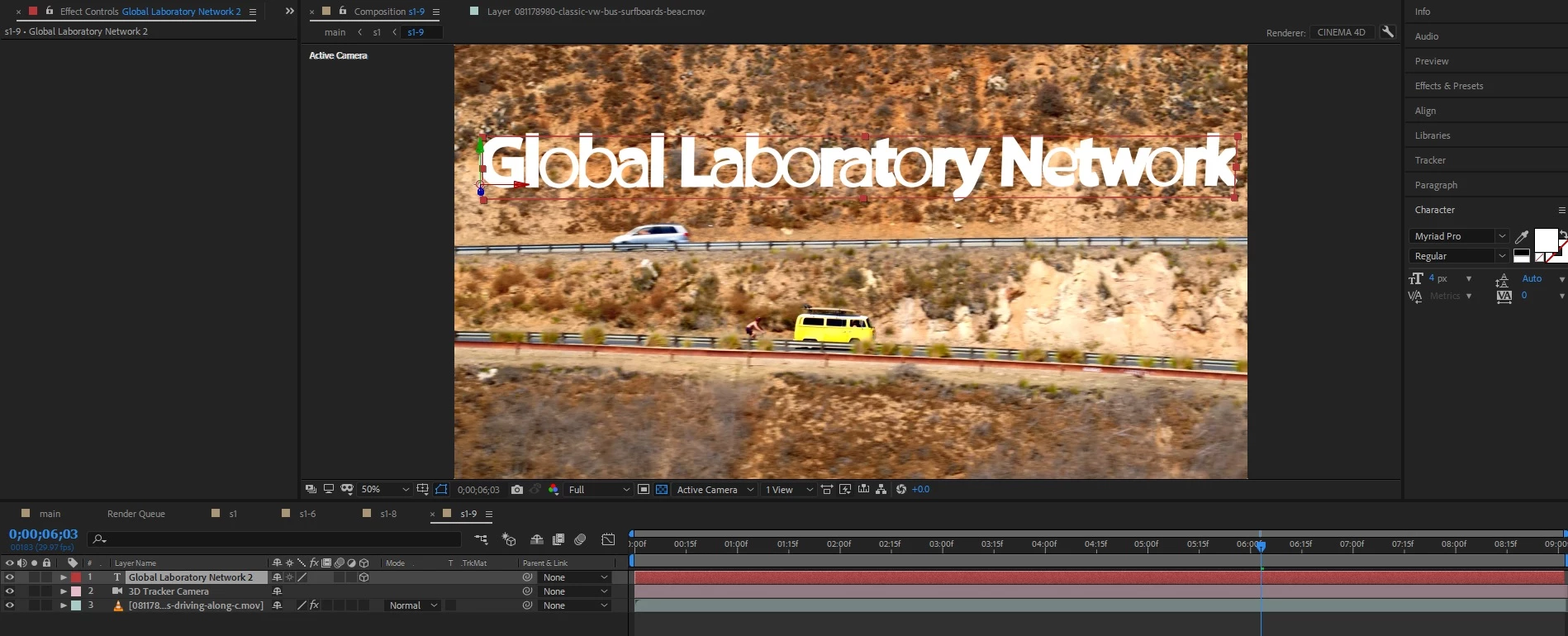
As the title states I'm getting this weird issue with the font not being correct when setting it to Arial after creating a "Text and Camera" using the 3D Camera Tracker, see attached screenshot, as you'll see this is clearly not Arial, any help would be great as I'm totally lost here.
This topic has been closed for replies.
Correct answer davidm52952307

I did a re-analyze with the 3D Camera Tracker and added text and it's working now.

2 replies

Community Expert
September 18, 2018

Select the text layer, Reset the Character Panel and the font should change to Helvetica 36 point or something similar. If the text layer does not reset then you didn't have the layer selected, the type tool was active and the cursor was between letters.

If you can't get the text layer to reset then start a new 2D text layer and see if you can get that to work. If it does, make the layer 3D, hold down the shift key and parent the new layer to the problem layer. This will snap it into position. Now delete the problem layer.

If you are still having problems try a new comp with nothing in it but a text layer. If there is a problem with that then quit AE, Reboot and relaunch. If you are still having problems with a simple text layer uninstall using the Creative Cloud app and re-install.

There is nothing in the camera tracker that has anything to do with fonts so the problem didn't come from there.

Pressing the U key twice with a layer selected will reveal all modified properties of the layer. A simple text layer will at least show Source Text and it will probably show position. You didn't press the U key twice to reveal all modified properties of the text layer because I can't see source text and I know it's not at comp center.

davidm52952307AuthorCorrect answer
Participant
September 18, 2018

I did a re-analyze with the 3D Camera Tracker and added text and it's working now.

Community Expert
September 18, 2018

Doesn't look like Myriad Pro Regular either but I can't see the entire character panel and don't know what else you have done to the font. Select the text layer, reset the Character Panel using the Popup menu under the three lines at the top right corner of the Character Panel, then set the font to Arial.

If that fails, select the text layer, press the U key twice to reveal all modified properties of that layer and show us what is going on.

Participant
September 18, 2018

Hmm, I did as you said, there's nothing when I press "U", then after resetting the character it looks as shown below