
Inspiring
August 10, 2018
Question

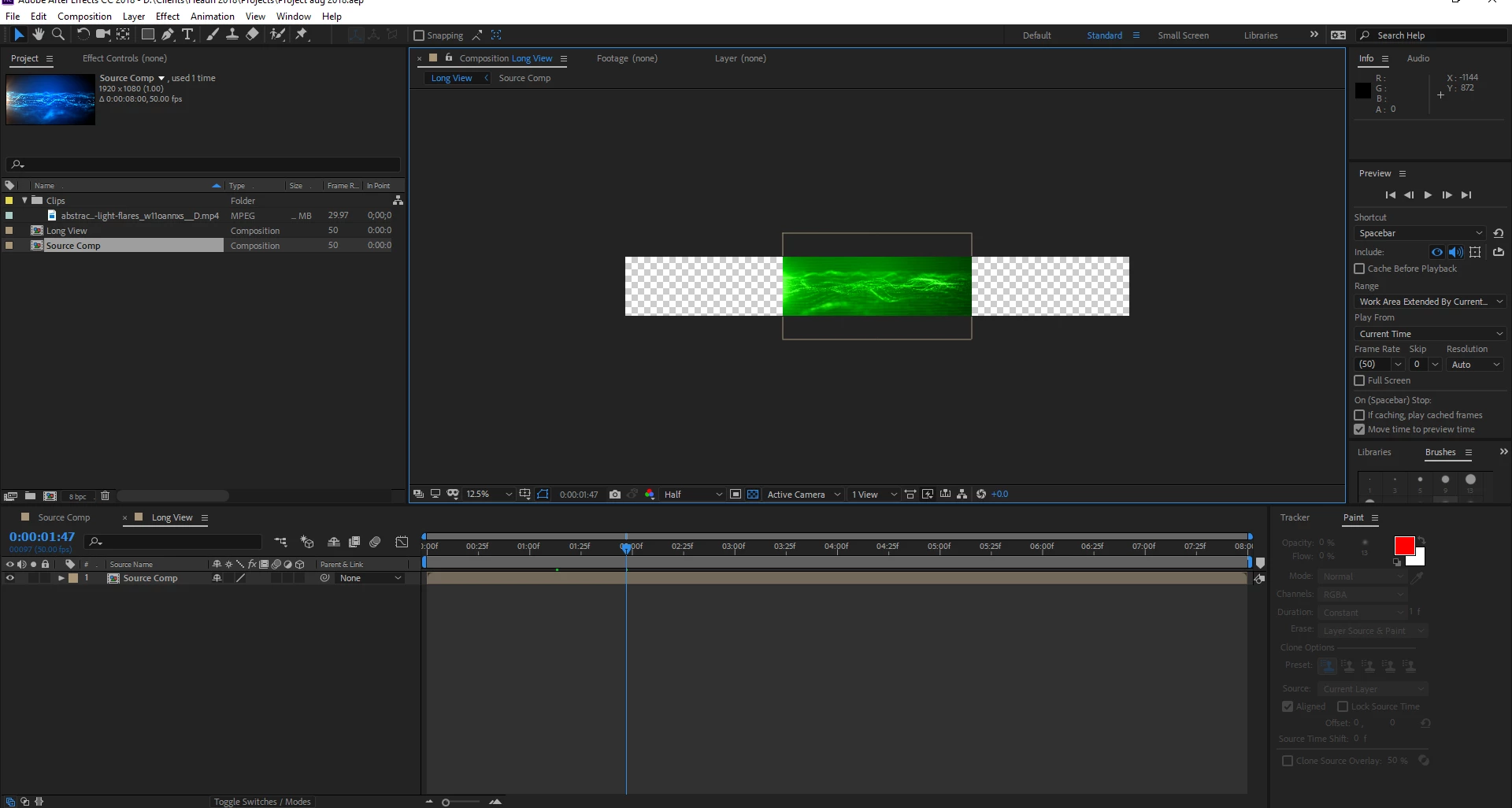
footage goes green on half, quarter res view, and crashing
  • August 10, 2018
  • 3 replies
  • 370 views

crashing every 5 to 10 minutes,  full res view looks normal

Yes - I updated after effects

Yes - I updated graphics card

My System

OS: Microsoft Windows 10 Home 64-bit 10.0.16299

CPU: Intel(R) Core(TM) i7-7820HK CPU @ 2.90GHz

RAM: 32409MB

GPU Vendor: NVIDIA Corporation

GPU: GeForce GTX 1060/PCIe/SSE2

GPU Driver: 23.20.16.4973

GPU RAM: 6144MB

GPU Code: 0

CL0: Intel(R) HD Graphics 630 (47.6%) (GL Interop)

CL1: Intel(R) Core(TM) i7-7820HK CPU @ 2.90GHz (4.8%)

CL2: GeForce GTX 1060 (47.6%)

    3 replies

    Participant
    January 25, 2025

    Profit Parrot, a leading ottawa seo company, specializes in helping local businesses achieve top search engine rankings. We offer tailored SEO strategies, including keyword research, content optimization, and link building, to drive targeted traffic and boost online visibility. Partner with Profit Parrot to grow your business and stand out in Ottawa's competitive market!

    Participant
    June 15, 2024
    1. Check Hardware Acceleration: Disable hardware acceleration in your video playback software settings to see if it resolves the green footage issue.
    2. Update Graphics Drivers: Ensure your graphics card drivers are up to date to prevent compatibility issues causing the green screen problem.
    3. Adjust Resolution: Experiment with different resolution settings to determine if the issue persists across various resolutions.
    4. Video Codec Compatibility: Verify if the video file uses a compatible codec with your media player or editing software.
    5. Clear Cache: Clear temporary files and cache data in your video editing software to potentially resolve crashing issues.
    6. System Resources: Check your computer’s CPU and RAM usage during playback to ensure your system can handle the video or fafsa processing.
    7. Software Updates: Install any available updates for your video editing software or media player to fix bugs and improve stability.
    8. File Corruption: Check if the video file itself is corrupted by playing it on another device or using a different media player.
    9. Restore Defaults: Reset your video editing software to default settings to eliminate any custom configurations causing issues.
    10. External Devices: Disconnect external devices like monitors or USB drives to rule out interference causing the green screen or crashing.
    11. Monitor Overheating: Ensure your monitor isn’t overheating, as this can sometimes cause display issues like the green screen effect.
    12. FAFSA Support: For students balancing video editing with educational expenses, accessing financial aid through the FAFSA program can provide financial support, allowing focus on resolving technical issues without financial stress.
     
    Kevin J. Monahan Jr.
    Community Manager
    Community Manager
    August 15, 2018

    Hi djmattyz,

    See if this helps: Green or purple streaks appear in the Source and Program monitors

    Thanks,
    Kevin

    Kevin Monahan - Sr. Community and Engagement Strategist – Adobe Pro Video and Audio