
MahaB82A
April 7, 2026
Question

Function of F key

  • April 7, 2026
  • 1 reply
  • 75 views

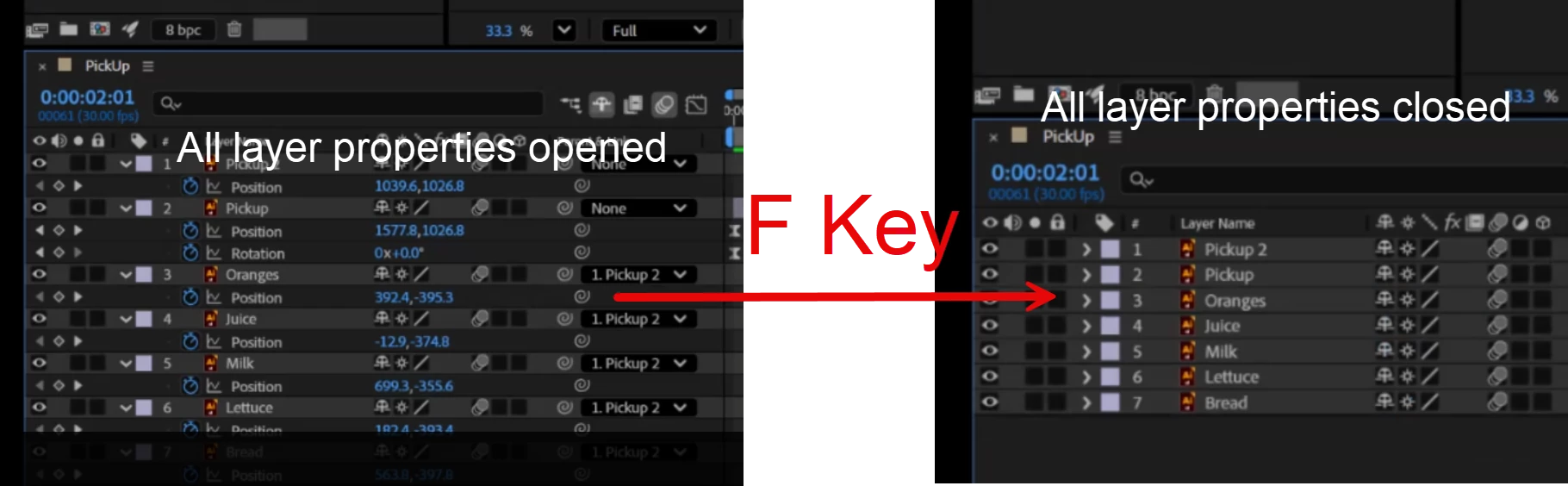
You can see in this screenshot in the LHS all layers properties are opened. Unwittingly I pressed the F key, that closed the all layers properties, you can see it in the RHS. I cannot find out the function of F key in the keyboard shortcut window. How can I find it? Video also attached 


    1 reply

    Nishu Kushwaha
    Community Manager
    Community Manager
    April 7, 2026

    Hi there,


    Thanks for writing in. Shortcut "F" is assigned to show or hide the mask feather. Since there is no mask on any of your layers, there's nothing to untwirl.

    In the Keyboard Shortcuts panel, you can activate the "F" key to see the function assigned to it.

    4mgf0IH

    Let me know if it helps.


    Thanks,

    Nishu

    MahaB82A
    MahaB82AAuthor
    April 7, 2026

    What I mean is I couldn’t see the above function of the F key.    

    Warren Heaton
    Community Expert
    Community Expert
    April 7, 2026

    Hi ​@MahaB82A:

    To expand on Nishu’s reply:

    Pressing F reveals the Mask Feather property, but a Mask has to have been applied to the Layer.  It also hides other properties to favor showing only Mask Feather.

    Try this:

    1. Select one Layer in the Timeline.
    2. Choose Layer > Mask > New Mask.  This applies a Mask to the select Layer.
    3. While the Layer is still selected, press F to show that Layer’s Mask Feather property.
    4. Press F again to hide it.
    5. Press M to show Mask Shape.
    6. Press MM to show all Mask properties (Mask Shape, Mask Feather, Mask Opacity, and Mask Expansion).


    If other properties are showing like Position and Rotation and no Masks are applied, pressing F will collapse the Layer showing nothing.

    If other properties are showing like Position and Rotation and at least one Mask is applied, the showing properties will be swapped out for Mask Feather.


    To continue with the above steps:

    1. Select all of the Layers and press P to show the Position property for all of the selected Layers.
    2. Then press R to swap the Position Property for showing the Rotation property for all of the selected Layers.
    3. Then press shift P to add position back.
    4. Then press F to show just Mask Feather for the Layer that has a Mask.


    Another thing to try:

    1. Select all of the Layers and press P to show the Position property for all of the selected Layers.
    2. Then press shift R to add the Rotation property for all of the selected Layers.
    3. Then press shift F to add Mask Feather for the Layer that has a Mask while still showing Position and Rotation for all of the Layers.
    4. Then press S to replaced all the properties being shown with the Scale property for all of the Layers.

    Another behavior to be aware of is that these shortcuts work for selected Layers (one or more).  If no Layers are selected, then it works for all Layers.


    Hopefully, this gives you a sense of how these keyboard shortcuts allow us to show just the properties we want to work with rather than all of them.

    For more on keyboard shortcuts, review this page of the After Effects user guide:  https://helpx.adobe.com/after-effects/using/keyboard-shortcuts-reference.html


     - Warren