
nickn35634941
Inspiring
April 11, 2017
Answered

Gradient Along Stroke

  • April 11, 2017
  • 6 replies
  • 28136 views

Hello,

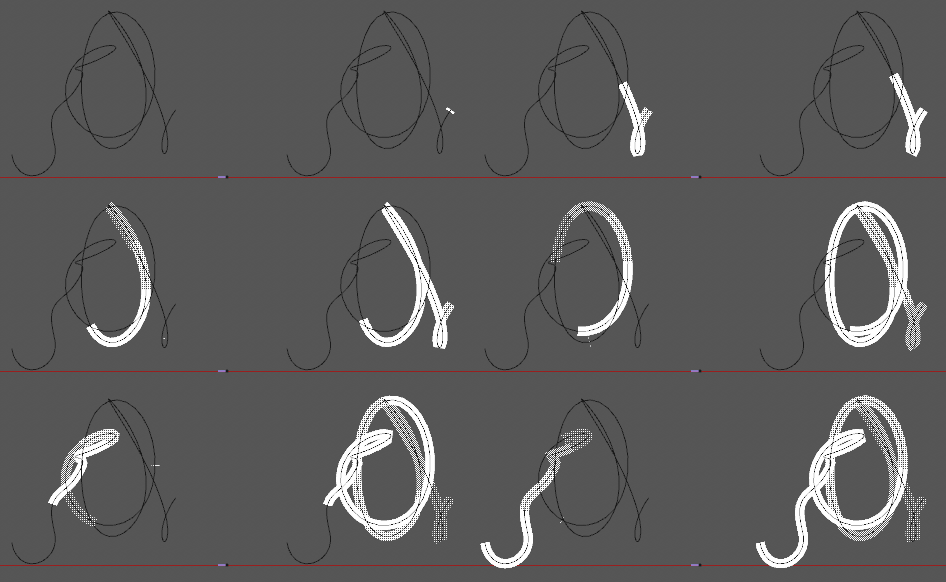
Is there a way to create a gradient which follows the shape of a stroke?

I was googling this, saw that someone said to use "Gradient Stroke", I tried this but was surprised to see this has a start and end point, which means that it in no way creates a gradient along the stroke, it just creates a gradient which is masked by the stroke.

Am I using it wrong, or is there no way to create a gradient along a stroke?

I am ideally trying to create a gradient which starts at the end point, or "trim" point so it stretches/moves/offsets as the end point grows along a defined path.

I made some examples in c4d to show what I mean:
This topic has been closed for replies.
Correct answer Kyle Hamrick

AE actually does have this feature, but you have to think outside the box a bit.

Create a text layer with a bunch of periods. Font choice will determine whether it's rounded or flat-ended.
Draw your path, set the text to follow that path.
Compress the tracking until it's a solid line.
Add a text animator for opacity (set to zero), set the shape to Ramp Up or Ramp Down as desired.

You can now animate along the path by keyframing First Margin/Last Margin, and/or add another Opacity animator to control what you'd call "Trim" if this were a shape layer.

[Bonus: if you enable per-character 3d and use either the C4D or Raytrace renderer... you've got a fully native 3d version of this thing.]

6 replies

Participating Frequently
October 25, 2021

Maybe I figured out an easy workaround 😎

https://youtu.be/4qE06UDNG04 

angie_taylor
Legend
June 25, 2018

You can create this effect by adding an opacity fade to a regular stroke and then adding the Colorama effect to it. Or use a repeater to create the stroke, change the end opacity to 0%. Then add colorama.

angie_taylor
Legend
June 25, 2018

If you use colorama for this you need to select the Alpha mode for input cycle and i forgot that The built in Stroke effect does not have an end opcaity setting so it would have to be done with a 3d party effect like 3D stroke.

I think it could be done with a trim paths operator on a Shape layer's stroke, then add the echo effect and then colorama. I'll experiment and then get back to you. :-)

Kyle Hamrick
Community Expert
Community Expert
June 25, 2018

I'm guessing you're discussing the colorful gradient above? I agree with your Colorama theory, but you can easily do this with my text layer recipe above. Just choose Fill Color as the property to animate. You could use multiple animators or multiple range selectors to get more complex gradients.

angie_taylor
Legend
August 25, 2017

Have you tried using a Gradient Stroke on a Shape layer and then using Trim Paths operator on it?

Community Expert
August 26, 2017

To find gradient stroke click the add button in the shape layer and look here:

Unfortunately the gradient does not follow the path in AE. Your only options are Linear and Radial.

It would be great if Gradient stroke worked like it does in Illustrator so you could follow the path like this:

For some projects requiring animating a path with a gradient applied I'll set up a starting and ending path in Illustrator, apply a blend with the matching the number of frames to the time I need for the animation, expand the blend to elements, release to layers, import the AI comp into AE as a comp and sequence the layers. For other projects I will use some of the techniques described in this thread.

Participant
June 22, 2018

You can use effect Vegas and get a similar effect. This is how I did:
Create a mask with the shape of the stroke you desire on a solid or shape layer;

Add an instance of Vegas;

Select Mask/Path under "stroke";

Change to 1 segment;

Set the hardness and end opacity to 1;

Set the blend mode to "transparent";

Choose the color and the width you want;

Duplicate the effect;

Change the color to the second color you want;

Set the blend mode to "over"

Set the end opacity to 0

Now you can animate the mask and, since both instances of the effect are targeting the same mask, they will both follow the animation.

Inspiring
August 24, 2017

Would you mind sharing your c4d file? Im setting up something similar and curious how you set yours up.

Kyle Hamrick
Community Expert
Community Expert
August 25, 2017

Which of us are you asking?

Inspiring
August 25, 2017

Hi, well actually I followed your solution and that is basically what I am after! Think outside the box indeed! I do like being able to solve the problem in ae so hopefully i can use this solution. having a c4d solution would also be nice also, just in case. i think i have the basic build, a plane spline wrapped to a curve and animating offsets? though i could use some advice on the opacity falloff bit. thanks!

Kyle Hamrick
Community Expert
Kyle HamrickCommunity ExpertCorrect answer
Community Expert
April 11, 2017

AE actually does have this feature, but you have to think outside the box a bit.

Create a text layer with a bunch of periods. Font choice will determine whether it's rounded or flat-ended.
Draw your path, set the text to follow that path.
Compress the tracking until it's a solid line.
Add a text animator for opacity (set to zero), set the shape to Ramp Up or Ramp Down as desired.

You can now animate along the path by keyframing First Margin/Last Margin, and/or add another Opacity animator to control what you'd call "Trim" if this were a shape layer.

[Bonus: if you enable per-character 3d and use either the C4D or Raytrace renderer... you've got a fully native 3d version of this thing.]

nickn35634941
Inspiring
April 11, 2017

That is an awesome idea! very crafty!

Kyle Hamrick
Community Expert
Community Expert
April 11, 2017

As you may have guessed, this is also the secret recipe for a tapered stroke. Just swap in Scale for that first Opacity.

"What are the most under-appreciated layers in AE?"

Mylenium
Legend
April 11, 2017

AE doesn't have any such feature. You have to apply multiple instances of normal strokes and blur them together using Vector Blur/ Motion Blur, use the Vegas effect or similar convoluted techniques. however, since you seem to have figured out how to use transparency textures/ Alpha textures in C4D, you might do it just as well there with much more control, including using Sketch & Toon, if you have it or refining your geometry-based approach...

Mylenium

nickn35634941
Inspiring
April 11, 2017

Oh dear, I see, thanks. I was going to do it in C4D but wanted to check if its possible in AE first, it seemed logical that there may be such a feature. Using multiple strokes might not look too bad in my use case.

I also found a tutorial using omino plugin to deform a layer along a path which seems like another good alternative:

After Effects Tutorial - Bend Layers Along Paths in After Effects Part 1 - YouTube