MilesKelly97
Participant
March 3, 2019
Answered

Help on how to animate the fill on a vector object from Illustrator

  • March 3, 2019
  • 1 reply
  • 5273 views

Hi all,

I am new to After Effects, currently teaching myself how to use it.  I have an Illustrator vector file I have added into AE and I wanted to animate it drawing itself out. I have sort of managed to do this but doing a Auto Trace on the object then animating the Stroke with Trim paths. But this is only animating the outline, not the fill.


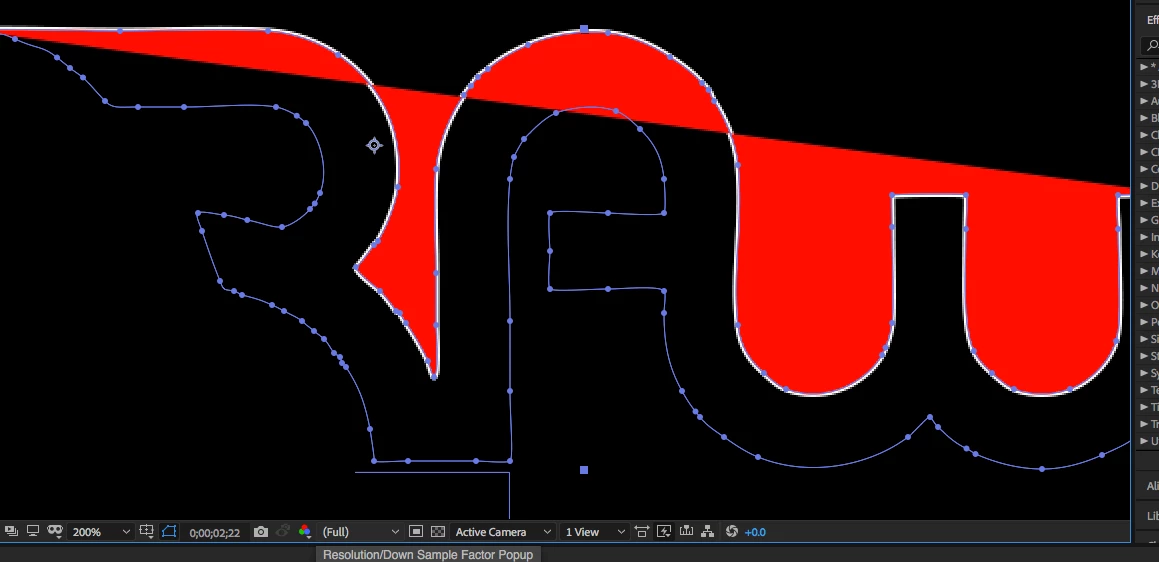
When I add a Fill its fills really strangely and goes outside the outline and finishes filled.

I have attached a screenshot of what is happening at the moment when i added Fill as an option. I want to animate it drawing the letters out with the fill inside of the path (shown in screenshot) not the stroke...

Hope this makes sense,  Is there an easy way to achieve this? Any help would be greatly appreciated.

Thanks

Miles
    This topic has been closed for replies.
    Correct answer Rick Gerard

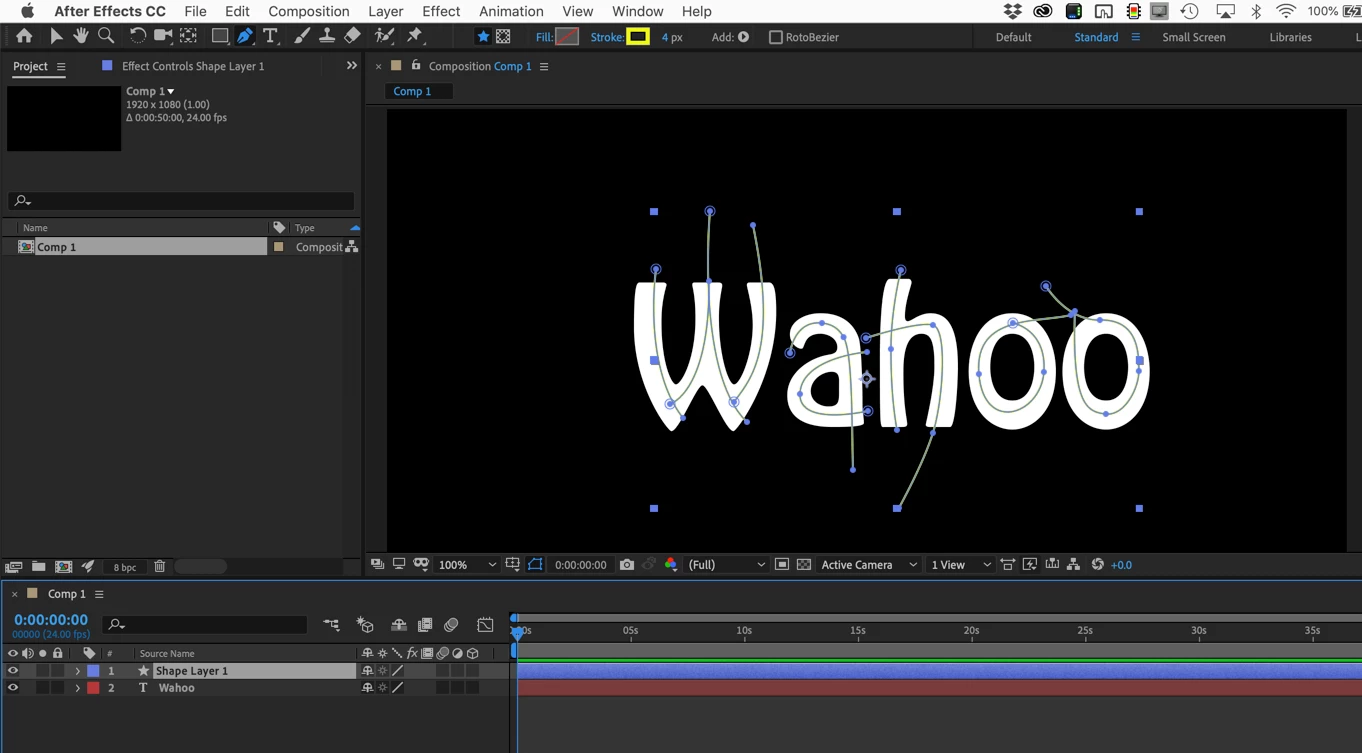
    Trim paths works on a stroke. When applied to a filled layer the results are difficult to control. Your only option is to animate all properties for trim paths and try and get it to fill the way you want it to fill. For the layer you are working on the only reasonable solution is to draw a path that follows the center of the text, make the width just wider than the characters, then add trim paths to those paths or path, then use that new shape layer as a track matte for the original filled layer. You can actually save the step of converting the shape to a vector path. Something like this:

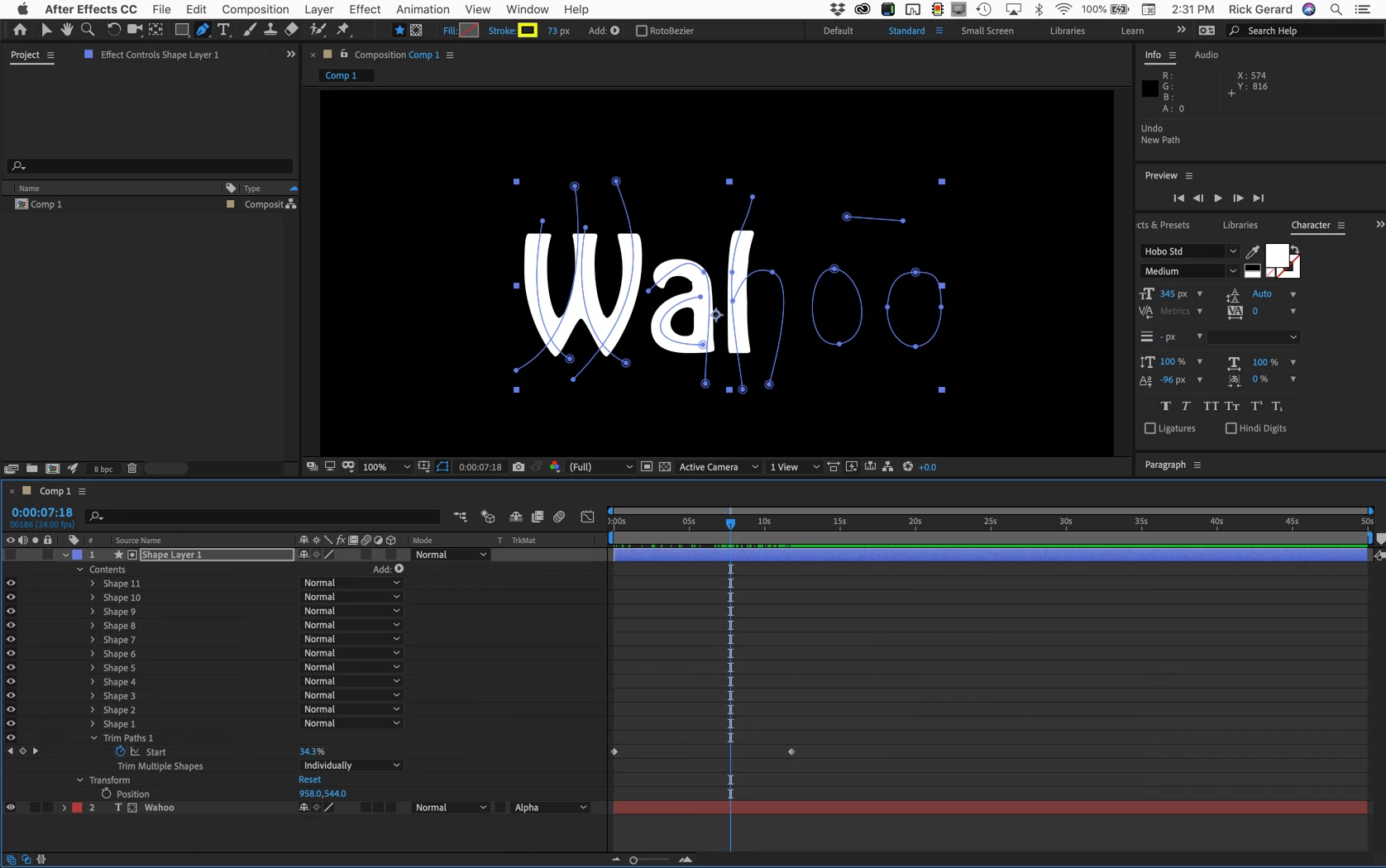
    Then just apply trim paths, increase the width of the stroke until the paths just cover the letters and set the shape layer as an Alpha track matte for the shape. You get something like this:

    The first vertex and shape order is critical. It's easiest if you start each path where you want the stoke to end and add a little extra to help with the timing. Multiple strokes animated individually eliminates the problem of overlapping strokes. This sample took me about 5 minutes, but I've done this kind of thing a lot.

    1 reply

    Rick GerardCommunity ExpertCorrect answer
    Community Expert
    March 3, 2019

    Trim paths works on a stroke. When applied to a filled layer the results are difficult to control. Your only option is to animate all properties for trim paths and try and get it to fill the way you want it to fill. For the layer you are working on the only reasonable solution is to draw a path that follows the center of the text, make the width just wider than the characters, then add trim paths to those paths or path, then use that new shape layer as a track matte for the original filled layer. You can actually save the step of converting the shape to a vector path. Something like this:

    Then just apply trim paths, increase the width of the stroke until the paths just cover the letters and set the shape layer as an Alpha track matte for the shape. You get something like this:

    The first vertex and shape order is critical. It's easiest if you start each path where you want the stoke to end and add a little extra to help with the timing. Multiple strokes animated individually eliminates the problem of overlapping strokes. This sample took me about 5 minutes, but I've done this kind of thing a lot.