Participant
February 26, 2025
Answered

Help with Coin flip Glitch!

  • February 26, 2025
  • 2 replies
  • 912 views

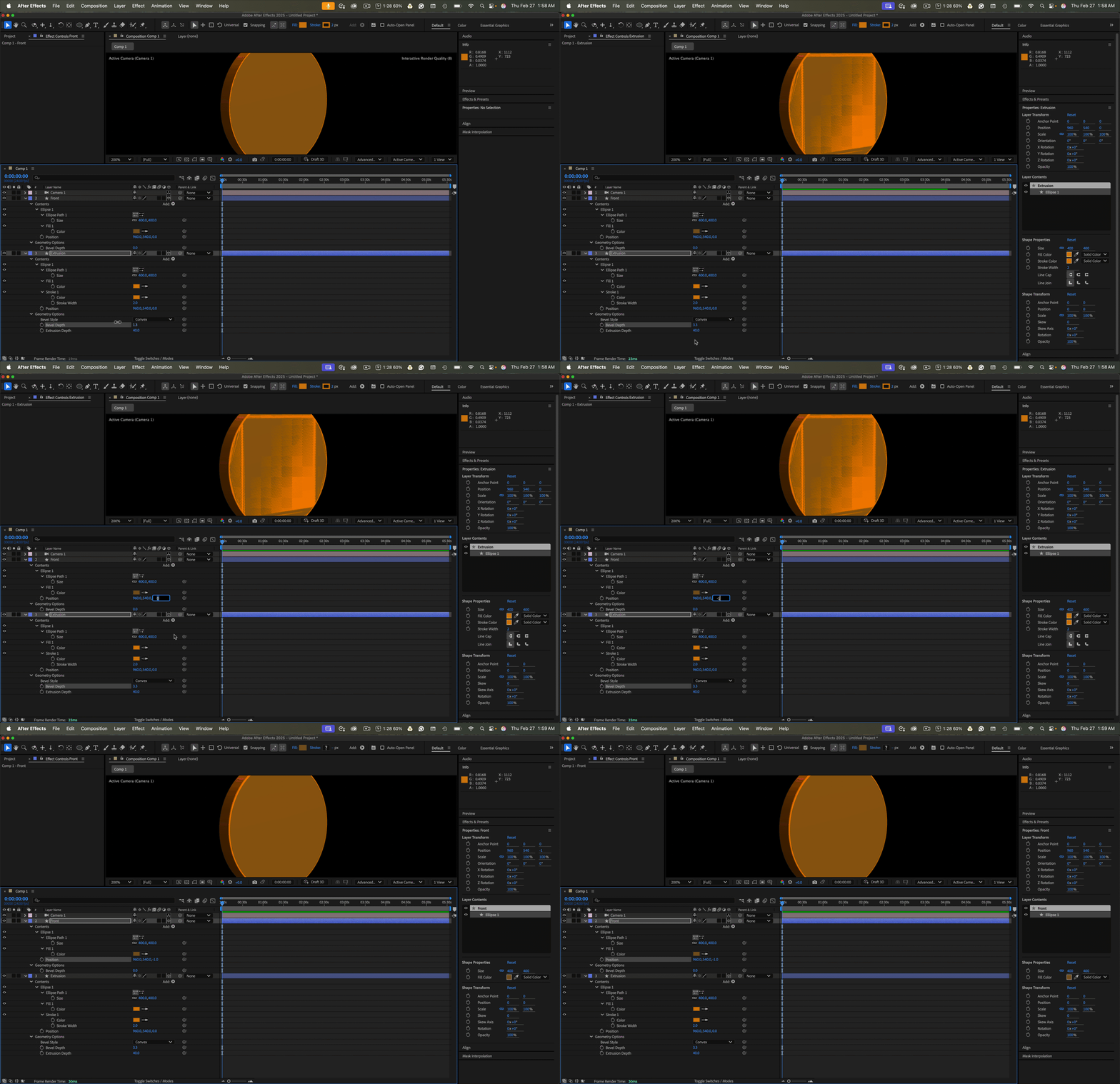
If anyone could help me figure out this glich with the coin rotating? The file has three layers, the flat image of the coing front/back and then an extruded circle shape to be the coin. All layers are 3D. The front and back are parented to the 3D shape. I'm not sure why this is happening? All the shadows and lights are turned off. The layers are not overlapping. 

Correct answer Rick Gerard

You will get co-plainer interference when you use the Advanced 3D rendering engine and have any bevil style and depth values added to the extruded layer. If you need the bevel, you must offset the surface layers by 1 pixel to fix the problem. This goes for both sides. Avoiding 3D layers that share the same plane is always a good idea. I often use expressions to offset the layers by one pixel in Z before moving them around. 
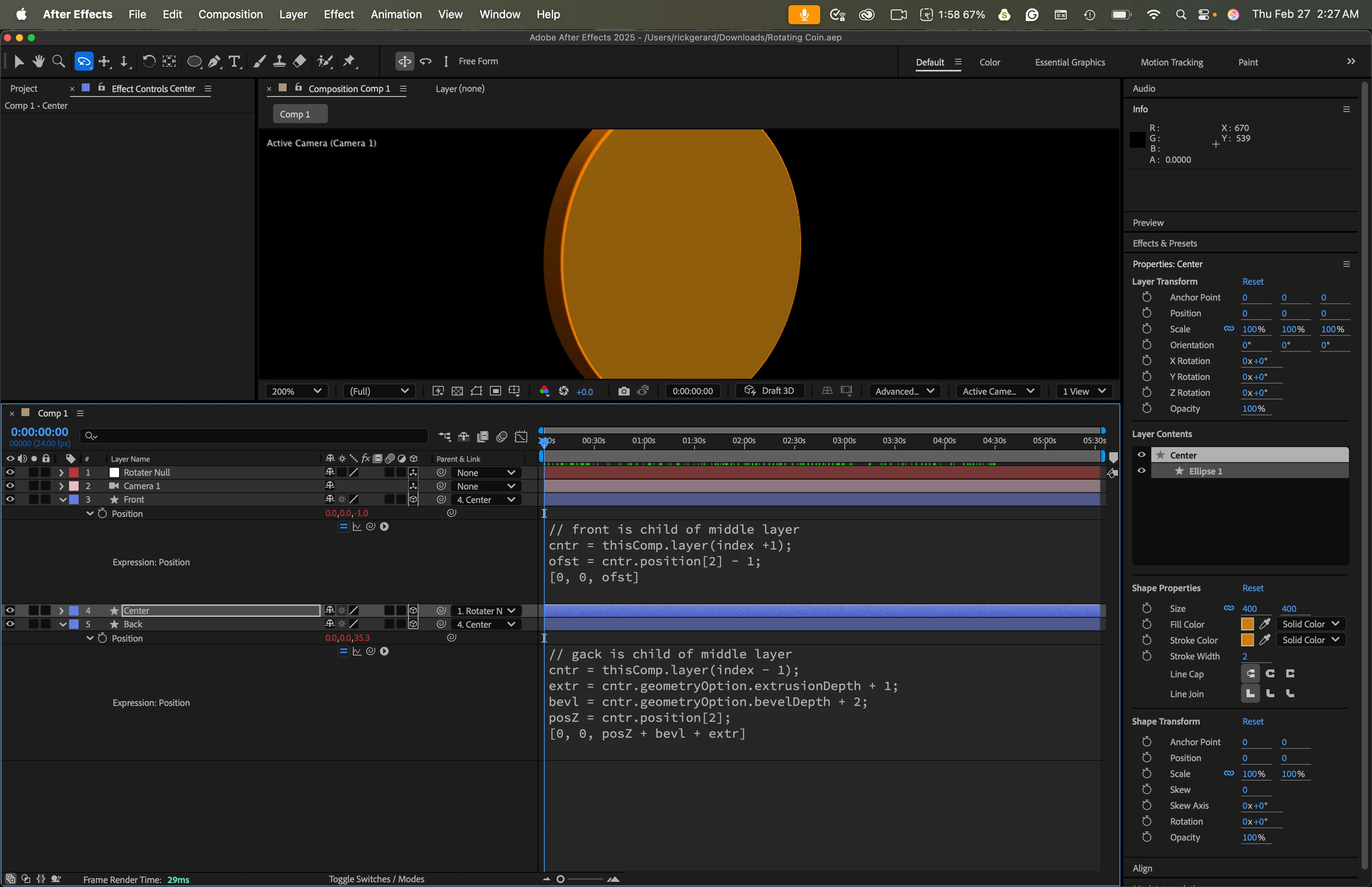
Before rotating the combination of layers, parent the front and back layers to the extruded layer, then add these expressions to the front and back layers' position properties. 

// front is child of middle layer
cntr = thisComp.layer(index +1);
ofst = cntr.position[2] - 1;
[0, 0, ofst]

// back is child of middle layer
cntr = thisComp.layer(index - 1);
extr = cntr.geometryOption.extrusionDepth + 1;
bevl = cntr.geometryOption.bevelDepth + 2;
posZ = cntr.position[2];
[0, 0, posZ + bevl + extr]
I have uploaded a project file for you to look at.

2 replies

Rick GerardCommunity ExpertCorrect answer
Community Expert
February 27, 2025

You will get co-plainer interference when you use the Advanced 3D rendering engine and have any bevil style and depth values added to the extruded layer. If you need the bevel, you must offset the surface layers by 1 pixel to fix the problem. This goes for both sides. Avoiding 3D layers that share the same plane is always a good idea. I often use expressions to offset the layers by one pixel in Z before moving them around. 

Before rotating the combination of layers, parent the front and back layers to the extruded layer, then add these expressions to the front and back layers' position properties. 

// front is child of middle layer
cntr = thisComp.layer(index +1);
ofst = cntr.position[2] - 1;
[0, 0, ofst]

// back is child of middle layer
cntr = thisComp.layer(index - 1);
extr = cntr.geometryOption.extrusionDepth + 1;
bevl = cntr.geometryOption.bevelDepth + 2;
posZ = cntr.position[2];
[0, 0, posZ + bevl + extr]

I have uploaded a project file for you to look at.

nishu_kush
Legend
February 27, 2025

That's great advice. Thanks for taking the time to answer the thread @Rick Gerard. I appreciate it.


Thanks,
Nishu

Kevin J. Monahan Jr.
Community Manager
Community Manager
February 27, 2025

Hi @Keilee_2245,

Tnanks for the question and welcome to the forum. Can we get a screenshot of your timeline? Do you hapeen to have Motion Blur switched on? Let us know. I hope we can help you.


Thanks,
Kevin


Kevin Monahan - Sr. Community and Engagement Strategist – Adobe Pro Video and Audio