Known Participant
October 27, 2019
Answered

Hide black around Spotlight

  • October 27, 2019
  • 2 replies
  • 1124 views

 Hi,

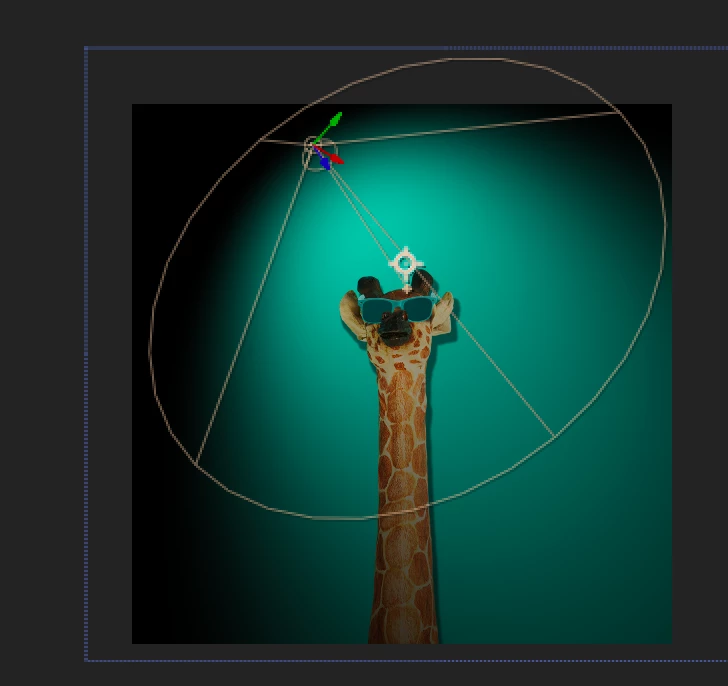
I am having trouble hiding the black around the cone. Why is it still showing? See below.
This topic has been closed for replies.
Correct answer angie_taylor

Hi there,


You seldom use just one light to light a scene. Its common practice to mimic real life where you will have several light sources within each scene. For example, you might have ambient light coming into a room from outside. But you may also have a light source inside the room from a lamp.


If you only use one light the result will be difficult to balance. So usually I'll have one ambient light, set to maybe 40%, this gives an overall ambience to the scene. I'll then add perhaps a Point light to highlight my object  - at maybe 50%. Then finally a fil light to balance the lighting.


Here's an article to begin learning with. Good luck 🙂


https://3d-ace.com/press-room/articles/how-light-3d-scene-overview-lighting-techniques

2 replies

angie_taylor
Legend
October 27, 2019

Add an Ambient light to your scene, I'd make it 50% intensity to begin with. Adjust it to suit how much ambient light you need in the scene. The Ambient light type is for controlling how much ambient light is in your overall scene.

Known Participant
October 27, 2019

ambient light versus spotlight you mean? in what case you use either or? thank you!

angie_taylor
angie_taylorCorrect answer
Legend
November 5, 2019

Hi there,


You seldom use just one light to light a scene. Its common practice to mimic real life where you will have several light sources within each scene. For example, you might have ambient light coming into a room from outside. But you may also have a light source inside the room from a lamp.


If you only use one light the result will be difficult to balance. So usually I'll have one ambient light, set to maybe 40%, this gives an overall ambience to the scene. I'll then add perhaps a Point light to highlight my object  - at maybe 50%. Then finally a fil light to balance the lighting.


Here's an article to begin learning with. Good luck 🙂


https://3d-ace.com/press-room/articles/how-light-3d-scene-overview-lighting-techniques

Jose Panadero
Community Expert
Community Expert
October 27, 2019

You are using a Spotlight so you will always get black around the cone. You have a couple of options:


- Double click on the light and change to Point Light

- Move the light in z position to move away from your elements but you will need to increase the intensity of the light.

- If you only want the drop shadow from the giraffe, then avoid using a 3D light and use the standard Drop Shadow effect that you can find in the Effects menu under the Perspective category.

Known Participant
October 27, 2019

Yes, thank you, I had to move the Z position to remove the black around the cone! I did not know about the drop shadow effect, when do you use 3D light then, when there is movement?  I am trying here to control the direction of shadow for another object and the effect looks limited. 


thank you for your help!
