

Hugh Betcha
Legend
September 16, 2019
解決済み

How can I remove a color (like neon green) from only exterior of object footage?

  • September 16, 2019
  • 返信数 2.
  • 10295 ビュー

I have a rotating object that is on a solid neon green background. When I use Keylight, it removes the green just fine, but also messes with the green within the object. Is there any solution to masking it (besides using clipping paths etc.)?


NOTE: Title edited by Mod.

このトピックへの返信は締め切られました。
解決に役立った回答 Rick Gerard

You don't have to use blend modes at all. Don't mess with them.


Put the original shot below the footage with Keylight applied. Press F4 until you see the Track Matte options or click the middle icon at the bottom of the timeline to reveal the column. Maybe you can see this screenshot a little better:
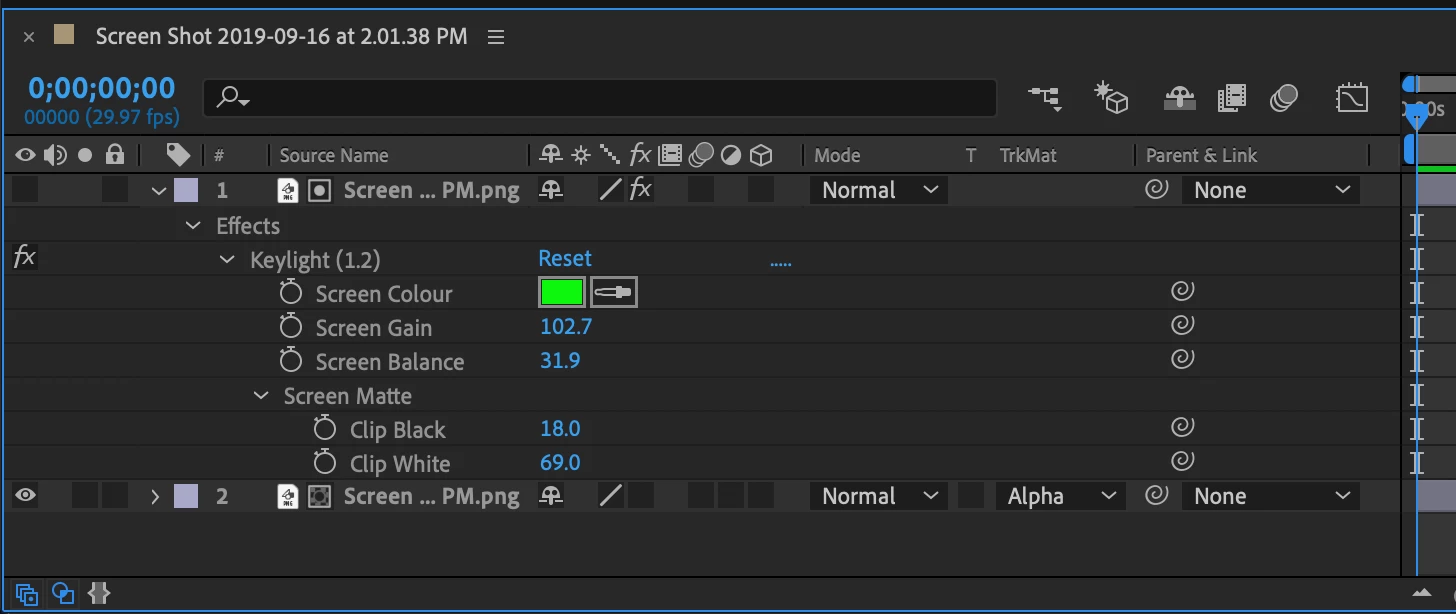
Here's a closeup of the Track Matte switch:
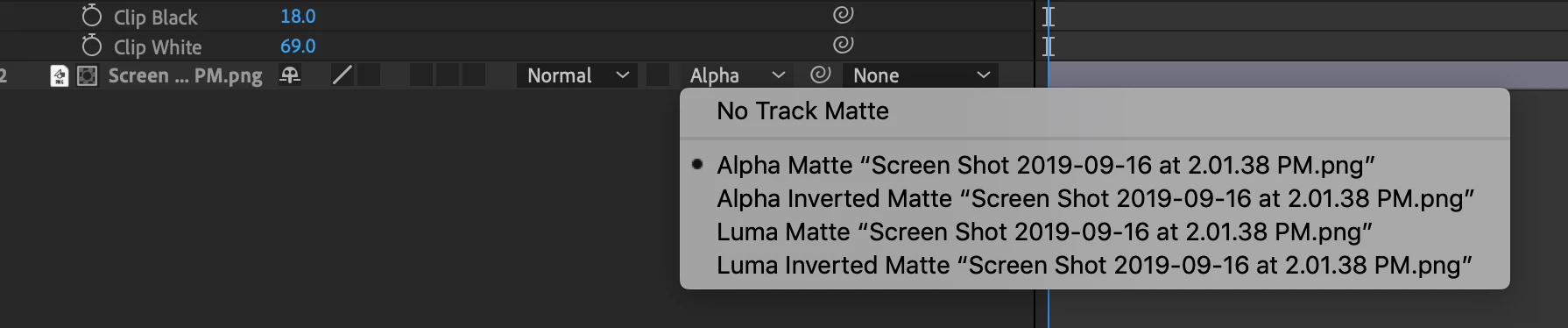
All the options are shown. Keylight creates an alpha channel, Track Matte on the bottom layer uses that alpha channel to create one on the original footage. 


Track Matte is a core function. Google is a terrible way to look for it. Type Track Matte in the Search Help field in the Top Right corner of AE to be taken directly to the user guide.


You could have watched one of the tutorials on the AE product page that deals with Track Mattes in the time you have fiddled around on this forum. You would have found this tutorial as the second link in the search results: How to create a hoverboard effect | Adobe After Effects tutorials


Better link inserted

返信数 2

Rick GerardCommunity Expert解決!
Community Expert
September 16, 2019

You don't have to use blend modes at all. Don't mess with them.


Put the original shot below the footage with Keylight applied. Press F4 until you see the Track Matte options or click the middle icon at the bottom of the timeline to reveal the column. Maybe you can see this screenshot a little better:

Here's a closeup of the Track Matte switch:

All the options are shown. Keylight creates an alpha channel, Track Matte on the bottom layer uses that alpha channel to create one on the original footage. 


Track Matte is a core function. Google is a terrible way to look for it. Type Track Matte in the Search Help field in the Top Right corner of AE to be taken directly to the user guide.


You could have watched one of the tutorials on the AE product page that deals with Track Mattes in the time you have fiddled around on this forum. You would have found this tutorial as the second link in the search results: How to create a hoverboard effect | Adobe After Effects tutorials


Better link inserted

Hugh Betcha
Hugh Betcha作成者
Legend
September 16, 2019
Thanks so much, I'll review this tomorrow
Community Expert
September 16, 2019

Check out the Keylight user guide and read up on using masks. AE's built-in mask tracking may give you all you need to create the mask, then it's just a matter of throwing the right switches. 


And to make life easier for all of us please just drag your screenshots to the forum. It's easier than posting a link.

Another option, and judging from the sample image one that may be easier is to duplicate the footage layer, pull a good key using Keylight, which is pretty easy to do just tweaking a couple of settings, then use the top copy as a track matte for the original footage like this:

Hugh Betcha
Hugh Betcha作成者
Legend
September 16, 2019

Thanks Rick - I'll have to attempt that - I did the Keylgiht no problem, but the next step is totlly new to me - I'll have to google it.