
D_H_Kim
Participant
January 2, 2019
Question

How can I solve OpenGL commands problem?
  • January 2, 2019
  • 4 replies
  • 8468 views

MY PC spec

I7-8705G

DDR4 16GB

+ GTX 1080 (by egpu)

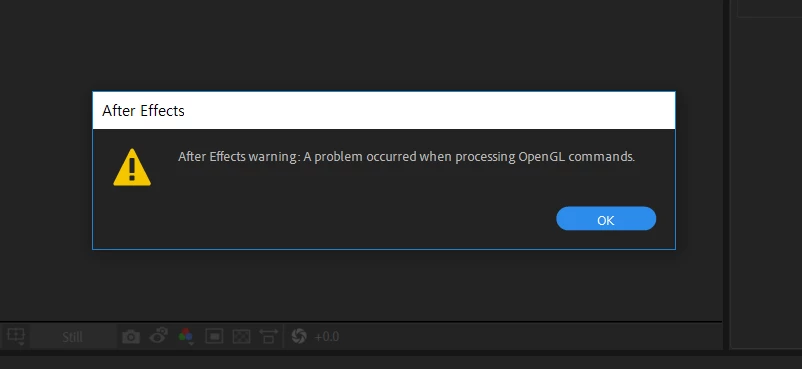
After Effect CC 2019 keeps showing me this error message.

I already updated all graphic drivers.

How can I solve this problem?

Is there anyone who has good solution for this?

This topic has been closed for replies.

4 replies

Participant
October 29, 2019

I had the same issue i have dual RTX 2080 Ti cards , and the way i fixed it is by reinstalling after effects. seems that card swaping does effect the way the VRAM operates in the preferences.


Participant
October 29, 2019

ignore that the message appeared again <_<

Dave_LaRonde
Inspiring
January 3, 2019

Since something like AE CS 5.5 -- quite a few versions ago -- Adobe has not even touched Open GL.  I recommend that you don't use it.

Rameez_Khan
Legend
January 3, 2019

When do you get this error exactly, D.H.Kim? Are you getting this after launching the application? Or does it happen after you click something?

Thanks,

Rameez

Participant
March 11, 2019

Hi, I'm get the same error as D.H.Kim when I open a project. So not when I open AE, but when AE is trying to load a project.  I'm running on Windows 10 and have two GeForce 2080 Ti cards (not for use in AE).  I do NOT have GPU ray-tracing enabled.  I'm not sure why After Effects keeps trying to execute OpenGL commands and would like to disable it. 

Another issue I'm having is the constantly blinking "Display Acceleration Disabled" message in my Comp panel. I've tried updating the Nvidia graphics driver like other forums have suggested, but it didn't help.

It's mostly a nuisance to get this error message every time, but I would still like it to go away.  Looking forward to your input.  

mazzew
Participant
June 21, 2019

the answer

Vidya Sagar
Adobe Employee
Adobe Employee
January 3, 2019

Hi D.H.Kim,

Sorry for the issue. Have you tried changing the Texture Memory in GPU info in Preferences? Here are the steps:

1. Go to AfterEffects Preferences > Previews > GPU Information.

2. Enter a value for Texture Memory of no more than 80% of the installed video RAM (VRAM) on your video card.

Please let us know the status after testing.

Thanks,

Vidya

Participant
January 28, 2021

 I have no idea what this mean?? Help!!?