Neon Tundra
Participating Frequently
March 29, 2021
Question

How do I animate a shape layer composed of different animated paths along another path?

  • March 29, 2021
  • 2 replies
  • 654 views

First of all, thanks in advance for your help!

I have a word made out of different animated paths. It's a shape layer, and it has 8 shapes wich are the glyphs (strokes animated with trim paths).
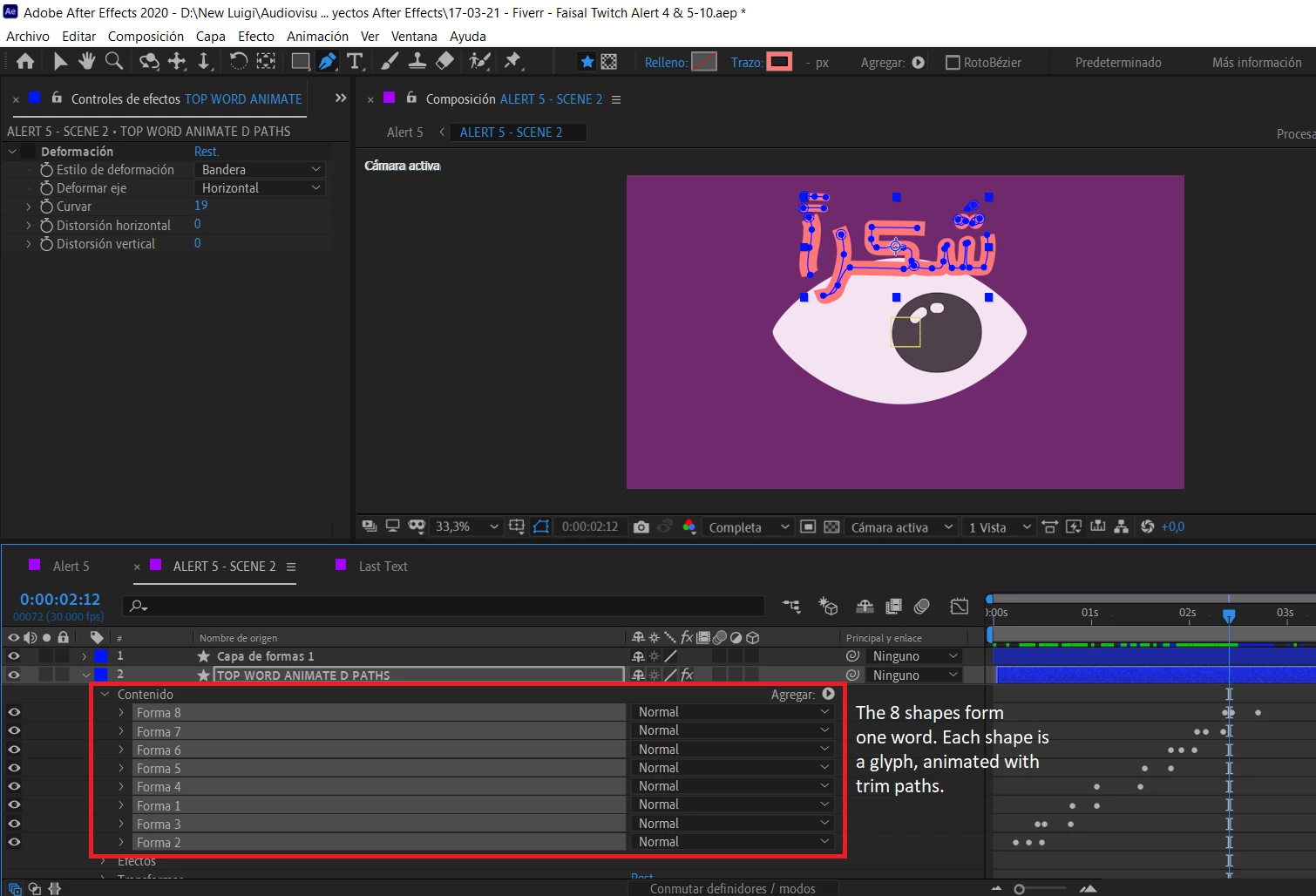


I need this shape layer to follow a curved path (like moving along the curve of the eye, see image below).
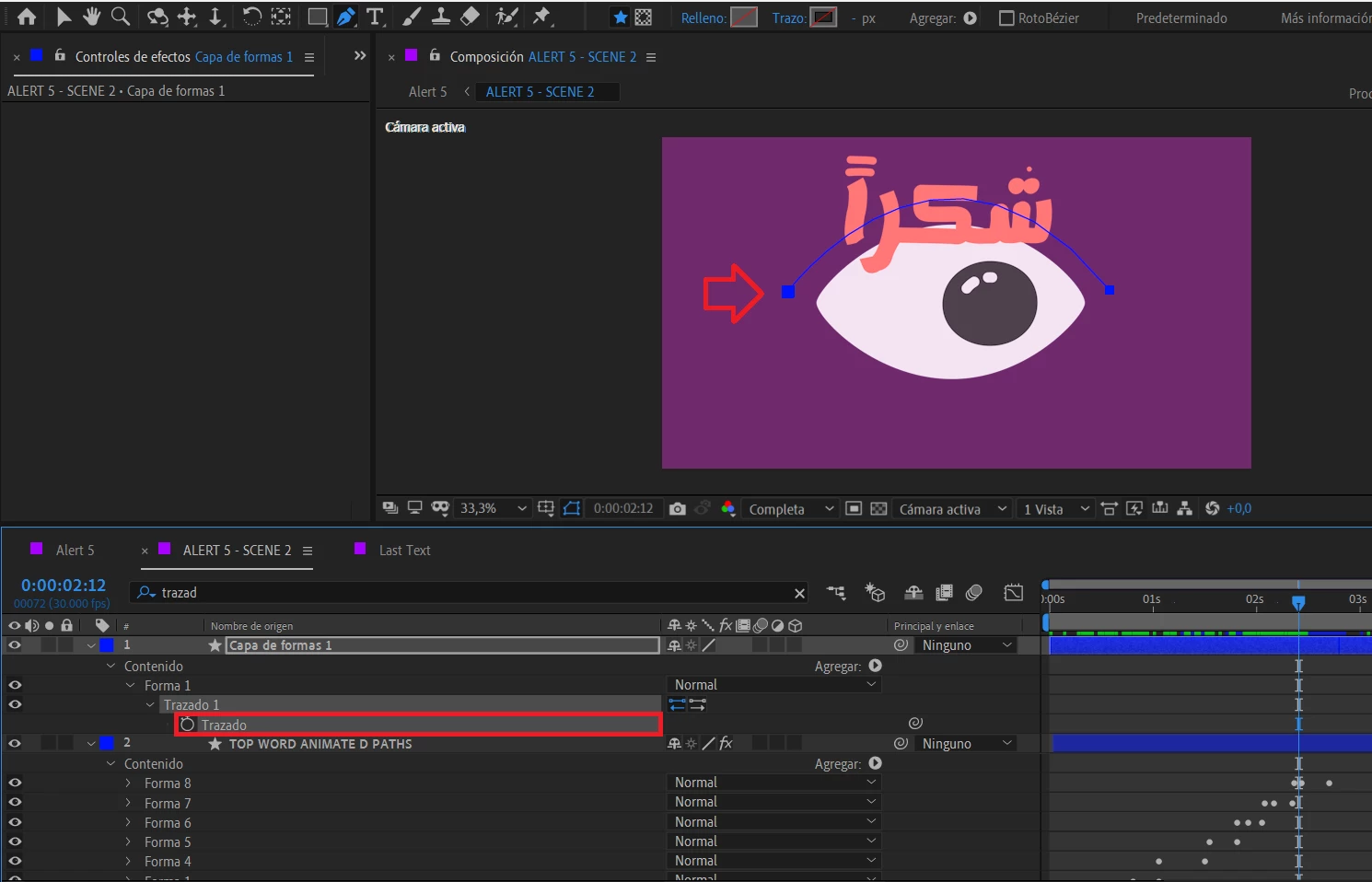


I know how to do this with a text layer, but I can't seem to make it work with a shape layer (and it must be a shape layer because I need the handwritten effect).

I've tried creating a curved path in a new layer and copying the path onto the shape layer's main position, but it doesn't work the way I want. I also pasted that path onto each one of the shape's independent transform positions with no luck either.

Any ideas on how can I do it?

Thank you!

Luigi

This topic has been closed for replies.

2 replies

Community Expert
March 30, 2021

Copying the mask path into the layer's position will work directly, just be sure to do the following:

  • Adjust the text's layer anchor point where you want it to be on the path
  • Create a solid that is the same size as your composition, draw the mask on it, then copy and paste that mask into your text layer's position

Masks are calculated based on layer space, so creating the mask on a layer that is the same size as your comp will help you avoid any problems with copy-paste masks into position

Neon Tundra
Participating Frequently
March 29, 2021

I discovered that pasting the curved path's 'path' onto the shape layer's position worked better once I pre-composed it. I still think it looked much better as a text layer, but I think I can make it work. If anyone knows a better way, I'd love to hear it!

Neon Tundra
Participating Frequently
March 29, 2021

Oh, I'm sorry, I forgot to mention another thing I did. Layer > Transform > Auto-orient helped the word to adapt better to the path. What I meant about the effect looking better on a text layer is that I think you have more options when working with texts.

P.M.B
Legend
March 29, 2021

Pre composing is the way to do it.  You could have also put all the layers under a null (or any single layer with a position property really) and put the null onto the path.  It's simple really you just need them all under a single position property.  As for the text layer having more option...what options exactly are you refferring to?

~Gutterfish