
Known Participant
March 19, 2025
Answered

How do I customise the selected area around a precomp?

  • March 19, 2025
  • 1 reply
  • 269 views

I know there's a way to do this because I've done it before but I cannot remember how to do it at all. 


I have this box with the writing that says "ASHLEY SMYLIE". I want to precompose these things together and then I want it so that the selected area when clicking on the new ashley smylie precomp essentially selects the area immediately surrounding that graphic. At the moment when clicking on this precomp the entire composition's space is selected. This makes it a nightmare when trying to align to center and there seems to be no obvious solution. 
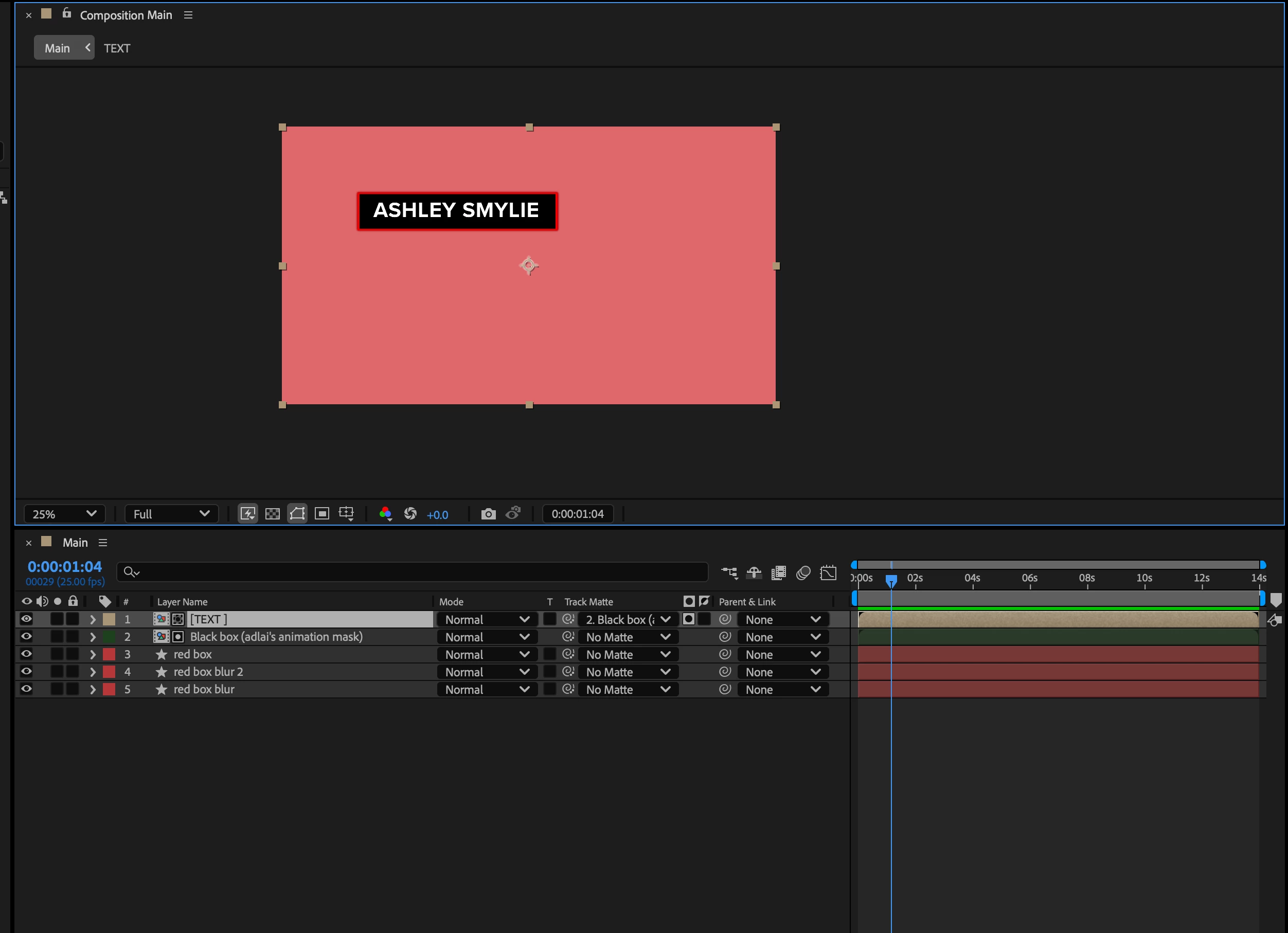
I have no idea how to explain this clearly so I hope this makes sense.

I would prefer if people don't comment saying it's not possible as so many forums on this topic say that but I know there is a way. 


Correct answer Warren Heaton

Sounds like you want to collapse a pre-Comp.  When set, the Layer Handles will show around the nested Layers instead of the nested Comp size.

Based on your screenshot:

  1. Select the Text layer and the Black Box layer and pre-compose them.
  2. Expand the Layer Switches pane and then enable the Collapse Transformations switch for the pre-composed Comp.
  3. With Snapping enabled and "Snap to and show features inside collapsed compositions" set you can use the Pan Behind (Anchor Point) Tool to center the Anchor Point to the center of the features inside the nested Comp.


1 reply

Warren Heaton
Community Expert
Warren HeatonCommunity ExpertCorrect answer
Community Expert
March 19, 2025

Sounds like you want to collapse a pre-Comp.  When set, the Layer Handles will show around the nested Layers instead of the nested Comp size.

Based on your screenshot:

  1. Select the Text layer and the Black Box layer and pre-compose them.
  2. Expand the Layer Switches pane and then enable the Collapse Transformations switch for the pre-composed Comp.
  3. With Snapping enabled and "Snap to and show features inside collapsed compositions" set you can use the Pan Behind (Anchor Point) Tool to center the Anchor Point to the center of the features inside the nested Comp.