Hugh Betcha
Legend
July 25, 2018
Answered

How the *&^%$ do I greenscreen this?
  • July 25, 2018
  • 3 replies
  • 1096 views

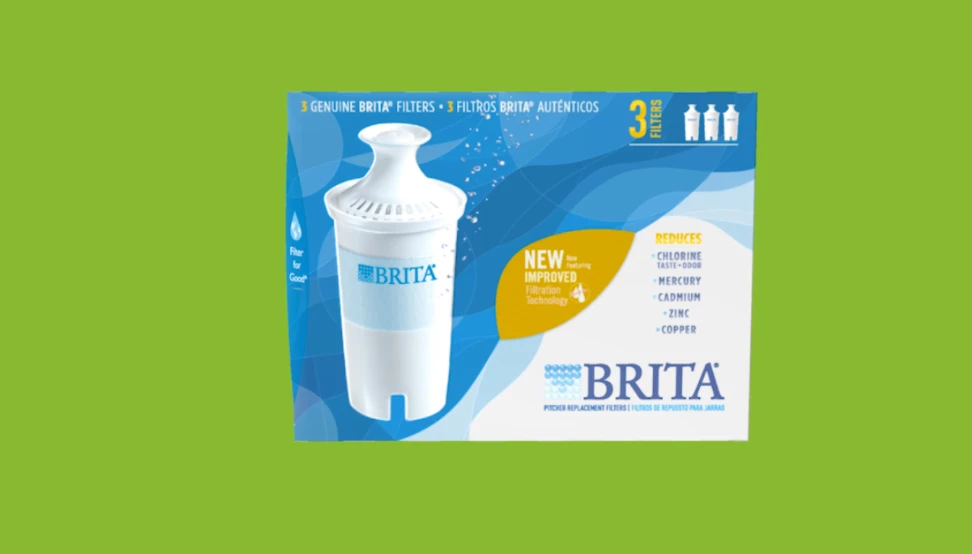
I feel like this should be easy - the box rotates/changes, but I can't get rid of the green background and replace it with another image (or footage). I'm kind of new to AE. On the PC version, I downloaded an effect that was like a magic wand... but at work I'm on a Mac.

    This topic has been closed for replies.
    Correct answer Hugh Betcha

    Well, FYI I ended up using a combo of Keylight (for outer boundary) and a moving mask.

    I made 2 instances of the footage:

    1. Footage with Keylight to extract green bacckground

    2. Duplicate of footage with a rough moving mask - this enabled me to maintain the color on the interior of the carton

    3 replies

    Hugh Betcha
    Hugh BetchaAuthorCorrect answer
    Legend
    July 26, 2018

    Well, FYI I ended up using a combo of Keylight (for outer boundary) and a moving mask.

    I made 2 instances of the footage:

    1. Footage with Keylight to extract green bacckground

    2. Duplicate of footage with a rough moving mask - this enabled me to maintain the color on the interior of the carton

    MyerPj
    Community Expert
    Community Expert
    July 25, 2018

    I'm barely a beginner with A/E, so take this with a grain of salt.

    It took me about 1 second in Photoshop to remove all the green and have just that box as a graphic? I can use it like that ie: original size, with transparent background, or crop it now, so the box is a full image with no boarders.

    1 click with the magic wand, then the delete key produced the image below.

    Community Expert
    July 25, 2018

    If the footage is a still shot then I'd just draw a mask around the box and then animate the position and rotation,

    If the footage is a moving shot of the box spinning in and you want to preserve that exact motion then you just need to learn how to use Keylight. It will take some tweaking to create a decent matte that doesn't bleed into the yellow/green areas on the box. Keying is seldom a one-click process.

    To learn how to use Keyight type Keylight in the search help field in the top right corner of AE and do some studying. You can't learn how to use AE without doing some studying. The app and the procedures are just way to complicated and almost nothing is automatic.

    If you are working with a still image, yes, the easiest thing to do would be to just crop it in Photoshop or draw a mask.

    ScooterD76
    Legend
    July 25, 2018

    A workaround I used to use on an older version when having trouble with green screens I would use "difference Matte", the source layer being a solid whos color is eyedroppered from your footage.

    Dave_LaRonde
    Inspiring
    July 25, 2018

    I'd start by applying the Keylight effect to that image.  It ought to work well.

    Hugh Betcha
    Legend
    July 25, 2018

    I did start that way, however it really didn't stay in the green areas - it encroached upon some of the inner elements...

    Dave_LaRonde
    Inspiring
    July 25, 2018

    Plan B would then be to mask out the green area.  Mocha would be the tool to use.  Since your new, don't expect to use it intuitively.  You will definitely need to watch tutorials on its correct use -- you can't describe its use adequately in a simple post.