

How to adjust the position of layer contents (individual shapes) without moving the entire layer
I'm having trouble getting individual shapes (contents) within the same layer to work the way I want.
Some background: I've done lots of work with five stars for review images for brand work and I usually make them five separate shapes on their own composition but I'm trying to have them all in one layer so instead of making a bunch of different star compositions that then get placed into the final destination composition, I can just copy the same layer and adjust the stars accordingly per execution.
For example, I have five stars constructed like this:
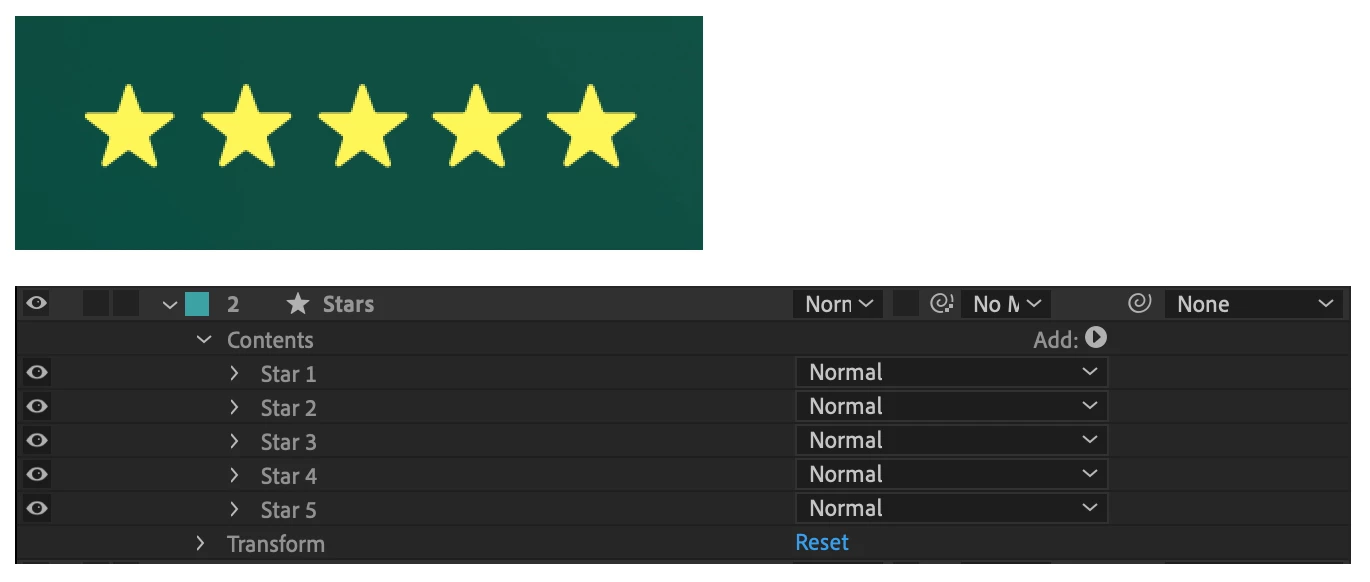
I think my main issue working with the individual shapes (contents) within a layer is when attempting to adjust their position keyframes. The way I create their position movements is by selecting them all individually in their current placement, move them around together to set the all the position keyframes, and then I'll go back and move the keyframes around for timing (i.e. the first star bounces, then the second, and so on.) When each star is on its own layer this is easy peasy but when they're all on the same layer, instead of adjusting the position of each individual shape, it reverts to move the entire layer's position. I don't want them all to bounce at the same time.
I should also add when I'm setting their position keyframes, it's easiest (for me) to select the layers and drag them into place within the composition rather than adjusting coordinates, especially with five individual shapes. So the issue is when I select Star 1, 2, etc. then go to move them, it changes the selection to the entire layer and moves it as a whole instead. I'm pretty certain this is because I selected each of the contents because if I select one or two, it doesn't revert to selecting the entire layer.
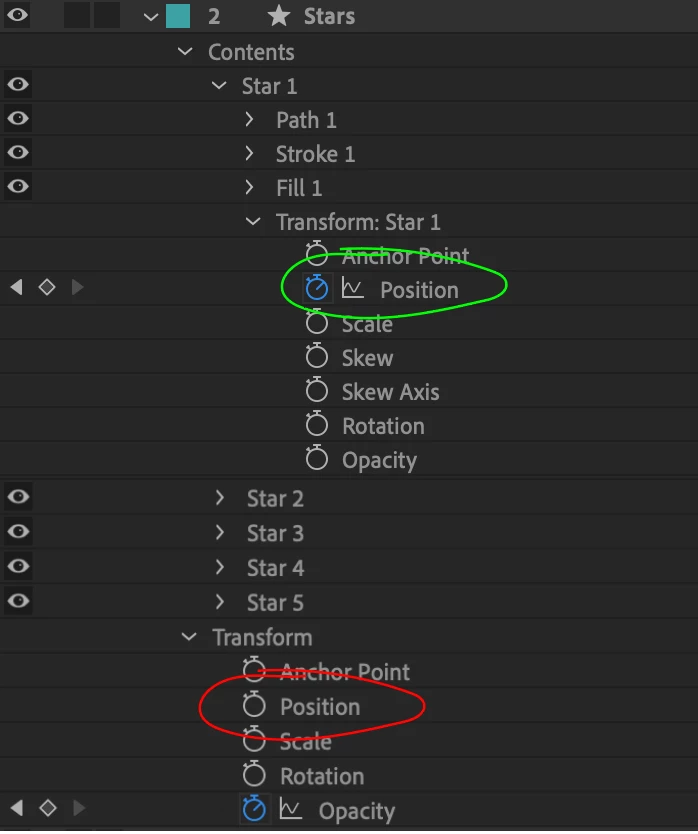
Attached a video example where I made it work using shape contents on the same layer but it was a pain. So, is there a way to do what I'm trying to do? Maybe the issue is what I'm selecting but I've tried it by selecting each individual shape (Star 1, 2, etc.), then each individual shape's transform panel, as well as each individual shape's position controls. I noticed sometimes it would work but then it would do the entire shape again the next time.
 AdChoices