Participant
February 4, 2024
Answered

How to anchor Essential Graphics template to corner?

  • February 4, 2024
  • 1 reply
  • 227 views

How do I make my .mogrt always anchor to the bottom left corner when imported into premier, regardless of resolution?

This topic has been closed for replies.
Correct answer Rick Gerard

MOGRTs, Essential Graphics, do not have any way I know of to determine the size of the Sequence they are used in. You can determine the size of a comp in After Effects, but you cannot have an expression or script look at the frame size in Premiere Pro.


To solve the problem, I usually create a drop-down menu based on frame size that moves the graphic around. My usual list looks like this:

  1. 4K
  2. HD
  3. Social Square
  4. Social Portrait


The position and size (scale) of all of the elements in the scene are tied to if/else arguments that specify where they go and what the size is when the end user picks the frame size using the menu. I created a Shape layer with multiple rectangles and set it as a guide layer to help with positioning in After Effects. It's a pretty straightforward workflow, and the AE project looks something like this:
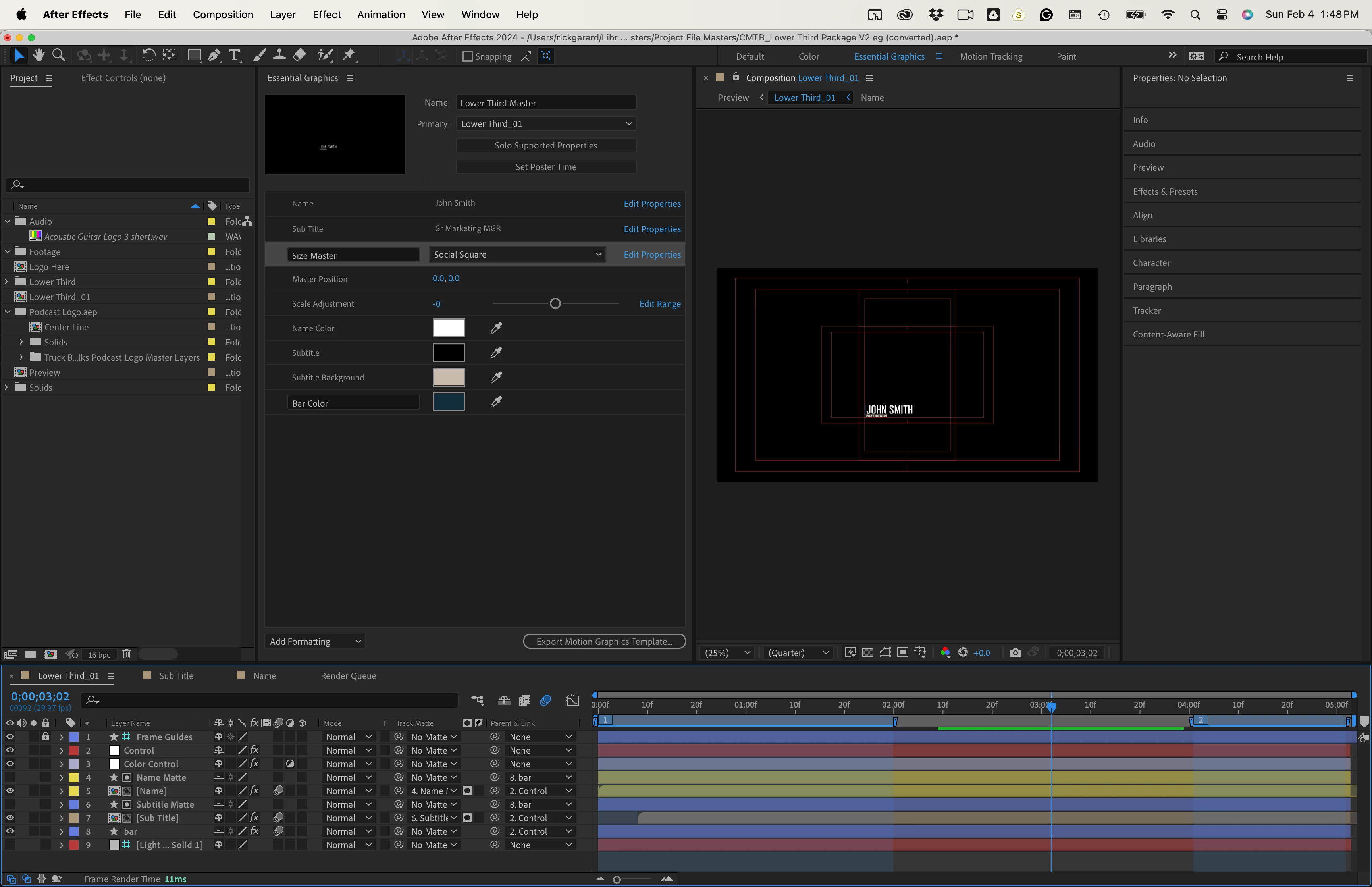
The Comp is 4K because that's the maximum frame size for this client. The Comp uses a simple Control Null to control the position and scale of the Name and Subtitle layers as well as the matte for the Subtitle. Here are the expressions:


// POSITION
frmSize = effect("Size Master")("Menu");
frmAdj = effect("Master Position")("Point");
if (frmSize == 1){
	value + frmAdj;
}
if (frmSize == 2){
	value + frmAdj + [324, 10];
}
if (frmSize == 3){
	value + frmAdj + [324, 350];
}
else if (frmSize == 4){
	value + frmAdj + [-760, 520];
}

// SCALE
frmAdj = effect("Master Scale")("Slider");
frmSize = effect("Size Master")("Menu");
if (frmSize == 1){
	s = frmAdj - 25;
}
if (frmSize == 2){
	s = frmAdj - 50;
}
if (frmSize == 3){
	s = frmAdj - 50;
}
else if (frmSize == 4){
	s = frmAdj;
}
value + [s, s]


That should get you started.

1 reply

Rick GerardCommunity ExpertCorrect answer
Community Expert
February 4, 2024

MOGRTs, Essential Graphics, do not have any way I know of to determine the size of the Sequence they are used in. You can determine the size of a comp in After Effects, but you cannot have an expression or script look at the frame size in Premiere Pro.


To solve the problem, I usually create a drop-down menu based on frame size that moves the graphic around. My usual list looks like this:

  1. 4K
  2. HD
  3. Social Square
  4. Social Portrait


The position and size (scale) of all of the elements in the scene are tied to if/else arguments that specify where they go and what the size is when the end user picks the frame size using the menu. I created a Shape layer with multiple rectangles and set it as a guide layer to help with positioning in After Effects. It's a pretty straightforward workflow, and the AE project looks something like this:

The Comp is 4K because that's the maximum frame size for this client. The Comp uses a simple Control Null to control the position and scale of the Name and Subtitle layers as well as the matte for the Subtitle. Here are the expressions:


// POSITION
frmSize = effect("Size Master")("Menu");
frmAdj = effect("Master Position")("Point");
if (frmSize == 1){
	value + frmAdj;
}
if (frmSize == 2){
	value + frmAdj + [324, 10];
}
if (frmSize == 3){
	value + frmAdj + [324, 350];
}
else if (frmSize == 4){
	value + frmAdj + [-760, 520];
}

// SCALE
frmAdj = effect("Master Scale")("Slider");
frmSize = effect("Size Master")("Menu");
if (frmSize == 1){
	s = frmAdj - 25;
}
if (frmSize == 2){
	s = frmAdj - 50;
}
if (frmSize == 3){
	s = frmAdj - 50;
}
else if (frmSize == 4){
	s = frmAdj;
}
value + [s, s]


That should get you started.

